
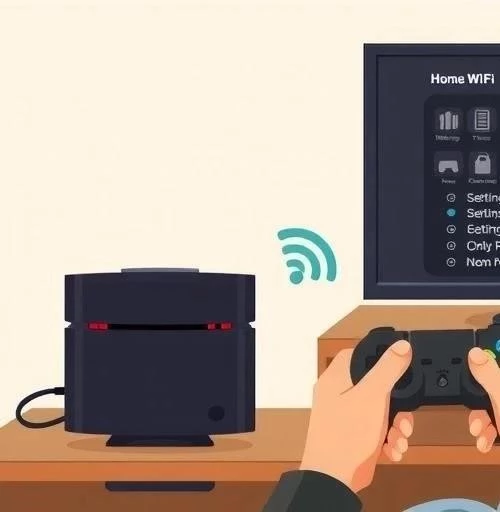
You can connect most PlayStation 3 consoles to a wireless network through the system’s Network Settings. The menus are straightforward‚ but older Wi-Fi standards and router security settings can sometimes cause problems. Follow the steps below to connect‚ test the connection‚ and troubleshoot common errors.
Before you begin
- Check that your PS3 has wireless capability. Most PS3 models have built-in Wi-Fi. The original 20 GB model is an exception and may require a wired Ethernet connection or a compatible USB network adapter.
- Have your Wi-Fi name and password ready. The network name is also called the SSID. Passwords are case-sensitive‚ so check capital letters‚ numbers‚ and symbols.
- Use a compatible Wi-Fi band. The PS3 connects to 2.4 GHz Wi-Fi‚ not 5 GHz. If your router uses one name for both bands‚ check that 2.4 GHz is enabled.
- Keep the console near the router for setup. A weak signal can prevent the initial connection or cause the test to fail.
Connect the PS3 to a wireless network
- Turn on the PS3 and sign in to a local user account. You do not need to sign in to PlayStation Network to configure Wi-Fi.
- From the XMB home screen‚ move to Settings‚ then select Network Settings.
- Choose Internet Connection Settings. If the console warns that it will disconnect from the Internet‚ select Yes.
- Select Easy for the simplest setup. Easy configuration normally obtains the IP address and DNS settings automatically from your router.
- Choose Wireless as the connection method‚ then select Scan. The console will search for nearby Wi-Fi networks.
- Highlight your network name and press the X button. If you cannot see it‚ check that the router is broadcasting its SSID and that its 2.4 GHz network is active.
- Select the security type shown for your network. Most home networks use WPA-PSK or WPA2-PSK. Enter the Wi-Fi password exactly as it is set on the router‚ then confirm the entry.
- Review the settings and choose Test Connection. Wait while the PS3 checks for an IP address‚ Internet access‚ and PlayStation Network availability.
If the test reports that obtaining an IP address succeeded and the Internet connection succeeded‚ the console is online. A failure at the PlayStation Network sign-in stage does not necessarily mean Wi-Fi is broken: the local network and Internet connection may work even when PSN is unavailable or your account needs attention.
Entering the password correctly
Use the on-screen keyboard to enter the router’s wireless password. Select each character carefully and check the keyboard’s case and symbol options. A common mistake is confusing a zero with the letter O‚ or entering a capital letter as lowercase. If you are unsure of the password‚ view or change it in the router’s settings‚ or check the label supplied by your Internet provider.
Do not enter your PlayStation account password here. This screen asks for the Wi-Fi network password‚ which is a separate password configured on your router. After the wireless connection works‚ you can sign in to your PlayStation account separately if the service is available.
When to use Custom settings
Choose Custom instead of Easy only if your network requires particular settings or the automatic setup does not work. In most homes‚ select Automatic for IP Address‚ Do Not Set for DHCP host name‚ and Automatic for DNS. Use Automatic for MTU and select Do Not Use for a proxy server unless your network administrator or Internet provider has given you proxy details.
Manual IP and DNS settings are usually unnecessary. Incorrect values can make the console unreachable even when the password is correct. If you do enter a static IP address‚ it must be compatible with your router’s network and must not already be assigned to another device. When in doubt‚ return to Easy setup and let the router assign the settings automatically.
If your network is hidden
A hidden network does not appear in the scan list. In the wireless setup‚ choose the option to enter the network name manually‚ type the SSID exactly as configured‚ and select the correct security type before entering the password. The name is case-sensitive. If the console still cannot connect‚ temporarily enable SSID broadcasting in your router settings and try scanning again.
Troubleshooting common connection problems
The PS3 cannot find the Wi-Fi network
Confirm that the router’s 2.4 GHz wireless network is enabled and broadcasting. A PS3 cannot connect to a 5 GHz-only network. If the router combines 2.4 GHz and 5 GHz under a single network name‚ try giving the bands separate names temporarily‚ then choose the 2.4 GHz name on the console. Move the PS3 closer to the router and scan again. Also restart the router if other devices cannot see the network.
The console says the password is incorrect
Re-enter the password slowly‚ paying attention to uppercase letters‚ punctuation‚ and similar-looking characters. Check the router’s security settings and make sure you selected the matching security type on the PS3. If you have recently changed the Wi-Fi password‚ delete or replace the saved connection settings and enter the new password. Avoid changing router security until you know how to restore its original configuration.
The IP address test fails
Restart both the router and the PS3‚ then run the connection setup again using Easy settings. Make sure DHCP is enabled on the router; DHCP is the feature that automatically assigns local network addresses. If several devices are connected‚ the router may have reached its address limit. Disconnect an unused device or check the router’s DHCP settings.
The PS3 connects to the router but not the Internet
Check whether the Internet works on a phone or computer using the same Wi-Fi network. If it does not‚ the issue is probably with the router or Internet service rather than the console. If other devices are online‚ restart the router‚ check parental controls or access restrictions‚ and repeat the PS3 connection test. You can also try automatic DNS settings if you previously entered DNS values manually.
The connection is slow or keeps dropping
Improve the signal by moving the console or router‚ reducing obstacles‚ and avoiding placement inside a closed cabinet. Other nearby wireless devices can interfere with 2.4 GHz Wi-Fi. If possible‚ change the router’s 2.4 GHz channel using its administration page. For a more stable connection‚ connect the PS3 to the router with an Ethernet cable; wired networking is also a useful test to determine whether the problem is specifically wireless.
The router uses newer security settings
Some newer routers are configured for WPA3-only security‚ which the PS3 may not support. If the console cannot connect‚ check the router’s security options and use a compatible WPA2-Personal setting with AES‚ if available. Do not use an open‚ unprotected network as a permanent workaround‚ and do not weaken security across your whole network without considering the effect on other devices. Router menus vary‚ so consult the router maker’s instructions.
Confirming that you are connected
After the test finishes‚ the results screen shows the status of each stage. “Obtaining IP Address” and “Internet Connection” should show Succeeded. If you want to check the saved configuration later‚ go to Settings > Network Settings and review the connection status or run Test Connection again. A successful Internet test confirms that the PS3 can reach the Internet; it does not guarantee that every online game or service is currently operating.
Frequently asked questions
Can every PS3 connect to Wi-Fi?
No. Most models include built-in wireless networking‚ but some early original models do not. Check the model number on the console if the Wireless option is missing. An Ethernet cable is the simplest alternative for a model without Wi-Fi.
Does the PS3 support 5 GHz Wi-Fi?
No. Use a 2.4 GHz network. A dual-band router can still serve the PS3‚ but the console must connect to its 2.4 GHz band.
Do I need a PlayStation Network account to connect?
No. You can configure Wi-Fi and test Internet access without signing in. A PSN account is only needed for services that require it‚ and online service availability can vary.
Can I use an Ethernet cable instead?
Yes. Connect an Ethernet cable from the PS3’s LAN port to a router‚ then open Settings > Network Settings > Internet Connection Settings and choose Easy setup. A wired connection is often more reliable and avoids wireless compatibility issues.
Quick checklist
- Choose Settings > Network Settings > Internet Connection Settings.
- Select Easy > Wireless > Scan‚ then choose your network.
- Enter the router’s Wi-Fi password‚ not your PSN password.
- Use the router’s 2.4 GHz band and a compatible security mode.
- Run Test Connection; if it fails‚ identify which stage failed and troubleshoot that part.
In most cases‚ selecting the correct 2.4 GHz network‚ entering its password accurately‚ and using Easy configuration is all that is needed. If wireless remains unreliable‚ test with Ethernet or check the router’s band‚ security‚ and DHCP settings.


1 Comment. Оставить новый
The step-by-step instructions and reminders about 2.4 GHz Wi-Fi make this guide easy to follow. The troubleshooting tips are especially helpful for older PS3 consoles.