
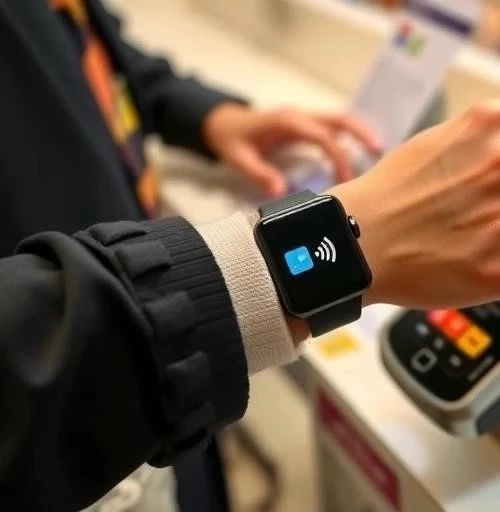
Apple Watch Series 7 can make contactless payments through Apple Pay. Once a supported payment card is added to the Wallet app, you can pay at compatible contactless terminals without taking your iPhone or card out of your pocket. The watch must be set up with a passcode, and Apple Pay must be available in your country or region. Your bank and card also need to support the service.
Before you begin
- Pair the watch with an iPhone and complete its basic setup.
- Sign in to your Apple Account on the iPhone and turn on two-factor authentication if prompted.
- Set a passcode on the watch. Apple Pay requires one because it helps protect access to payment cards.
- Check that your card issuer and the country or region support Apple Pay. Availability and eligible cards vary.
- Update iOS and watchOS if an update is needed, and make sure the devices can communicate during setup.
Add a card to Apple Watch
- On the paired iPhone, open the Watch app.
- Tap My Watch, then choose Wallet & Apple Pay. Depending on your iOS version, the wording or layout may differ slightly.
- Tap Add Card. Follow the on-screen instructions to scan the card or enter its details manually. If the card is already in Apple Wallet on the iPhone, you may be able to add it to the watch by selecting it from the available cards.
- Complete any verification requested by your bank. This may involve a text message, a phone call, or the bank’s app. A card is ready to use only after the issuer approves it and it appears in Wallet on the watch.
Cards on an iPhone and an Apple Watch are provisioned separately. Having a card in Wallet on the phone does not necessarily mean it has been added to the watch. To check, open the Wallet app on the watch and look for the card. You can add more than one eligible card and select a default card in the iPhone’s Watch app under Wallet & Apple Pay.
Pay at a contactless terminal
- At checkout, look for the contactless payment symbol or ask whether the terminal accepts contactless cards.
- Double-click the side button on the Apple Watch. This is the flat button below the Digital Crown, not the rotating crown itself.
- Your default card should appear. To use another card, swipe through the cards on the watch and select the one you want.
- Hold the watch display close to the contactless reader, with the screen facing the reader. Keep it there until you feel a tap and hear a confirmation tone, or until the terminal indicates that the payment is complete.
- If the terminal asks for a PIN, follow its instructions. Some purchases or payment systems may require additional verification.
You do not normally need to open the Wallet app first or wake the screen before double-clicking the side button. You also do not need to connect the watch to the internet at the moment of payment, though the card must have been set up and the terminal must be able to process the transaction. A merchant may set its own contactless limits or request another payment method.
Using Apple Pay on public transport
Transport systems differ. Some accept a regular payment card added to Wallet; others require a transit card, a particular travel card, or an eligible express mode. Check the transport operator’s instructions and the Wallet settings for your location. If express travel is supported and configured, you may be able to tap the watch at the reader without double-clicking or selecting a card. Otherwise, use the standard payment steps and follow the operator’s directions. Make sure you use the same card or travel method when required for both entry and exit.
Security and everyday use
Apple Pay uses a device-specific payment number and transaction-specific security information rather than sending the printed card number to the merchant. Payment details are protected by the watch’s security features, but you should still protect your passcode and avoid sharing it. When you remove the watch from your wrist, wrist detection locks it; enter the passcode to unlock it again. Do not disable the passcode if you want to use Apple Pay.
If the watch is lost, mark it as lost or remove its payment cards through the Find My service or your Apple Account, and contact the card issuer if needed. You can also remove a card from the Watch app by opening Wallet & Apple Pay, selecting the card, and choosing the removal option. Removing a card from the watch does not necessarily cancel the physical card.
If a payment does not work
- The side button does not open Wallet: Check that a passcode is set, Apple Pay is available, and a card has been approved and added to the watch. Restarting the watch and iPhone may help.
- The reader does not respond: Confirm that it accepts contactless payments, then hold the watch near the reader for a few seconds. Try positioning the watch face closer to the contactless symbol.
- The card is declined: The issuer may need to approve the card, or the account may have a restriction. Check with the bank; adding the card again will not resolve every issuer-side issue.
- You cannot add a card: Verify the billing details, region, software version, and issuer compatibility. Follow any verification request from the bank or contact its support team.
Apple Watch Series 7 uses the same basic Apple Pay process as other supported Apple Watch models: add and verify a card, double-click the side button, then hold the watch near an accepted reader. Exact availability, transport features, and verification requirements depend on the country, bank, card, and merchant.

3 Comments. Оставить новый
The guidance is organized in a helpful sequence, from preparation to adding a card. Mentioning issuer verification and the passcode requirement helps set clear expectations.
This is a practical overview for anyone setting up Apple Pay on an Apple Watch. It appropriately points out that availability depends on the country, bank, and card.
The instructions clearly explain the setup requirements and the steps for adding a card. The note that cards are provisioned separately on the iPhone and watch is especially useful.