
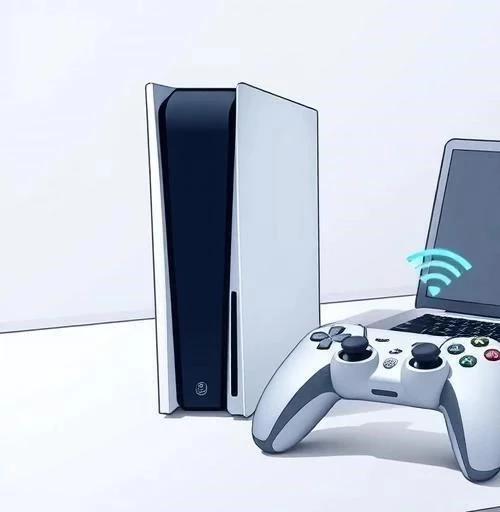
Your PS5 is a small cinema of games; your MacBook is a remarkably portable window․ The trick is that you usually cannot join them with a simple HDMI cable․ Most MacBook HDMI ports—and every USB-C port used with an HDMI adapter—send video out to a display․ They do not accept the picture coming from a console․ To play on your Mac, choose one of two routes: stream the PS5 with Sony’s free PS Remote Play app, or send its HDMI signal through a capture card․
For most people, start with Remote Play․ It costs nothing, requires no capture hardware, and works on Apple silicon and Intel Macs that meet Sony’s current requirements․ A capture card is the alternative when you want a wired video feed, are recording or streaming gameplay, or cannot get a satisfactory Remote Play connection․ This guide explains both, including controllers, network setup, common snags, and what to expect from each method․
At a glance: choose your connection
- Remote Play: PS5 streams the game over your network to an app on the Mac․ Best for convenience and ordinary play․
- Capture card: PS5 sends HDMI video to a capture device, which connects to the Mac by USB․ Best for capture workflows, but it requires extra hardware and may add delay․
- Direct HDMI cable: Usually does not work․ The MacBook’s display connection is an output, not an HDMI input․
Method 1: Play with PS Remote Play
What you need
- A PS5 with internet access and the latest available system software․
- A MacBook running a macOS version supported by the current PS Remote Play app․ Check Sony’s official Remote Play page before installing; compatibility requirements can change․
- A PlayStation Network account․ For remote access, use the account linked to the console․
- A stable broadband connection․ Ethernet for the PS5 and a strong Wi-Fi connection for the Mac are a good starting point․
- A compatible controller, such as a DualSense or DualShock 4, if you do not want to use the app’s on-screen controls․
Remote Play does not move the game onto your Mac․ The PS5 still runs it, while the console sends a live video stream to your laptop and receives your button presses in return․ Think of the MacBook as a remote screen and control station, not as a replacement PlayStation․ The console must be powered on or placed in Rest Mode with the appropriate settings enabled․
Prepare the PS5
- On the PS5, open Settings and go to System > Remote Play․
- Turn on Enable Remote Play․
- If you want to wake the console while it is in Rest Mode, open Settings > System > Power Saving > Features Available in Rest Mode․ Enable Stay Connected to the Internet and Enable Turning On PS5 from Network․
- Sign in to the PS5 with the PlayStation Network account you plan to use in the Mac app․ Keep the console’s software updated․
Menu wording may vary slightly by system software version․ The important pieces are enabling Remote Play and allowing network wake-up if you expect to connect while the console is resting․ Rest Mode is not the same as shutting the PS5 down completely: a fully powered-off console cannot be woken over the network․
Install the app on your MacBook
- Visit Sony’s official PS Remote Play page and download the macOS app from there․ Avoid unofficial download sites․
- Open the downloaded installer and follow the on-screen instructions․ If macOS asks you to approve an installation or permission, review the prompt and proceed only if the app came from Sony’s official source․
- Launch PS Remote Play, accept the relevant terms, and sign in to the same PlayStation Network account used on the console․
The app is available for supported Intel and Apple silicon Macs, including M1-series models, subject to Sony’s current macOS requirements․ You do not need a special M1 edition of the console or a separate PS5 application․ If the app will not install, first check the official compatibility list and update macOS if appropriate․
Connect the controller
A controller connected to the Mac sends its inputs through Remote Play to the PS5․ To pair a DualSense, connect it to the Mac with a USB-C data cable, or hold the controller’s Create button and PS button together until the light bar flashes․ In macOS, open System Settings > Bluetooth, then select the controller when it appears․ For a DualShock 4, hold Share and PS until its light flashes, then choose it in Bluetooth settings․
A cable is often the simplest first test․ Make sure it supports data, not just charging: some charge-only cables will power a controller without letting the Mac pair with it․ For a stable wired connection, leave the controller connected by USB while playing․ Controller features can differ between Bluetooth and USB, between macOS versions, and between games․ If a button, headset feature, microphone, or haptic effect does not behave as expected, test another connection method and consult the game’s and Sony’s compatibility information․
Start Remote Play
- Make sure the PS5 is on, or in Rest Mode with network wake-up enabled․
- Open PS Remote Play on the Mac and sign in with the account paired with that PS5․
- Choose PS5 in the app and let it search for your console․ The first connection is easiest when the Mac and PS5 are on the same home network․
- If the app finds the console, select it․ The PS5 screen should appear in the Remote Play window; use the connected controller to navigate․
If automatic discovery fails, the app may offer a way to link the console manually․ On the PS5, look under Settings > System > Remote Play > Link Device for a pairing code, then enter it in the app when prompted․ Follow the current app instructions, since screens and labels can change with updates․
Tune the stream
Open the app’s settings before connecting and choose a video resolution and frame-rate option that your network can sustain․ Higher settings can look sharper, but they need more bandwidth and a steadier connection․ If the image stutters, drops in quality, or feels delayed, reduce the resolution or frame rate first․ Close other bandwidth-heavy activities, move closer to the router, or connect the PS5 to the router with Ethernet․ If possible, connect the Mac to a strong 5 GHz or newer Wi-Fi network․
For games where timing matters, even a good stream can feel different from playing directly on a television․ Network distance, Wi-Fi interference, router performance, and the console’s internet connection all affect responsiveness․ A short session in the same room is a useful test before trying to play from another part of the house—or from somewhere far away․
Playing away from home
Remote Play can work over the internet, not just across your home Wi-Fi․ First make sure the Mac connects successfully while you are near the PS5; this confirms that the account and console are set up correctly․ Leave the PS5 in Rest Mode with the network options enabled, and check that it has a reliable internet connection․ Then try the Mac on another network․
Remote connections are less predictable than local ones․ Your home internet’s upload speed matters because the console is sending the game stream outward; the network where the Mac is being used matters too․ Public Wi-Fi may block or restrict the connection, and a weak mobile hotspot may run out of data or introduce noticeable lag․ If the console cannot be found away from home, test locally again before changing router settings․ Do not expose network services or alter security settings unless you understand the consequences and have a specific reason․
Method 2: Use a USB capture card
A capture card converts the PS5’s HDMI output into a video feed that Mac software can display or record․ This route is handy for streaming, recording, or bringing console video into a production workflow․ It is not the same as plugging HDMI into a MacBook: the card is the device that accepts HDMI input․
What you need and how to connect it
- An HDMI capture card that supports the resolution and frame rate you want and works with macOS․
- An HDMI cable from the PS5 to the capture card’s HDMI IN port․
- A USB cable from the capture card to the MacBook․ Use the appropriate adapter or hub if the card’s connector does not match your Mac․
- Optional: a second HDMI cable from the card’s HDMI OUT port to a television or monitor, if the card supports passthrough․
- Capture or video software compatible with the card, such as the manufacturer’s app or a supported production tool․
- Connect the PS5’s HDMI output to the capture card’s HDMI input․
- Connect the card to the Mac over USB, following the manufacturer’s instructions․
- Open the card’s software or your chosen capture app, then select the card as the video source․ Choose it as the audio source too if you want game sound․
- If using passthrough, connect the card’s HDMI output to a television or monitor and select the correct display input․
- If the software shows a black screen, check the PS5’s Settings > System > HDMI menu and turn off Enable HDCP for supported gameplay capture․ Protected video apps may not display while HDCP is disabled․ Turn it back on when you need protected content․
Capture cards vary: some offer low-latency passthrough but show a delayed image in the Mac app; others have limits on resolution, refresh rate, HDR, or audio․ Read the specifications rather than assuming that every device supports the PS5’s highest output․ If you intend to play by watching the preview inside the Mac app, check its capture latency․ For responsive play, a television connected to passthrough is often the better screen, while the Mac handles recording or streaming․
Why a plain HDMI cable usually fails
It is an easy mistake: the PS5 has HDMI out, the Mac appears to have a way to connect a display, so a cable seems like the missing link․ But the HDMI socket on a MacBook model that has one is generally an output for an external display․ USB-C-to-HDMI adapters also typically carry video out from the Mac․ Neither one turns the laptop screen into an HDMI monitor․ Use Remote Play for a no-cost software connection or a genuine capture card for HDMI input․
Troubleshooting: quick fixes for common problems
- The app cannot find the PS5: Confirm Remote Play is enabled, both devices have internet access, and you are signed into the correct account․ Test on the same home network, restart the app, and check that the PS5 is awake or correctly configured for Rest Mode․
- It worked once, then stopped: Sign in to the console again if needed, update the PS5 and app, and reconnect locally before trying from outside the home․ A console that has been shut down cannot be woken remotely․
- The stream is choppy: Reduce the app’s video settings, use Ethernet for the PS5, improve the Mac’s Wi-Fi signal, and pause downloads or video streams on other devices․
- The controller will not pair: Charge it, try a known data-capable USB cable, remove an old Bluetooth pairing if necessary, then pair again․ A controller already connected to another device may need to be put into pairing mode again․
- There is picture but no sound: Check the Mac’s output volume and sound device, then inspect the capture app’s audio-source selection or the Remote Play app’s audio settings․
- The capture card shows black video: Verify that the PS5 is connected to HDMI IN, not HDMI OUT, and that the correct source is selected in the software․ For gameplay capture, check HDCP as described above․
- The game feels delayed: Compare Remote Play with the PS5 directly connected to a TV․ Reduce network congestion or capture-preview latency, and use passthrough if your capture card supports it․
What about using two controllers?
Multiple controllers connected to the Mac do not automatically become two local players on the PS5; Remote Play forwards input to the console, and multiplayer support depends on the game, the console’s controller setup, and how that title handles local players․ If you want two people to play on the same PS5, connect and configure the controllers with the console as the game requires․ A controller paired with the Mac for Remote Play is not a promise that every game will recognize it as an additional local player․ Test the specific game and setup before inviting a crowd․
Which method should you choose?
Choose PS Remote Play if you want the simplest, least expensive way to play on the MacBook screen․ It is the right first experiment for most people: install the official app, enable the console setting, pair a controller, and test on your home network․ Choose a capture card if you need HDMI capture, recording, or a streaming setup, and are willing to buy hardware and configure software․ Choose neither if your priority is the lowest possible input delay on a large screen: connect the PS5 directly to a compatible television or monitor․
The most reliable recipe is pleasantly unglamorous: update both devices, test Remote Play beside the PS5, use a real data cable or Bluetooth pairing for the controller, and improve the network before blaming the console․ Once that first connection works, your MacBook can become a portable portal to the games still running at home—without pretending its HDMI port is something it is not․



6 Comments. Оставить новый
The guide keeps the promise of two routes simple while hinting at the real trade-off: convenience versus a more involved capture setup. Clear, calm, and refreshingly cable-aware.
I like that this treats the capture card as a different tool, not a magical upgrade. If your goal is recording or streaming, the extra gear has a clear purpose.
A useful reminder that a MacBook’s screen is not automatically an open window for every HDMI device. This could save readers both money and a mildly embarrassing return trip.
Remote Play sounds like the sensible first move: no new hardware, just a good network and a little patience. The Ethernet-for-the-console tip is especially practical.
The “at a glance” section is a welcome compass in a sea of cables and adapters. It makes the choice feel less like tech roulette.
The HDMI port explanation is the tiny plot twist every MacBook owner needs. I appreciate how the guide clears that up before anyone buys a cable that can only send video the wrong way.