
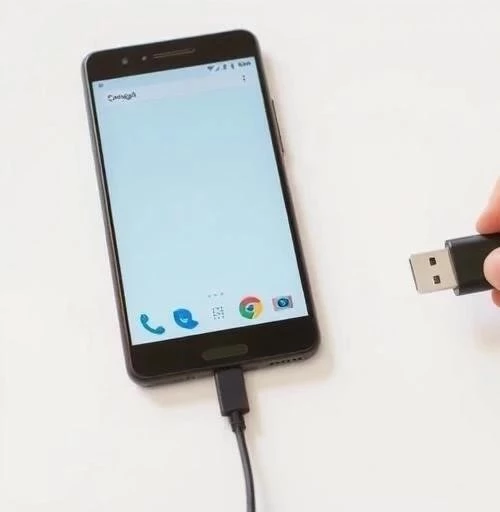
Your Xiaomi phone can be a pocket-sized doorway to the files on a USB flash drive: photos‚ presentations‚ music‚ and that one document you need right now. The trick is giving the phone the right physical connection‚ then letting its file manager do the exploring. Here is a practical guide for Xiaomi phones running MIUI or HyperOS‚ including what to try when the drive refuses to appear.
Check the phone’s USB port
Most newer Xiaomi‚ Redmi‚ and POCO phones have a USB-C port. If yours does‚ the simplest setup is a USB-C flash drive: plug it straight into the phone. A regular USB-A flash drive—the familiar wider rectangular kind—needs a small USB-C-to-USB-A adapter. Choose one that supports data transfer‚ not a charge-only adapter.
Older phones may have a micro-USB port. For those‚ you need a micro-USB OTG adapter‚ sometimes labeled “micro-USB host” or “OTG.” Check the connector carefully before buying: USB-C and micro-USB adapters are not interchangeable. If you are unsure which port your phone has‚ compare its shape with the cable you normally use to charge it.
Connect the drive and open it
- Unlock your phone and connect the flash drive‚ directly or through the adapter.
- Wait a few seconds. A notification may offer to browse the USB drive or open it in the file manager.
- If nothing appears‚ open File Manager (or Files) from the home screen or app drawer.
- Look for a section named USB storage‚ USB drive‚ or External storage. Tap it to view the folders and files.
The wording depends on the phone‚ system version‚ and file-manager app. Some Xiaomi phones detect OTG automatically; others may show an OTG switch in Settings → Additional settings → OTG. If that option exists‚ turn it on‚ connect the drive again‚ and check the file manager. Menu names and availability vary‚ so the absence of an OTG switch does not necessarily mean the phone cannot use a USB drive.
Copy files without losing the plot
To copy a photo or document from the drive to the phone‚ open the USB storage‚ press and hold the item‚ choose Copy‚ then browse to a folder on the phone—such as Download or Documents—and tap Paste. To send files the other way‚ select them in the phone’s storage‚ choose Copy or Move‚ open the USB drive‚ and paste them into the desired folder.
Copy is the cautious choice: it leaves the original where it is. Move removes the original from its starting location after the transfer. For important files‚ copy first‚ open the destination to confirm the files work‚ and only then delete anything you no longer need. Large videos may take a while; keep the phone awake and avoid disconnecting the drive mid-transfer.
If the drive does not show up
- Check the connection. Remove and reconnect the adapter‚ turn the plug over if appropriate‚ and make sure the connector is fully seated. Try another adapter or drive if you can.
- Look for an OTG setting. On some versions‚ OTG can be switched off or may turn itself off after a period of inactivity. Re-enable it if the setting is available.
- Check the file system. Many drives formatted as FAT32 work broadly; exFAT support depends on the phone and software version. NTFS or unusual formats may not be readable. If the phone asks to format the drive‚ pause: formatting erases its contents. Back up the drive using a computer before reformatting it.
- Consider power needs. A small flash drive usually draws little power‚ but some external drives need more than a phone can provide. Try a powered USB hub or a drive with its own power source. A low battery can also make testing harder.
- Restart and check permissions. Reboot the phone‚ reconnect the drive‚ and allow the file manager to access USB storage if Android asks.
If the drive works on a computer but not on the Xiaomi‚ test it with a different‚ known-compatible drive. That helps separate a phone-setting issue from an unsupported format‚ faulty adapter‚ or failing USB stick.
Disconnect it safely
When copying is finished‚ wait until any progress indicator disappears. If your notification shade or file manager offers Eject or Unmount‚ use it before unplugging. If there is no eject button‚ close files and apps using the drive‚ wait a moment‚ and then disconnect it. Pulling a drive during a write can corrupt files—the digital equivalent of yanking a book from someone’s hands mid-sentence.
Quick checklist
USB-C phone: use a USB-C flash drive or a data-capable USB-C-to-USB-A OTG adapter. Micro-USB phone: use a micro-USB OTG adapter. Then check for an OTG option‚ open File Manager‚ and look under USB or external storage. If the drive is still invisible‚ test the adapter and drive‚ consider the file system and power requirements‚ and never approve formatting until your files are backed up.
Once the connection is right‚ a flash drive turns a Xiaomi phone into a handy little file shuttle—no cloud signal‚ login‚ or internet connection required.
7 Comments. Оставить новый
A small guide with a big “why isn’t it showing up?” energy. The note that settings differ between Xiaomi versions is especially reassuring.
The steps are pleasantly grounded: connect, wait, open the file manager, and look for external storage. No magical menu-hunting required.
I like that this guide treats the phone and flash drive as two travelers who need the right translator. Short, clear, and easy to follow while standing in a shop.
Practical without drowning in jargon. The distinction between USB-C and micro-USB could save someone from buying an adapter shaped like the right answer but meant for another question.
The troubleshooting feels like a calm flashlight in a dark drawer: check the port, check OTG, then ask the file manager where the drive went.
A handy pocket guide for turning a Xiaomi into a tiny file-reading station. The charge-only adapter warning is the kind of detail that saves an afternoon.
A useful little map through the adapter jungle. I especially appreciate the reminder that a cable can charge beautifully and still refuse to carry a single file.