
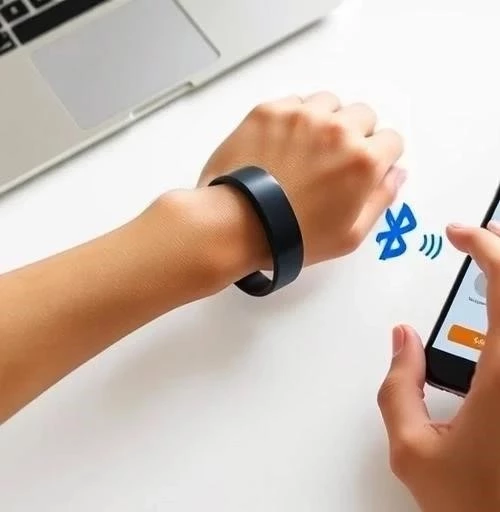
A Xiaomi band is a tiny lighthouse for your daily movement: first you need to give it a phone to signal. The exact app depends on the model. Recent Xiaomi Smart Bands generally pair through Mi Fitness; some older Mi Bands use Zepp Life. Check the box, the band’s QR code, or Xiaomi’s support page for your model before installing anything. Avoid look-alike apps from unofficial websites.
Before you begin
- Charge the band and keep it close to your phone.
- Turn on Bluetooth and connect the phone to the internet.
- Install the recommended app from Google Play or the Apple App Store.
- Allow the app to use Bluetooth and, if requested, nearby-device access. Location permission may also be needed on some Android phones to scan for Bluetooth devices.
Don’t pair the band from the phone’s Bluetooth settings first. Let the official app find it; this avoids the classic “visible, but refusing to talk” problem.
Pair it step by step
- Open Mi Fitness or Zepp Life, sign in or create an account, and choose the correct region if the app asks.
- Tap Device or the add-device button, then select Band. Follow the on-screen instructions; menu names can vary by app version.
- Wait while the phone searches. When your band appears, tap its name and confirm the pairing request on both screens. If a QR code appears on the band, scan it with the app.
- Keep the app open until pairing and any initial sync finish. Then choose notifications, health measurements, and other features you actually want.
Your first sync is a small introduction: the band may set the time, install a firmware update, and learn which wrist it lives on. Keep it near the phone and charged during updates. Don’t close the app or switch Bluetooth off midway.
If the band won’t connect
Charge it, restart Bluetooth, reopen the app, and try again nearby. Check that the band isn’t already linked to another phone or account; unpair it there first if possible. If it was used before, reset it from the band’s settings and retry. On Android, review the app’s nearby-device and battery permissions; battery-saving restrictions can interrupt syncing. On iPhone, confirm Bluetooth access in Settings.
Still stuck? Update the app and phone software, restart both devices, and try the app recommended for your exact model. A factory reset erases unsynced band data, so use it only after simpler fixes. Once connected, open the app occasionally: the band records the journey, but the phone helps it find its way home.


7 Comments. Оставить новый
The “visible, but refusing to talk” line is wonderfully familiar. The practical steps make a fiddly setup feel less like negotiating with a tiny robot.
Clear, calm, and refreshingly free of tech bravado. The checklist gives beginners a little map before they enter the Bluetooth maze.
I appreciate the caution about unofficial apps. A setup guide should help readers find the right door, not send them wandering down a suspicious alley.
This guide treats permissions as part of the puzzle rather than mysterious phone bureaucracy. That small detail may be exactly what gets a stubborn scan moving.
I like the advice to let the app make the first introduction. Bluetooth settings can feel like a crowded reception desk; this gives the band a proper host instead.
A useful reminder that one Xiaomi band name can hide different app histories. Checking the model first could save readers a surprisingly long detour.
The first-sync passage has a nice sense of occasion: the band is not merely connecting, it is moving into its new home. Good advice wrapped in a memorable image.