
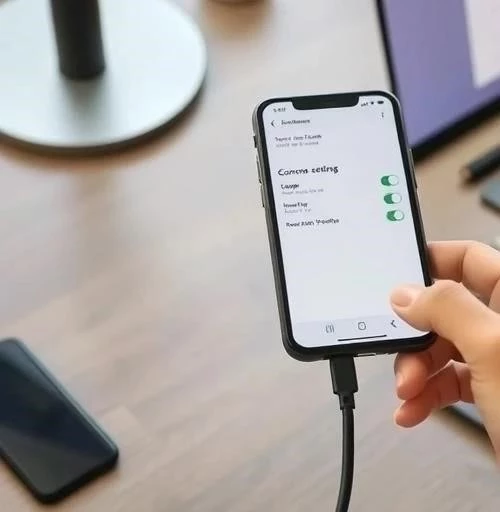
Connecting a Xiaomi phone to a computer lets you transfer photos, videos, music, and documents, make backups, or manage files․ The simplest method is a USB cable․ You can also connect wirelessly, or use Bluetooth for a small number of files․ The instructions below apply to most Xiaomi, Redmi, and POCO phones, although menu names can vary slightly by MIUI or HyperOS version․
Method 1: Connect with a USB cable
- Unlock your phone․ Use a cable that supports data transfer, not a charge-only cable․ Connect the phone directly to a USB port on the computer․ If possible, try another port rather than a hub․
- Choose a USB mode․ A charging notification may appear on the phone․ Tap it, or swipe down from the top of the screen and open the USB connection notification․ Select File transfer or Android Auto/Transfer files (MTP)․ If you only want to import pictures, Photo transfer (PTP) may also work․
- Open the phone on your computer․ On Windows, open File Explorer and select This PC․ Your phone should appear as a portable device․ Open it, then browse the internal shared storage and folders such as DCIM/Camera, Pictures, Download, and Documents․
- Copy files safely․ Drag files between the computer and phone, or use copy and paste․ Wait until transfers finish before unplugging the cable․ Eject the device in Windows if that option is available, then disconnect it․
On a Mac, Android phones generally do not appear in Finder as ordinary USB drives․ Use a trusted, current Android file-transfer application compatible with your macOS version, or transfer files through a cloud service or local network․ Follow the app’s instructions and approve any access prompt on the phone․
If the phone only charges
Charging without a file-transfer prompt is common and usually easy to fix․ Keep the phone unlocked, reconnect the cable, then select File transfer from the USB notification․ Try a different cable known to transfer data and another USB port․ Some cables supplied with accessories are designed only for charging․ Restarting the phone and computer can also help․
If Windows still does not show the device, open Device Manager and check for an Android, MTP, or unrecognized device․ Let Windows search for an appropriate driver or install updates through Windows Update․ Download drivers only from Xiaomi or another reputable source; avoid unknown driver-download sites․ Test the phone on another computer if possible to identify whether the issue is with the phone, cable, or PC․
Connect wirelessly
For occasional transfers, a wireless method avoids cables․ Make sure the phone and computer are on the same trusted Wi-Fi network․ You can upload files to a cloud service from the phone and download them on the computer, or use a reputable local file-sharing tool that supports both devices․ Sign in only through the official app or website, and avoid sending private files over public Wi-Fi․
Bluetooth can work for a few small files, but it is slower than USB or Wi-Fi․ Pair the devices in Bluetooth settings on both, confirm the pairing code, then choose a file on the phone and share it via Bluetooth․ On the computer, accept the incoming transfer․ Menu labels and sharing options depend on the operating system and phone software․
Optional: Enable USB debugging
USB debugging is not needed for ordinary file copying․ It is intended for developers and advanced troubleshooting․ Only enable it if a trusted tool specifically requires it: open Settings > About phone, tap OS version or MIUI version repeatedly until developer options are enabled, then find Developer options > USB debugging․ Names differ by software version․ Approve a computer authorization prompt only if you trust that computer․ Turn debugging off afterward․
Privacy and troubleshooting tips
- Keep the screen unlocked while choosing the USB mode; some phones hide storage when locked․
- Use File transfer (MTP) for folders and files․ PTP is mainly for photos, while charging mode does not expose files․
- If storage is encrypted or protected by a lock screen, unlock the phone before browsing it on the computer․
- Do not disconnect during a copy․ For important data, keep a second backup instead of relying on a single transfer․
- If a work or school computer blocks the connection, ask its administrator rather than bypassing its security settings․
In short: connect with a data-capable cable, unlock the Xiaomi phone, select File transfer, and open it in the computer’s file manager․ If that fails, check the cable and USB mode first; wireless sharing is a convenient alternative․

9 Comments. Оставить новый
Helpful guide. I appreciate that it explains where to find common folders like DCIM and Downloads on the computer.
Good coverage of both Windows and Mac. The note that Android phones do not normally show up in Finder is particularly useful.
The USB instructions are clear and practical, especially the reminder to choose File transfer instead of leaving the phone in charging mode.
A concise and practical overview. It would be handy to have wireless options alongside the USB method.
The reminder to wait for transfers to finish before disconnecting the phone is a small but important detail.
Clear steps and useful troubleshooting advice. The explanation of MTP and photo transfer makes the USB options easier to understand.
This is easy to follow, even for someone who has not transferred files from a Xiaomi phone before.
I like that the article mentions Redmi and POCO as well as Xiaomi, since the steps are often similar across those phones.
The troubleshooting tips are useful. Trying a different data-capable cable is an easy fix that many people might overlook.