
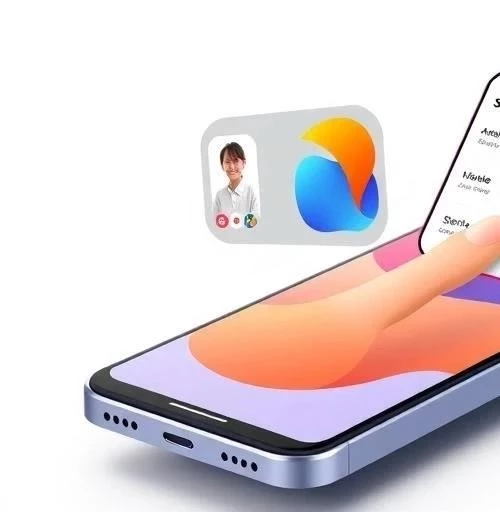
Floating windows let a supported app appear in a small movable panel above another app․ This can be useful for replying to a message, checking a note or using a calculator without leaving the current screen․ The exact controls vary by Xiaomi phone, software version and launcher, so a menu may have a different name or may not be available on every device․
Open an app as a floating window
- Open the app you want to use, then open the Recent apps screen․ Depending on your navigation settings, swipe up from the bottom and pause, or tap the Recents button․
- Find the app card․ On supported versions, tap and hold the card or tap its floating-window icon․ The icon may look like a small window․ If a menu appears, choose Floating window․
- When the panel opens, drag its top bar or handle to move it․ Use the corners or side handles to resize it, if available․ Tap the panel to bring it forward․
Use the floating-windows shortcut
Some MIUI and HyperOS versions provide a shortcut in Control Center․ Swipe down from the top-right of the screen, look for Floating windows or a similar shortcut, and follow the on-screen prompts․ If you do not see it, open Control Center’s edit screen and check whether the shortcut can be added․ Its availability and location depend on the device and system version․
Check Sidebar settings
On some models, Sidebar provides quick access to apps in floating windows․ Open Settings and search for Sidebar, Floating windows or Special features․ If Sidebar is available, enable it, choose when it should appear, and select the apps you want in its app list․ Swipe the sidebar handle inward and tap an app to open it․ Settings names can differ between MIUI, HyperOS and regional builds․
If the option is missing
- Update the phone through Settings > About phone > System update, then check the feature again․
- Try another app․ Not every app supports floating mode, and some restrict resizing or overlays․
- Restart the phone and check that the app is updated․ If a particular app still will not open in a panel, use its normal full-screen view․
- Search Settings for related terms; Xiaomi may move controls after a system update․ Avoid installing unfamiliar apps that claim to unlock system features․
Floating windows may be unavailable on certain models or software versions․ They can also be restricted by an app, work profile, or device policy․ Use the phone’s built-in settings and on-screen instructions, and close a panel by dragging it to the close area or using its close button․

7 Comments. Оставить новый
The article appropriately points readers to Settings search when menu names differ across MIUI and HyperOS versions.
The step-by-step format is straightforward, and the notes about app compatibility help set reasonable expectations.
The instructions cover both opening and adjusting a floating window without assuming that every Xiaomi phone has the same controls.
This is a concise overview of the available options, with helpful caveats about device, launcher and regional differences.
The distinction between the Recent apps method, Control Center shortcut and Sidebar settings makes the guidance easy to follow.
The article clearly explains the main ways to open floating windows and notes that the steps can vary by device and software version.
The troubleshooting section is useful, especially the reminder that some apps may not support floating mode.