
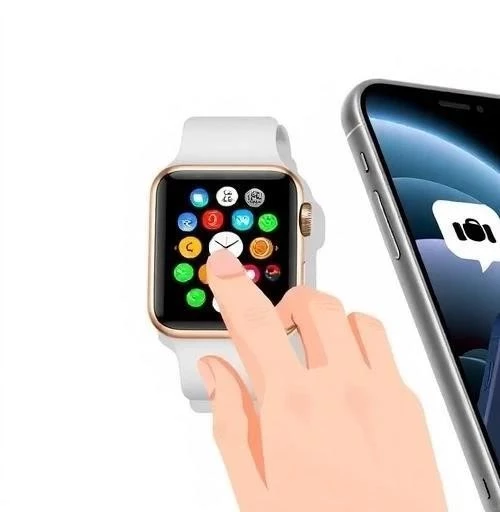
Apple Watch does not take photos independently. Its Camera Remote app uses the camera on the paired iPhone, showing a preview and letting you take a picture from your wrist. If you cannot find it, try the steps below.
Look for Camera Remote
Press the Digital Crown to open the app collection. Browse the icons, or use search if it is available on your watchOS version. The app may be named Camera Remote, rather than simply “Camera.” If your apps are shown as a list, scroll alphabetically to C. Also check that you are looking on the paired watch, not only in the iPhone’s Camera app.
Download it again
If the app was removed, press the Digital Crown and open the App Store on Apple Watch. Tap Search, enter “Camera Remote,” select the matching Apple app, then tap the download button. You may need to enter your Apple Account password. When installation finishes, return to the app collection and check again.
If you cannot use the watch App Store, open the App Store on the paired iPhone and search for Camera Remote. Availability and the exact download options can vary with the watchOS and iOS versions. Make sure you select Apple’s app, not a third-party camera utility.
Check the connection and camera
Keep the iPhone nearby, unlocked, and connected to the watch. Open the Camera app on the iPhone once, then try Camera Remote again. The remote needs a paired iPhone and cannot operate as a standalone camera. If the iPhone camera itself does not work, resolve that issue first.
Restart and update
Restart both devices: turn them off, wait briefly, then turn them back on. Check for updates in the iPhone’s Settings > General > Software Update and in the Watch app under General > Software Update. Install available updates, keep the devices close together, and retry the download over a reliable connection.
If it is still missing
Confirm that the watch is paired and that app installation is allowed by any Screen Time or device-management restrictions. If the App Store cannot find Camera Remote, check Apple’s current compatibility and availability information for your devices and region. Avoid erasing or unpairing the watch as an early fix; those steps can remove settings and take time to restore.
In short: search for Camera Remote, reinstall it from the App Store if offered, and verify the iPhone connection. If it still will not appear or open, contact Apple Support with your watchOS and iOS versions.

7 Comments. Оставить новый
The distinction between the Camera app on iPhone and Camera Remote on Apple Watch is helpful. Including both watch and iPhone App Store options makes the guidance practical.
This is a concise and informative troubleshooting guide. It could be improved by clarifying how users can confirm that the Apple app is the correct one in the App Store.
The headings make the information easy to scan, and the steps are presented in a sensible order. A complete final section with further support options would make the article more useful.
The article sets a clear expectation about how the feature works and offers relevant troubleshooting suggestions. The note about device and software variation is useful.
This provides a useful sequence of checks, starting with finding the app and moving on to connection and software updates. The instructions are straightforward.
The advice to check pairing, keep the devices nearby, and test the iPhone camera addresses common causes without making the process seem complicated.
The article clearly explains that Camera Remote relies on a paired iPhone rather than working as a standalone camera. The troubleshooting steps are easy to follow.