
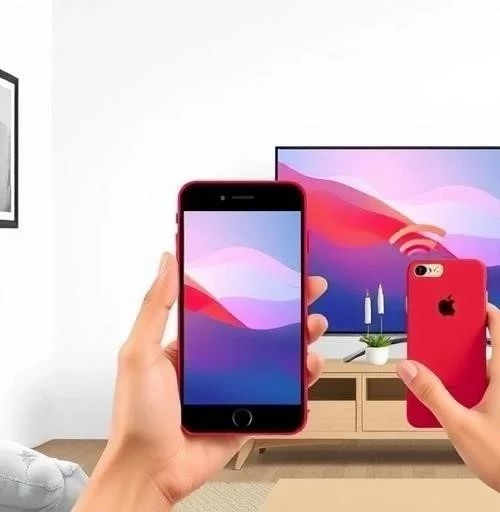
Connecting your Xiaomi Redmi 6 to a television lets you view photos, videos, apps, and other content on a larger screen. The best method depends on your TV: you can mirror the phone wirelessly, use a Chromecast or a TV with Google Cast, or play media files from a USB drive. The Redmi 6 has a micro-USB port, but it does not provide standard wired HDMI video output, so a basic USB-to-HDMI cable is not a dependable solution.
Method 1: Mirror the screen wirelessly
For full-screen mirroring, use the TV’s screen-mirroring feature. Depending on the TV brand, this may be called Miracast, Screen Mirroring, Wireless Display, or Screen Share. The Redmi 6’s MIUI version can affect the menu names and location.
- Turn on the TV and open its screen-mirroring or wireless-display mode. Leave that screen open while you connect.
- Connect the Redmi 6 and TV to the same Wi-Fi network. Some Miracast TVs create a direct wireless connection instead; follow the TV’s on-screen instructions if so.
- On the phone, open Settings and look for Connection & sharing, More, or Wireless display. Tap Cast or Wireless display, then turn the feature on if prompted.
- Wait for the TV’s name to appear, tap it, and approve the connection on the TV if necessary. Your phone’s screen should then appear on the television.
To stop mirroring, open the Cast or Wireless display controls on the phone and choose Disconnect. You can also turn off the TV’s mirroring mode. While connected, notifications and everything else shown on your phone may also appear on the TV, so enable Do Not Disturb if you prefer to keep alerts private.
Method 2: Use Chromecast or Google Cast
If you have a Chromecast connected to the TV, or a television with Chromecast built in, you can send supported video to it. Set up the Chromecast using the Google Home app and make sure the phone and device are on the same Wi-Fi network. In an app such as YouTube, start a video, tap the Cast icon, and select the TV or Chromecast. Playback then runs on the TV, while the phone can act as a remote.
This is usually preferable to mirroring for supported streaming apps: it can provide smoother playback and lets you use the phone for other tasks. To mirror the entire phone through a Chromecast, open Google Home, select the Chromecast, and look for Cast my screen or Cast screen. The wording can differ by app version. Some protected videos may show a blank screen during mirroring; cast them directly from the supported service instead.
What about a cable or USB?
A standard HDMI adapter generally will not display the Redmi 6’s screen. The phone’s micro-USB connection is not a guarantee of video output, and ordinary USB-to-HDMI adapters usually need video support the phone does not provide. Check the phone’s specifications before buying any adapter; a cable that fits the port may still only charge the phone or transfer data.
You can connect the phone to a TV’s USB port for charging, but this does not normally mirror the screen. Some TVs can browse compatible photos or videos from a USB storage device, but that is different from displaying everything on the phone. For local playback, transfer files to a USB flash drive using a suitable adapter or computer, then open them with the TV’s media player.
Troubleshooting connection problems
- The TV does not appear: Confirm that its mirroring mode is active, keep the devices close together, and check whether both support the same wireless-display standard. Restart Wi-Fi on the phone and restart the TV.
- The devices will not connect: Disconnect other phones, accept any permission prompt, and restart both devices. If using Chromecast, verify that both are on the same Wi-Fi network, not separate guest networks.
- The picture stutters: Move closer to the router or TV, reduce network congestion, and close demanding apps. Wireless mirroring can have a short delay, so it may not be ideal for fast-paced games.
- No sound or video: Check the TV’s volume and selected input. For app-specific playback, try the app’s Cast button rather than screen mirroring.
Which option should you choose?
Use wireless screen mirroring for photos, presentations, browsing, and apps that do not have their own Cast control. Choose Chromecast or built-in Google Cast for supported streaming services. If the TV lacks wireless features, a Chromecast or compatible streaming device is generally a more practical solution than buying an unverified cable. Menu labels vary across MIUI versions and TV models, but checking the TV’s supported connection method first will help you choose the right steps.
3 Comments. Оставить новый
Helpful overview, especially the note that menu names can vary depending on the MIUI version and TV brand. The privacy reminder about notifications appearing during screen mirroring is also useful.
This guide clearly explains the main ways to connect a Redmi 6 to a TV and, importantly, warns that a basic USB-to-HDMI cable may not work. The step-by-step wireless instructions are easy to follow.
A practical guide for choosing between screen mirroring and casting supported videos. It sets realistic expectations about the Redmi 6’s micro-USB port and avoids suggesting an unreliable wired connection.