
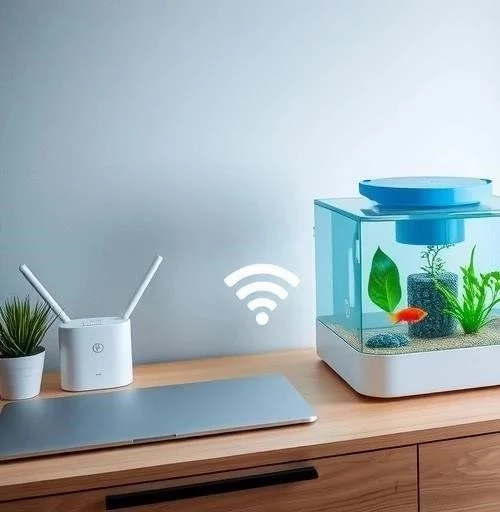
A smart aquarium has two worlds: the quiet one behind the glass, where fish glide through their own small weather system, and the digital one on your phone, where lights, filtration and schedules can be managed. Connecting the tank to Wi-Fi is the bridge between them. Set it up carefully and you can check compatible functions in the Mi Home (also called Xiaomi Home) app instead of leaning over the aquarium to inspect every setting.
This guide covers the general connection process for Xiaomi smart aquarium models such as the MYG100 and MYG200, and offers pointers that may also help with the MYG300 or Geometry Fish Tank C180. Product names, app menus and available controls can vary by model, region and firmware. Use the instructions supplied with your particular tank whenever they differ from the general steps below. The aquarium itself should be set up safely before you begin; Wi-Fi setup is not a substitute for checking that its equipment is working properly.
Before you begin: prepare the tank, phone and network
Most connection problems are not caused by a complicated aquarium. They are caused by one small mismatch between the phone, router and app. Prepare these items first:
- The Mi Home app: Install Mi Home/Xiaomi Home from the official Google Play Store or Apple App Store. Avoid unofficial downloads. Sign in to your Mi account, or create one if you do not have it.
- A stable 2;4 GHz Wi-Fi network: Many smart-home devices, including some aquarium models, use 2.4 GHz rather than 5 GHz during setup. If your router combines both bands under one network name, check its settings or temporarily create a separate 2.4 GHz network if possible.
- Your Wi-Fi password: Confirm it before starting. A password that looks right but contains a typo can make pairing appear to fail without explaining why.
- A nearby phone: Keep the phone close to the aquarium and router during setup. Turn on Wi-Fi and Bluetooth if the app requests them; some models or setup flows may use Bluetooth or nearby-device permissions to help discover the tank.
- Power and patience: Connect the aquarium as directed by its manual and allow it to start. Do not unplug it repeatedly while it is booting or pairing.
Keep the aquarium away from splashes while handling the phone or power connections. Dry your hands before touching plugs, and follow the manufacturer’s safety instructions. The router should be close enough to provide a reliable signal at the tank’s final location—not merely a strong signal on the table where you first set it up.
Step 1: choose the right home and region in Mi Home
- Open Mi Home/Xiaomi Home and sign in.
- If prompted, create or select your home. Give it a recognizable name, especially if you manage devices in more than one place.
- Open the app’s profile or settings area and check the selected region. Choose the region that matches the aquarium’s market and the region supported by its packaging, manual or seller. Product availability can differ between regions.
Region selection deserves attention before pairing. If the app is set to a region where your aquarium is not supported, the device may not appear in search, or setup may stop at an unexpected screen. On the other hand, changing regions just to browse can make devices already added to another region disappear from the current device list. If you are unsure, check the product documentation or ask the seller which Mi Home region the model supports.
Step 2: put the aquarium into pairing mode
Power on the aquarium and look for its Wi-Fi or status indicator. The exact button, indicator colour and pairing sequence depend on the model. Consult the tank’s manual for the correct method to enter network setup mode. Some devices enter pairing mode during first startup; others require a button press or an in-app instruction.
Do not assume that every orange blinking light means the same thing. For example, instructions for a Xiaomi security camera may describe an orange indicator, but a camera’s indicator sequence is not automatically the right guide for an aquarium. Use the aquarium’s own instructions. If the indicator is steady, dark or blinking in an unfamiliar pattern, check the manual’s status-light table before continuing.
If the aquarium was previously connected to another router, it may need to be placed back into pairing mode before it can join a new network. Use only the reset or network-reconfiguration procedure specified for your model. A factory reset can erase settings, so do not try random button combinations.
Step 3: add the aquarium in the app
- In Mi Home, tap the + or Add device button.
- Allow the app to scan for nearby devices. If your aquarium appears, select the matching model and follow the on-screen prompts.
- If it does not appear automatically, use the search box to look for the model name printed on the aquarium, its label or its packaging—for example, MYG100 or MYG200. Make sure you choose the aquarium entry, not a similarly named product.
- Select your home Wi-Fi network and enter its password. If the app asks you to confirm that the network is 2.4 GHz, make sure you are using a compatible band;
- Grant requested permissions, such as Bluetooth, local network or location access, when they are needed for device discovery or setup. The wording varies between Android and iOS versions. You can review permissions later in your phone settings.
- Keep the app open and the phone near the aquarium while the connection is being sent. Wait for the app to finish rather than switching networks or closing it halfway through.
- When pairing succeeds, assign the aquarium to a room and give it a useful name, such as “Living Room Aquarium.”
The app may show a progress screen while the tank joins the network and registers to your Mi account. This can take a little time. A successful setup should end with the aquarium listed among your devices, ready to open from the home screen. If the app presents a QR code, sound, hotspot or other transfer method, follow the instructions shown for that particular model rather than substituting a method from a different Xiaomi product.
Step 4: check the controls before building routines
Open the aquarium’s device page and explore the controls available for your model. Depending on the product and software version, Mi Home may offer functions such as lighting or filter management, schedules, status information or other settings. Do not expect every model to expose the same controls. A feature shown in a guide for one tank may be absent from another, and an app update can change the layout.
Start with one simple test. For example, if the app provides a light control, change it once and confirm that the aquarium responds. Then restore the setting you want. If the app offers a schedule, create a modest schedule and check that its time zone and timing make sense before relying on it. Avoid making several changes at once: one-at-a-time testing makes it easier to spot what is working.
Wi-Fi troubleshooting: find the snag without chasing your tail
The aquarium does not appear in the device list
- Confirm that the aquarium is powered on and in the pairing mode described in its own manual.
- Move the phone closer to the tank. If the setup uses Bluetooth or nearby discovery, ensure those functions and the requested app permissions are enabled.
- Check the selected Mi Home region and search for the exact model name.
- Close and reopen the app, then try scanning again. If needed, restart the phone and aquarium using the manufacturer’s safe procedure.
The app cannot connect to Wi-Fi
- Verify that you selected a 2.4 GHz network if the aquarium requires it. A phone may be connected to 5 GHz while the aquarium cannot join that band.
- Re-enter the password carefully. Watch for spaces, capital letters and similar-looking characters.
- Check that the router is online and that other devices can connect. Move the aquarium or router closer for setup, then return the tank to its intended location and check the signal again.
- If your router uses a combined 2.4/5 GHz network, band steering or advanced security settings, consult its manual or internet provider. Temporarily separating the bands or using a straightforward 2.4 GHz network may help, if your router allows it.
- For a test, avoid unusual network arrangements such as a guest network with device isolation. Some guest networks prevent a phone and smart device from communicating during setup.
The aquarium connects, but then goes offline
A device that pairs successfully but later disconnects may be sitting at the edge of Wi-Fi coverage. Thick walls, metal furniture, crowded radio channels or a distant router can weaken the signal. Test the connection with the router closer to the aquarium, or improve coverage with a properly configured access point or mesh system. Also check whether the router restarts on a schedule and whether its network name or password has recently changed. If the router credentials change, the aquarium may need to be reconfigured.
The app reports an error or pairing times out
Try again only after checking the basics: correct region, compatible network band, accurate password, pairing mode and app permissions. Update Mi Home from the official store and check whether the phone has a pending system update. A temporary service or router issue can also interrupt setup, so waiting a few minutes and retrying may be more useful than repeatedly resetting the aquarium.
If you have tried the model-specific procedure and the problem remains, note the exact error message, aquarium model, phone operating system and router setup. Contact Xiaomi support or the seller with those details. A clear description is far more useful than “it won’t connect,” and it helps avoid unnecessary resets.
Keeping the connection reliable
- Keep the aquarium within dependable router coverage. Check the signal at the tank’s actual location.
- Use a stable network name and password. Changing either may require you to connect the aquarium again.
- Install app and device updates through official channels, and follow any update instructions displayed in Mi Home.
- Give the device a clear room and name. This small bit of housekeeping makes a busy smart-home list easier to navigate.
- Use automations only when they are supported by the tank and the app. Test a new routine while you are nearby before trusting it as part of your regular schedule.
Wi-Fi is a convenience layer, not a life-support guarantee. Do not rely on a phone notification as your only way to notice a problem. Continue normal aquarium care and observe the fish, water and equipment directly. If the app or internet connection is unavailable, follow the aquarium’s manual for local operation and safe maintenance.
Quick checklist
- Install Mi Home/Xiaomi Home and sign in.
- Select the region supported by your aquarium.
- Confirm that the router provides 2.4 GHz Wi-Fi if the model requires it.
- Power on the tank and enter its documented pairing mode.
- Add the exact aquarium model in the app and follow the prompts.
- Test an available control, then check that the connection remains stable.
Frequently asked questions
Can I connect a Xiaomi aquarium to 5 GHz Wi-Fi?
That depends on the aquarium model. Many smart-home devices use 2.4 GHz, and the setup notes for the MYG100 or MYG200 should be checked before pairing. If the app cannot find or connect to the tank, try a supported 2.4 GHz network rather than assuming 5 GHz will work.
Will these steps work for MYG100, MYG200, MYG300 and Geometry Fish Tank C180?
The general Mi Home process is similar, but pairing buttons, indicators, supported regions and app features can differ. Confirm the exact model and follow its own manual for pairing mode. A procedure for MYG100 should not automatically be treated as a reset procedure for MYG200 or C180.
Do I need Bluetooth?
Some setup flows may use Bluetooth or nearby-device permissions to find a device, while the aquarium’s ongoing connection may use Wi-Fi. Enable Bluetooth if Mi Home requests it during discovery, but refer to the model-specific instructions if the app’s behaviour differs.
Can I control the aquarium when I am away from home?
Remote access depends on the model, app, internet connection and service availability. First confirm that local setup works and that the aquarium stays online. Do not assume that every function available beside the tank will also be available remotely.
A small bridge, built one step at a time
Connecting a Xiaomi aquarium is mostly a matter of matching three things: the correct Mi Home region, the network band supported by the tank, and the aquarium’s own pairing mode. Add the device through the app, stay nearby while it joins, and test its available controls before creating routines. If a step fails, check the simple causes first—especially 2.4 GHz compatibility, password accuracy and the model-specific indicator instructions.
Once the connection is steady, the phone becomes a useful dashboard rather than a source of mystery. The tank still belongs to its quiet underwater world; Wi-Fi simply lets you tend its smart features with a little more confidence.
4 Comments. Оставить новый
I appreciate the honest caveat that menus and features vary by model, region and firmware. Smart-home guides often pretend every device behaves identically; this one leaves room for the actual aquarium on your desk.
A useful reminder that the router can be the finicky creature in the room. Calling out the 2.4 GHz requirement before pairing could save aquarium owners a lot of pointless tapping.
The strongest advice here may be the simplest: get the aquarium safely set up before opening the app. Digital controls are handy, but they should never replace checking the real water and equipment.
I like the image of Wi-Fi as a bridge between two worlds. The practical checklist makes that bridge feel less like a tech obstacle course and more like a calm first step toward caring for the tank.