
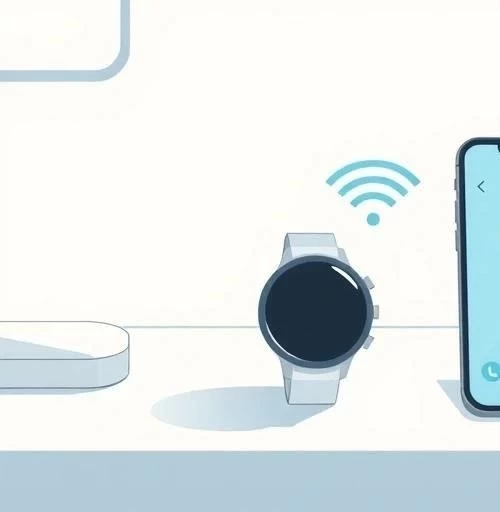
Most Xiaomi watches and smart bands connect to a phone through the manufacturer’s companion app and Bluetooth. The exact app and menu names depend on the model and its software version. Many newer Xiaomi Watch and Smart Band models use Mi Fitness; some older bands may use Zepp Life. Check the watch’s manual, packaging, or on-screen QR code to confirm which app is supported. Installing the wrong app can prevent pairing or leave some functions unavailable.
Before you start
- Charge the watch and keep it close to the phone during setup.
- Turn on Bluetooth and connect the phone to the internet.
- Install the recommended companion app from Google Play or the Apple App Store. Check the publisher and app name before downloading.
- Allow the app to use Bluetooth and, when requested, nearby-device access. Depending on the phone and operating system, location permission may also be needed to scan for devices.
- If the watch was paired with another phone, unpair it there first. A watch may normally be linked to only one phone at a time.
Pairing with Mi Fitness
- Open Mi Fitness, sign in or create an account, and select the correct region if the app asks. Region settings can affect which devices are available.
- Tap the device or add-device option, then choose the watch or band category. You can usually scan the QR code displayed on the watch, or select the model from the list.
- When the app finds the device, check that the model shown on the phone matches the watch. Confirm the pairing request on both screens. If a code appears, make sure the codes match before accepting.
- Wait while the app completes setup. Keep the devices near each other and leave Bluetooth enabled. The app may download a firmware update; allow it to finish without restarting the watch or closing the app.
- Follow the prompts to set preferences such as notifications, health permissions, units, and activity goals. These options can usually be changed later in the app.
Using Zepp Life or another supported app
Some older Xiaomi bands are configured through Zepp Life rather than Mi Fitness. Open the app specified for your particular model, sign in, and use its add-device or profile menu to begin pairing. Select the appropriate device type and confirm the request on the band. Do not assume that every Xiaomi product works with every Xiaomi-branded app: compatibility varies by model and may change with software updates.
If the watch does not appear
- Make sure the watch is in pairing mode and is not still connected to another phone. If necessary, remove it from the old phone’s app and Bluetooth settings.
- Close and reopen the companion app, toggle Bluetooth off and on, and restart both devices. Keep the watch close to the phone while scanning.
- Check the app’s permissions in the phone’s settings. On some Android versions, nearby-device or location access is required for Bluetooth discovery.
- If the watch has previously been set up, use its settings to disconnect or reset it only after considering the consequences. A factory reset can erase settings and locally stored data, and may require pairing again.
- Update the companion app and the phone’s operating system. If pairing still fails, consult the model’s manual or Xiaomi support for model-specific instructions.
After connecting
Keep the companion app installed if you want the watch to sync activity, sleep, or heart-rate data. In the app, enable only the notifications and permissions you need, then test a call or message notification. Background restrictions, battery-saving modes, and notification settings on the phone can interrupt syncing even when the watch is paired. If the connection drops, open the app and check its device status before repeating the pairing process.
Bluetooth pairing and account setup are separate: the phone may show a Bluetooth connection while data syncing still requires the companion app and account. For best results, use the app recommended for the exact watch model, follow on-screen prompts, and avoid pairing directly through the phone’s Bluetooth menu unless the app instructs you to do so.
1 Comment. Оставить новый
The guide gives clear general pairing steps and appropriately notes that the supported app can vary by model. Checking the device manual or QR code before installation is a useful precaution.