
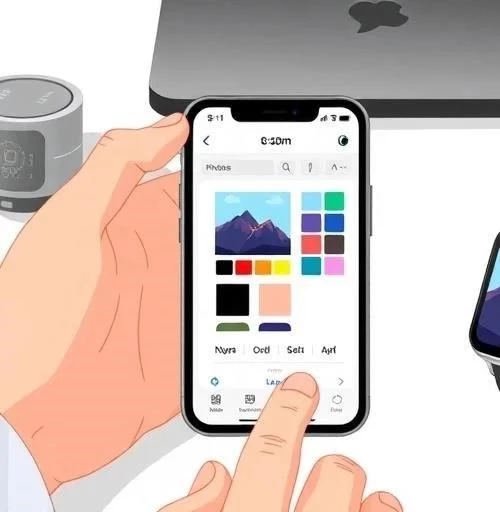
A personal watch face can make the Mi Watch Lite easier to read and more enjoyable to wear. The simplest reliable option is to use the photo or album watch-face feature in Xiaomi’s companion app. This lets you put your own picture on the screen, although it does not provide the same freedom as designing every dial element from scratch. Available options can vary with the app version and region.
What you need
- A Mi Watch Lite with enough battery charge to complete a sync.
- The Xiaomi Wear app, or the equivalent Xiaomi wearable app offered for your region.
- A phone with Bluetooth enabled and the watch already paired.
- A clear image saved on your phone. A square picture is easiest to crop for the watch’s square display.
Create and install a photo watch face
- Open the companion app. Make sure it is connected to your Mi Watch Lite. If the watch is not connected, open the app’s device or profile section and follow the pairing prompts.
- Open the watch-face gallery. Select Mi Watch Lite, then look for Watch faces, Manage, or a similarly named section. Menu labels can change after app updates.
- Find the custom-photo option. Look for a face called Album, Custom, or Photo. If it is not visible, check the gallery categories or update the app. Not every regional app version exposes the same choices.
- Choose your picture. Grant photo access if requested, select an image, and adjust the crop so the important subject is not hidden by the time or other screen details.
- Set the layout. If the app offers choices for clock position, colour, or style, pick the version that gives the time good contrast against the image. Preview the result before continuing.
- Apply and sync. Tap Apply, Sync, or the equivalent button, and keep the phone and watch close together until the transfer finishes. Avoid closing the app or disabling Bluetooth during syncing.
The face should appear on the watch after the transfer. If it does not, wait briefly, check the app’s connection status, and try syncing again. A low battery or an interrupted Bluetooth connection can prevent the change from completing.
Choose an image that works
A beautiful photograph is not automatically a readable watch face. The display is small, so a simple image with one main subject usually works better than a busy scene. Leave open space where the clock appears, and avoid placing a face, logo, or other important detail under the time. Light text is easiest to read on a dark area; dark text needs a lighter background. If the preview looks crowded, try another crop rather than shrinking the subject until it is indistinct.
Use a sharp original image instead of a screenshot or a heavily compressed picture. The app will normally crop or resize the image to fit, so the exact dimensions required depend on its editor. A square source image is a useful starting point, but follow the preview rather than relying on a particular pixel size. Keep personal or sensitive photographs in mind: a watch face is visible to people nearby.
Can you design a completely original dial?
The photo-face feature is a practical form of customization, not a full watch-face design studio. It usually lets you choose a background and, in some versions, adjust a few clock styles or positions. It may not let you add arbitrary complications, custom fonts, moving graphics, or independently designed widgets. The built-in gallery is the safer choice for complete, tested faces; use the photo option when your priority is a personal background.
Be cautious with unofficial tools or files that claim to install unlimited faces. A file intended for a different Xiaomi watch may not work on Mi Watch Lite, and third-party installation methods can fail or compromise device security. Do not share account credentials or install unknown apps just to change a dial.
Troubleshooting
- No custom option: Confirm that the selected device is Mi Watch Lite, update the companion app, and check the face gallery again. Feature availability can differ by region or app release.
- Sync does not start: Keep Bluetooth on, open the app, bring the devices close, and check that both have sufficient battery. Restarting the app and reconnecting the watch may help.
- The face looks wrong: Reopen the editor and adjust the crop or select a simpler image. Check whether the clock overlaps the subject in the preview.
- The old face remains: Wait for syncing to finish, then revisit the watch-face gallery and apply the design once more.
Final advice
For most owners, the best method is to select a clear photo in the official companion app, keep the clock area uncluttered, and sync the result over Bluetooth. It is simple, reversible, and does not require modifying the watch. If you need more than a custom background, first check the current built-in gallery: it offers the most dependable alternative without relying on unsupported software.
8 Comments. Оставить новый
The advice to use a square image is practical because it can reduce cropping problems on the watch display. The contrast tip is useful too, since a decorative background should not make the time hard to read.
Mentioning that menu names and features can vary by region and app version makes this guide more reliable. It helps explain why some users might not see the exact same options.
The preparation checklist is a good addition. Checking the battery, phone pairing, and photo permissions before starting can prevent avoidable interruptions.
The instructions are organized in a sensible order, from checking the connection to applying the face. Keeping the phone and watch close during the transfer is a useful detail.
I like that the guide acknowledges differences between regional app versions rather than presenting one menu path as universal. That makes the advice more useful for a wider range of Mi Watch Lite owners.
It is helpful that the article distinguishes a photo watch face from a fully customizable design. That sets realistic expectations about what the companion app can do.
This is a clear guide for using a personal photo without implying that users can redesign every part of the watch face. The preview and layout suggestions are especially sensible.
The step-by-step instructions make the setup process easy to follow, especially for someone who has not customized a watch face before. I also appreciate the reminder to keep Bluetooth enabled during syncing.