
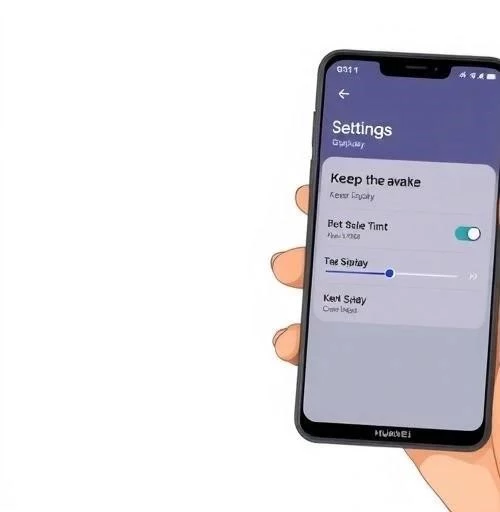
On a Huawei phone, “sleep mode” usually means that the screen turns off automatically after a period of inactivity. Disabling or extending this screen timeout can keep the display visible while you read, follow a recipe, or use the phone as a reference. The exact menu names can vary between models and versions of EMUI or HarmonyOS, but the setting is generally found under Display.
Change the screen timeout
- Open Settings on your phone.
- Tap Display & brightness. On some versions, the menu may be called Display.
- Select Sleep, Screen timeout, or a similarly named option.
- Choose a longer interval, or select Never if that option is available.
The display will then remain on for the selected interval after you stop touching the screen. If you choose a time rather than Never, the phone will still lock or turn off the display once that period has passed. You can also return to this menu at any time and restore a shorter timeout.
If “Never” is not listed
Some Huawei models and software versions do not offer a permanent screen-on setting in the standard timeout menu. Select the longest available interval instead. The available choices depend on the device and software; a setting shown on one model may not appear on another. Installing an update does not necessarily add a “Never” option.
For certain devices, the screen can stay on while the phone is charging if a developer setting is available. To check, open Settings > About phone and tap Build number several times until the phone confirms that developer options are enabled. Return to Settings, open System & updates > Developer options, and look for Stay awake. When enabled, this setting generally keeps the screen on while charging. Menu names and availability vary, so do not change unrelated developer settings.
Check power-saving features
Battery-related settings can affect how the phone behaves. If the screen still goes dark sooner than expected, open Settings > Battery and check whether a power-saving mode is active. Such modes may restrict background activity or adjust display behavior. Turn one off temporarily to test the result, but remember that doing so can increase battery use. Also check whether an app has its own screen or presentation settings.
Screen timeout is not the same as locking
The screen timeout controls when the display turns off after inactivity. Screen lock settings control what happens when you wake the device again, such as whether a PIN, password, or fingerprint is required. If the display turns off at the chosen time but the phone locks immediately afterward, review Settings > Biometrics & password or the security menu available on your model. Changing the lock delay does not necessarily keep the display lit.
Important battery and safety considerations
A display that stays on consumes more power, especially at high brightness. It can also make the phone warm during long sessions and may increase the risk of image retention on some display types. Use the lowest comfortable brightness, place the phone on a stable surface, and avoid leaving a bright, static image on screen for extended periods. When you finish, press the power button or select a shorter timeout to turn the display off.
If the phone does not follow the selected timeout, restart it and check the setting again. Software updates may move the option to another menu. Use Settings search for terms such as Sleep, timeout, or Stay awake. For model-specific instructions, consult the user guide or Huawei support for your device and software version.
Quick summary
- Open Settings > Display & brightness > Sleep.
- Select Never if available, or choose the longest interval.
- If appropriate, check Developer options for Stay awake while charging.
- Expect higher battery use, and restore a shorter timeout when finished.

8 Comments. Оставить новый
The reminder that longer screen-on times can affect battery use would complement the instructions well.
It is helpful that the article cautions readers against changing unrelated developer settings.
The explanation is concise and acknowledges that Huawei settings can differ across software versions.
The guidance is straightforward and organized by common situations, making it easy to follow.
The instructions clearly explain where to find the screen timeout setting and note that menu names can vary by device.
The article provides practical steps for adjusting the display timeout and sets realistic expectations about device differences.
The distinction between choosing a longer timeout and selecting “Never” is useful, especially since that option may not be available on every model.
Including the developer options route gives readers another possibility when they want the screen to stay on while charging.