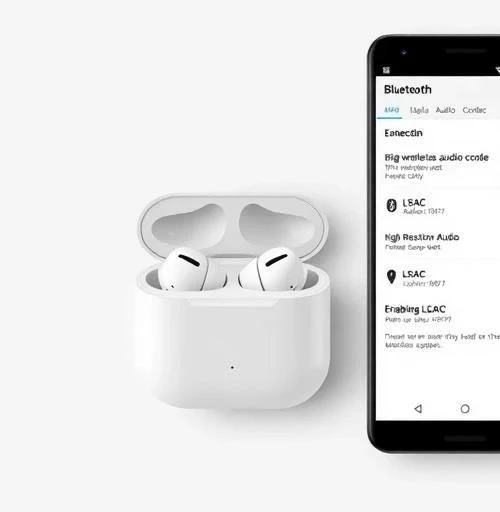
The Huawei FreeBuds 5i support LDAC, a Bluetooth audio codec designed to carry more audio detail than the basic SBC codec. They also support AAC, and the earbuds have Hi-Res Audio certification. To use LDAC, however, it is not enough to own compatible earbuds: the phone or other source device must support LDAC too, and the connection must negotiate that codec. The exact names and locations of the relevant settings can vary with your phone model, operating-system version, and Huawei AI Life app version.
This guide explains the usual Android setup, how to check whether LDAC is actually active, what to do if the option is missing, and which limitations to keep in mind. You do not enable LDAC with a tap gesture on the earbuds. The setting is controlled by the connected device or, on supported Android phones, by the AI Life app and Bluetooth settings.
Before you start
- Use a compatible source device. LDAC is available on many Android phones, but not every Android manufacturer or software version exposes it. Check your phone’s Bluetooth or audio settings if you are unsure.
- Use Android for LDAC. iPhones do not support LDAC for Bluetooth audio, so an iPhone will use another available codec, such as AAC. Installing AI Life on an iPhone does not add LDAC support to iOS.
- Pair the FreeBuds 5i first. The earbuds should be connected to the phone before you look for codec controls. Some settings only appear while a compatible Bluetooth audio device is connected.
- Update the software. Install current phone updates and update the FreeBuds firmware through the Huawei AI Life app, if an update is offered. Menu labels can differ between app releases.
- Keep the earbuds charged and nearby. A stable connection makes it easier to change and test the codec.
Method 1: Turn on LDAC in Huawei AI Life
On many supported Android phones, the simplest route is through Huawei AI Life. The exact wording may differ, and the LDAC switch may not be shown on every phone. If the menu on your screen does not match these steps, use the Bluetooth-settings method below.
- Install or open Huawei AI Life on the Android phone. Get the app from an official Huawei source or the official app store available in your region. Avoid unofficial downloads.
- Pair the FreeBuds 5i with the phone. If they have not been paired before, open the charging case, put the earbuds into pairing mode using the case button, and select HUAWEI FreeBuds 5i in the phone’s Bluetooth menu. Follow the on-screen prompts.
- Open AI Life and select the FreeBuds 5i device card. If the earbuds are not listed, check that Bluetooth is on, the earbuds are connected, and the app has any permissions it requests.
- Open the earbuds’ settings and look for an option labelled something like Audio quality, HD audio, or LDAC. The label and menu location may vary by app and phone software.
- Enable the LDAC or high-definition audio option, then accept any prompt to reconnect or apply the change. Keep the earbuds connected while the setting is applied.
- Play audio and check the phone’s Bluetooth device details or developer options to confirm which codec is in use. A switch being enabled is useful, but checking the active codec gives a better confirmation.
If AI Life displays a message that LDAC is unavailable, first check whether the phone supports the codec. The app cannot make an unsupported phone transmit LDAC. Also make sure the FreeBuds 5i are connected to that phone, rather than merely saved in its list of paired devices.
Method 2: Check the Android Bluetooth settings
Android manufacturers arrange Bluetooth controls differently. On many phones, you can open Settings > Bluetooth, tap the gear or information icon next to the connected FreeBuds 5i, and look for HD audio or an audio-quality control. If LDAC is offered, switch it on. Some phones show only a general HD-audio switch; others show the codec name.
On some devices the HD-audio toggle is enabled automatically when both the phone and headset support a high-quality codec. On others, you may need to enable it yourself. Disconnecting and reconnecting the earbuds after changing the setting can help the phone renegotiate the connection.
Method 3: Inspect the codec in Developer options
Developer options can help you check the connection or select a preferred codec, but they are not a substitute for device support. The setting can revert to another codec if LDAC is not available or cannot be negotiated.
- Connect the FreeBuds 5i to your Android phone.
- If Developer options are not already enabled, open Settings > About phone and tap Build number repeatedly until the phone confirms that developer settings are enabled. The steps and wording vary by manufacturer; some phones require your screen lock.
- Return to Settings and open Developer options. Find the Bluetooth audio section and the setting named Bluetooth Audio Codec or similar.
- If LDAC is available, select it while the FreeBuds 5i are connected. You may also see options for sample rate, bit depth, or LDAC playback quality.
- Start playback and revisit the codec setting to see whether LDAC remains selected. If the phone switches back to AAC or SBC, it may not be able to maintain LDAC in the current connection conditions.
Developer-option selections are often preferences rather than permanent overrides. Android and the phone manufacturer decide which codec is compatible with the connected accessory, so a greyed-out option or a selection that changes back usually indicates a compatibility, connection, or software limitation. Avoid changing unrelated developer settings just to enable LDAC.
How to tell whether LDAC is active
Check the connected device’s Bluetooth details, the relevant AI Life setting, or the Bluetooth audio codec shown in Developer options while audio is playing. If the phone reports LDAC for the connected FreeBuds 5i, the connection is using LDAC at that moment. If the menu only says HD audio, it may confirm that high-quality audio is allowed without naming the codec; use the codec display, when available, for a more specific check.
Do not rely only on the sound of a song. The difference between codecs can be subtle, and the recording, streaming quality, volume, equalizer, and listening environment can have a larger effect. You can compare the connection using the same track and volume, but a listening test cannot reliably identify the codec on its own.
LDAC quality and connection stability
LDAC can transmit more audio data than basic Bluetooth codecs, but its highest-quality mode needs a stronger, cleaner wireless connection. Depending on the phone and its settings, LDAC can use different transmission rates, commonly described as 330, 660, and 990 kbps. The available rate and the way it is selected depend on the source device. Some phones adapt the rate automatically; others offer a playback-quality choice;
If music stutters, cuts out, or becomes unreliable, move the phone closer to the earbuds and reduce nearby wireless interference. You can also choose an adaptive or more stable LDAC quality setting if the phone provides one. If problems continue, switch to AAC or SBC and compare. A lower-rate or standard codec may give you a steadier connection in a busy area, even if it does not offer LDAC’s highest data rate.
LDAC is a Bluetooth transport codec, not a guarantee that every song will sound lossless. The result also depends on the recording, the audio file or streaming source, the app’s quality setting, and the phone’s processing. A high-bitrate connection cannot restore detail that is not present in the source recording.
LDAC is missing or will not stay enabled
- Confirm phone support. Android alone does not guarantee that LDAC is available in every phone’s software. Check the manufacturer’s specifications or Bluetooth audio settings. If the phone does not support LDAC, the FreeBuds 5i will use another compatible codec.
- Make sure the earbuds are connected. A saved pairing is not the same as an active connection. Put the earbuds in, connect them from the Bluetooth menu, and reopen AI Life.
- Look in more than one menu. Depending on the software, the control may appear in AI Life, the Bluetooth device details, or Developer options. It may be called HD audio rather than LDAC.
- Update and reopen the apps. Update AI Life and the phone software, close and reopen the app, and reconnect the earbuds. If the app’s device card is missing or out of date, remove the old pairing and pair again.
- Check other connected devices. If the earbuds are connected to more than one device, disconnect the second device temporarily and test with only the Android phone. This helps identify whether the active connection arrangement is affecting the available audio settings.
- Forget and pair again. In the phone’s Bluetooth settings, remove or forget the FreeBuds 5i, then put the earbuds into pairing mode and connect them again. This can clear an outdated codec negotiation.
- Restart the phone and earbuds. A restart can resolve a temporary Bluetooth or app issue. If necessary, reset the earbuds using the procedure in the FreeBuds 5i user guide, then pair them again. A reset may remove saved connection information.
- Test without power-saving restrictions. If the phone aggressively limits background activity, allow AI Life to run normally while changing its settings. Menu names for battery permissions differ between Android manufacturers.
Can I use LDAC on an iPhone, computer, or tablet?
iPhone: iOS does not support LDAC for Bluetooth audio. The FreeBuds 5i can still connect and play audio, but the phone will use a codec it supports, generally AAC or SBC. This is a source-device limitation, not a fault with the earbuds.
Windows or macOS computer: Support depends on the operating system, Bluetooth hardware, drivers, and available audio software. A computer may connect to the FreeBuds 5i without offering LDAC. Check the computer’s Bluetooth audio capabilities rather than assuming that the earbuds’ LDAC support guarantees it.
Android tablet or other Android device: Follow the Android steps above if the device supports LDAC. The same FreeBuds 5i may use LDAC with one source and AAC or SBC with another, because the codec is negotiated separately for each connection.
What LDAC does not change
Enabling LDAC does not turn on active noise cancellation, change the earbuds’ touch controls, improve microphone pickup, or increase the quality of a poor recording. ANC and codec selection are separate features. You can use the FreeBuds 5i’s noise-cancellation modes independently of whether the phone is sending audio with LDAC, AAC, or SBC.
LDAC may use more wireless bandwidth than a basic codec, and the effect on battery life can vary with the phone, connection quality, volume, and listening habits. If you prefer fewer dropouts or longer practical listening time, it is reasonable to use a more stable codec. The best setting is the one that works reliably in your usual environment.
Quick setup checklist
- Use an Android phone or tablet that supports LDAC.
- Pair and connect the Huawei FreeBuds 5i.
- In Huawei AI Life or the phone’s Bluetooth device settings, enable LDAC or HD audio if the option is available.
- If needed, inspect Developer options > Bluetooth Audio Codec while the earbuds are connected and select LDAC.
- Play audio and confirm the active codec. If the connection is unstable, use a more adaptive or stable quality setting, or switch back to AAC or SBC.
To enable LDAC on Huawei FreeBuds 5i, connect them to a compatible Android device and turn on the LDAC or HD-audio option in Huawei AI Life or the phone’s Bluetooth settings. Developer options can help you inspect or request the codec, but the phone must support LDAC and successfully negotiate it with the earbuds. iPhones do not support LDAC, and the highest-quality LDAC mode may be less stable when there is wireless interference. If the setting is missing, update the software, reconnect or re-pair the earbuds, and confirm that the source device supports the codec.