
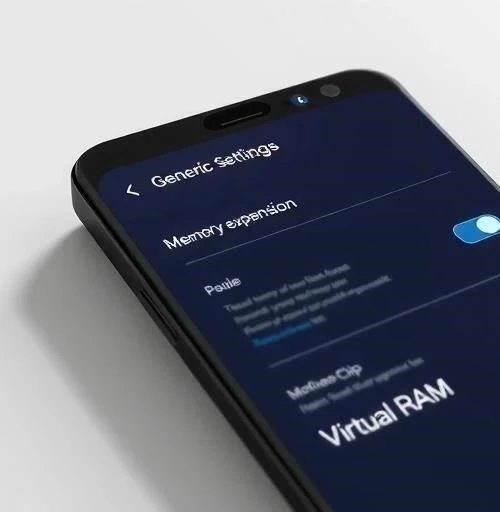
Your Xiaomi’s memory has a secret second room. It is not a hidden drawer full of physical RAM chips; it is a reserved corner of your phone’s storage that the system can borrow when many apps are jostling for attention. Xiaomi calls this feature Memory Extension, Memory Extension or, on some versions, RAM expansion. The name and menu can vary by model and software, but the idea is similar: use some internal storage as a slower backup for working memory.
Want to switch it on? The short route is usually Settings → Additional settings → Memory extension. Choose an available size, enable the switch, and restart if your phone asks you to. The longer route—the one that helps when the option is hiding, the phone feels no faster, or you are wondering whether it is worth enabling—is below.
First, what “extra RAM” really means
Physical RAM is fast memory that a phone uses to keep active apps and their data ready. Internal storage is designed mainly to hold files and apps; it is generally slower. With Memory Extension enabled, the system can use a portion of storage as virtual memory when needed. Think of physical RAM as a desk and storage as a shelf: the shelf gives you somewhere to put things when the desk is crowded, but fetching them takes longer.
That distinction matters. A phone with 8 GB of physical RAM does not become a phone with 12 GB of equally fast RAM just because an extra 4 GB is selected. The feature may help the system keep more background tasks available or reduce how often it has to reload an app. It cannot make a demanding game render faster, upgrade the processor, or turn a nearly full phone into a spacious one. For many people, its most noticeable effect—if there is one—is fewer interruptions when switching between apps, not a dramatic speed boost.
How to enable it: the usual Xiaomi method
- Check that your phone has free storage. Open Settings → About phone → Storage (the exact wording may differ). Memory Extension uses internal storage, so keep enough space for updates, photos, downloads, and normal system operation. Do not fill the phone to the brim just to select the largest expansion.
- Open Settings. From the home screen, tap the gear icon. You can also search Settings for Memory extension, RAM extension, or Extend RAM. Searching is often faster than navigating a menu that has moved after an update.
- Look under Additional settings. On many Xiaomi, Redmi, and POCO phones, the path is Settings → Additional settings → Memory extension. On some software versions, it may appear elsewhere, such as under a memory-related section or a menu reached from About phone.
- Choose an available amount. If the page offers a size selector, pick one of the options shown. The amounts depend on the phone and software; they are not universal. A larger number is not automatically better, particularly when storage is tight.
- Turn on the switch. Confirm any prompt. If the phone says a restart is required, save your work and reboot it. Some models apply the change only after restarting.
- Check the setting again. After the phone starts, return to the Memory Extension page and make sure the feature is still enabled. Menu wording and displayed capacity can differ between versions.
If your menus do not match these instructions exactly, that does not necessarily mean anything is wrong. Xiaomi’s interface changes across MIUI and HyperOS releases, regions, device families, and updates. Use Settings search first, then check the phone’s software update page or its user guide for your particular model.
Can’t find the option? Try this checklist
Your model or software may not offer it
Memory Extension is not guaranteed on every Xiaomi, Redmi, or POCO phone. Availability can depend on the exact model, regional software, system version, and available storage. Two phones that look nearly identical can have different menus. If a search for “Memory extension” returns nothing and the setting is absent from likely memory menus, your device may simply not support the feature.
Update carefully, then search again
Open Settings → About phone and check the available system update. An update may change where the feature appears, but it is not a promise that an unsupported phone will gain it. Before installing a major update, back up important photos and files, charge the phone, and use a reliable Wi-Fi connection. Once the update is complete, search Settings again rather than relying on an old menu path.
Free up internal storage
If storage is almost full, the phone may not offer every expansion size, or the feature may be less useful in practice. Remove downloads you no longer need, clear large app caches where appropriate, move personal files to a computer or trusted cloud service, and uninstall apps you do not use. Avoid deleting folders whose purpose you do not understand. Leave breathing room for the system instead of chasing a bigger virtual-memory figure.
Restart after changing the setting
A restart is a simple but often overlooked step. It lets the system apply settings that are not activated immediately. Save open documents and drafts first, then use the normal power menu to reboot. If the feature turns itself off again, note the exact message and available storage; do not repeatedly toggle settings without understanding the warning.
Check that you are in the phone’s own Settings app
Third-party “RAM booster” apps sometimes advertise controls that look similar, but they cannot add physical memory. They may close apps aggressively, show misleading numbers, or request access that is not necessary. Use Xiaomi’s built-in setting if it exists. Avoid installing unknown tools or following instructions that ask you to root the phone merely to reveal an option.
Which expansion size should you choose?
There is no magic number that suits every phone. If the phone offers a few sizes, choose a sensible option that leaves plenty of free storage. A larger setting reserves more space but does not guarantee smoother performance. If your phone already has ample physical RAM and your everyday apps stay open, you may not notice a benefit at all. If you often switch between several apps and they keep restarting, testing the feature may be worthwhile.
Try one available setting at a time. Use your phone normally for a few days: open the apps you actually rely on, switch between them, and observe whether they resume where you left off. Do not judge the result only by a number in a system screen or by a “memory cleaner” animation. If the phone feels no better—or if storage pressure, battery life, or stability seems worse—turn the feature off if the menu allows it, restart, and compare again.
What it can help with—and what it cannot
- It may help with app retention. Under some workloads, virtual memory can give the system another place to manage less-active app data. Whether that prevents reloads depends on the phone, software, available storage, and the apps involved.
- It will not equal physical RAM. Storage is slower than dedicated memory. The feature is a backup mechanism, not a hardware upgrade.
- It will not transform gaming performance. Frame rate is influenced by the processor, graphics hardware, heat, game settings, and optimization. More virtual memory does not replace those components.
- It will not fix every slow phone. A nearly full drive, a misbehaving app, heavy background activity, an old battery, overheating, or limited hardware can all affect responsiveness. Memory Extension is only one part of the picture.
- It does not mean your phone has more physical memory. If you sell or compare the device, describe its actual RAM separately from any virtual-memory option.
Is it safe to enable?
When the option is built into your Xiaomi’s official software, it is intended to be used as a system feature. Still, virtual memory uses internal storage, and storage is not a limitless resource; Keep backups of important files as good practice, maintain free space, and avoid treating the setting as a reason to ignore storage warnings. If the phone behaves unusually after enabling it, switch it off if possible, restart, and see whether normal operation returns.
There is no need to panic about ordinary use, and no need to promise yourself that it will make the device “twice as fast.” Phones manage memory automatically; the expansion setting simply gives that management another tool. Its value depends on the particular device and the way you use it. A practical test is more reliable than a dramatic claim on a box or in an app advertisement.
If the phone still feels slow
- Check storage space. When internal storage is very full, many everyday tasks become less comfortable. Remove unneeded files safely and keep a reasonable margin free.
- Find the app using the resources. If the slowdown began after installing or updating one app, update it, review its background activity, or uninstall it temporarily to test.
- Close only what you need to close. Constantly force-stopping every app can make the phone reopen them repeatedly. Let the system manage ordinary background tasks unless a specific app is causing trouble.
- Restart the device. A restart can clear a temporary software snag. If problems return immediately, look for a repeatable cause rather than rebooting as the only fix.
- Install official updates. System and app updates can correct bugs, though a new release may also change menus. Back up important data before major changes.
- Get support for persistent faults. If the phone freezes, restarts, overheats, or shows storage errors, consult Xiaomi support or a qualified repair provider. A memory toggle is not a substitute for diagnosing a hardware or software fault.
Quick answers
Do I need to download RAM?
No. If your phone supports the feature, it is built into the system. Do not download an APK that claims to add real RAM.
Will the setting appear on every Xiaomi phone?
No. Support varies by model, region, and software version. If the official Settings app has no such option, there may be no supported way to enable it on that device.
Does the phone always need a restart?
Not always, but some models require one. Follow the on-screen prompt; if you have changed the setting and nothing seems to happen, restart once and check again.
Can I turn it off later?
Usually, if your model provides a switch or selector. Return to the same settings page, disable the feature or choose the available lower setting, and restart if requested.
Will it make the phone faster?
Possibly in a narrow sense, such as helping some background apps remain available. It is not a guaranteed speed boost, and it cannot make virtual memory perform like physical RAM.
The simple takeaway
To enable Xiaomi Memory Extension, start at Settings → Additional settings → Memory extension, or search Settings for the feature’s name. Select an offered size, switch it on, and restart if prompted. If the option is missing, check your model, software, and storage—but accept that some devices do not support it. Choose a modest, practical setting, leave free space, and judge the result by how your own apps behave.
Think of Memory Extension as an extra shelf beside a busy desk: useful when the desk is crowded, but not a faster desk, a new processor, or a miracle cure. The best setting is the one that quietly helps your phone do its everyday work without making storage management harder.



7 Comments. Оставить новый
This reads like a map for a feature that keeps changing its name and hiding in different menus. The caveat about model and software differences is especially helpful.
The article treats storage like a useful spare shelf, not magical extra workspace. That small image makes the technical trade-off easy to remember.
The desk-and-shelf comparison makes virtual memory click instantly—and neatly avoids the usual “more RAM means faster phone” myth.
Useful distinction: virtual memory may help with app switching, but it won’t turn a storage chip into a speed upgrade. Clear, grounded guidance.
The “secret second room” opening is a fun hook for a setting that usually sounds like a line in a spec sheet.
I like that this explains what Memory Extension cannot do as clearly as what it might do. That kind of honesty is refreshing in tech advice.
A good antidote to the “just enable it and everything flies” promise. The explanation gives readers a sensible expectation before they tap anything.