
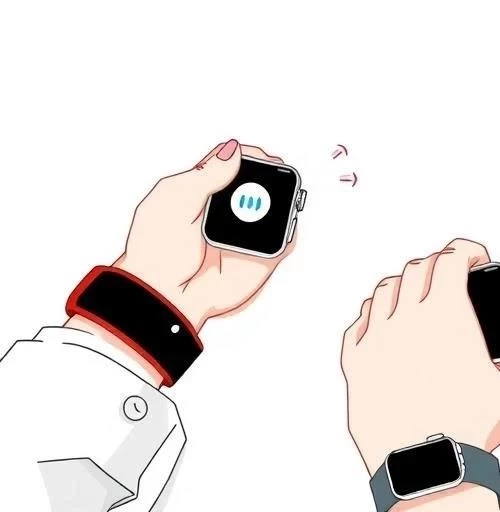
Walkie-Talkie lets two people exchange short, voice messages through their Apple Watches․ On Apple Watch Series 5, it works through the Walkie-Talkie app rather than a traditional radio frequency․ Both participants need a compatible Apple Watch, an internet connection, and FaceTime Audio set up․ The feature is available only in supported countries and regions․
Before you begin
Check that both watches are running watchOS 5 or later․ Series 5 supports the feature, but the other person’s watch must also be compatible․ Each person needs FaceTime Audio enabled on the paired iPhone and must be signed in with an Apple Account․ On iPhone, open Settings > FaceTime, turn FaceTime on, and confirm that the account can be reached at the intended phone number or email address․ FaceTime does not need to be open while using Walkie-Talkie․
Both watches need a connection․ They can use a nearby iPhone connected to Wi-Fi or cellular, a known Wi-Fi network, or cellular service on a cellular watch․ Availability and performance may vary with the network, carrier, and region․ Walkie-Talkie is not a substitute for emergency services or a guaranteed connection․
Set up a contact
- Press the Digital Crown on the Series 5 and open the Walkie-Talkie app․ If it is not visible, check whether the app is installed and whether the feature is available in your region․
- Tap Add Friends, choose a contact, and send an invitation․ The person must accept before you can talk․ Pending invitations may appear in the app; tap one to review or manage it․
- Wait for the contact to appear as an available friend․ If the invitation is not received, check that the contact details are correct, FaceTime is configured on both devices, and both watches have a connection․
Send and receive a message
Open Walkie-Talkie and tap the friend’s name․ When the app shows that the contact is available, press and hold the on-screen Talk control, then speak clearly; Keep holding the control while talking; release it when finished․ The other person hears the message on their watch, usually as it is sent, and can reply by holding Talk in the same way․ Speak in brief turns and leave a pause so the other person can respond․
If the display says that the contact is unavailable or connecting, wait and try again․ The friend may have turned off availability, lost their connection, or not yet accepted the invitation․ A message can also be delayed or fail when the network is weak․ Walkie-Talkie is a voice conversation feature, not a recording or text-message service․
Control availability and sound
To stop receiving Walkie-Talkie messages, open the app and switch off Available․ Turn it on again when you are ready to be contacted․ You can also control availability from Control Center: press the watch’s side button to open Control Center, then tap the Walkie-Talkie icon․ The icon’s highlighted state indicates availability․ Turning availability off does not remove friends․
Silent Mode does not necessarily prevent a message from arriving; the watch may use haptic feedback instead of an audible alert․ Focus, Do Not Disturb, Theater Mode, volume, and sound settings can affect how alerts are presented․ If messages are disruptive, turn availability off rather than relying only on silent alerts․ To remove a friend, open Walkie-Talkie, swipe left on the person’s name, and tap the delete button․
Troubleshooting
- No app or no invitation option: Update watchOS and check that Walkie-Talkie is supported where you are․ Restart the watch and paired iPhone if the app does not load․
- Contact cannot be reached: Confirm that the invitation was accepted, FaceTime is enabled for both people, and each watch has Wi-Fi or cellular access․ Check that the selected contact details match the FaceTime account․
- No sound or response: Check availability, volume, alert settings, and the network․ Make sure the Talk control is held while speaking and released when the message is complete․
For reliable use, add contacts in advance, test the connection, and keep messages short․ Walkie-Talkie is convenient for quick exchanges, but availability depends on device compatibility, account setup, connectivity, and regional support․

1 Comment. Оставить новый
The article gives a clear overview of the setup requirements and explains how to send an invitation. Its notes about connectivity, regional availability, and the limits of the feature are useful context for readers.