
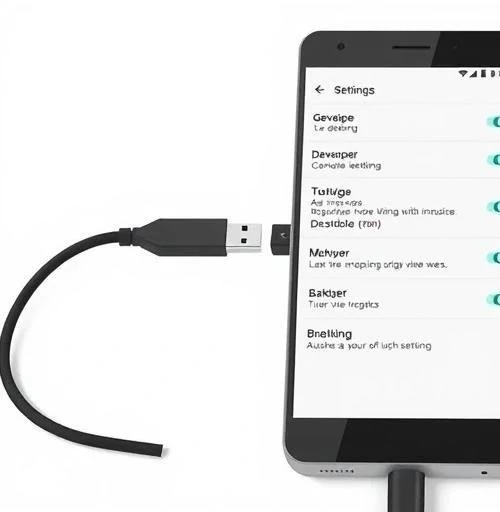
USB debugging is an Android developer feature that allows a computer to communicate with a phone through the Android Debug Bridge (ADB)․ It is useful for app development, diagnostics, transferring commands, and some recovery tasks․ The option is hidden by default․ Menu names differ slightly between Xiaomi models and software versions, including MIUI and HyperOS․
Before you begin
- Charge the phone and use a USB cable that supports data transfer, not charging only․
- Keep the phone unlocked while connecting it to a computer․
- Enable debugging only when you need it․ A trusted computer may be able to send commands while the phone is authorized․
Enable Developer options
- Open Settings on the Xiaomi phone․
- Tap About phone․ On some versions, this page is named My device or displays the system version directly․
- Find MIUI version or OS version (HyperOS) and tap it repeatedly, usually seven times․
- If prompted, enter the screen-lock PIN, password, or pattern․ A message should confirm that developer options are enabled․
If the phone says you are already a developer, no further tapping is needed․ The exact label and location may vary with the installed software and region․
Turn on USB debugging
- Return to Settings and open Additional settings․
- Tap Developer options․ You may need to scroll down to find it․
- Locate USB debugging, switch it on, and read the warning․
- Confirm the prompt․ The switch should remain enabled․
On some models, the main Developer options switch must also be on․ If a separate setting called USB debugging (Security settings) appears, it is not normally required for basic ADB access․ It may be needed for particular tools or actions, and can request additional permissions․ Do not enable extra options unless the software you are using explains why they are needed․
Connect to a computer
- Connect the phone using a suitable USB cable and unlock its screen․
- If a USB notification appears, tap it and select File transfer or Transfer files if your task requires that mode․ Charging mode alone may not provide the expected connection․
- When the phone displays an “Allow USB debugging?” message, check the computer’s displayed RSA fingerprint if available․ Choose Allow only if you trust that computer․ Select Always allow from this computer only on a personal or otherwise trusted device․
The authorization prompt is part of Android’s security protection․ A computer that has not been approved should not be able to use ADB commands․ File transfer and USB debugging are separate settings: enabling one does not automatically enable the other․
If the computer does not detect the phone
- Try another data-capable cable, USB port, or computer, then reconnect with the screen unlocked․
- Check the phone’s USB notification and select a data-transfer mode where appropriate․
- On Windows, install or update the device or ADB driver from a trusted source․ On macOS or Linux, check the computer’s ADB setup and permissions․
- In Developer options, turn USB debugging off and on again․ You can also choose Revoke USB debugging authorizations, reconnect, and approve the computer again․
- Restart both devices if the connection still fails․ Menu wording and driver requirements can vary by model and operating system․
Turn debugging off when finished
Return to Settings > Additional settings > Developer options and switch off USB debugging․ You can also disable Developer options using its main switch, if shown․ If the phone was connected to a computer you no longer trust, revoke USB debugging authorizations as well․ These steps reduce the chance of an unwanted computer accessing debugging functions later․



3 Comments. Оставить новый
The instructions are clearly organized, with separate sections for enabling Developer options and USB debugging. The distinction between MIUI and HyperOS helps account for differences across Xiaomi devices.
The step-by-step format makes the setup process easy to follow, and the notes about varying menu names are practical. The provided text ends during the connection instructions, so that section appears incomplete.
The article includes useful precautions, such as using a data-capable cable and authorizing only trusted computers. Its explanation of the additional security setting also helps avoid enabling unnecessary options.