
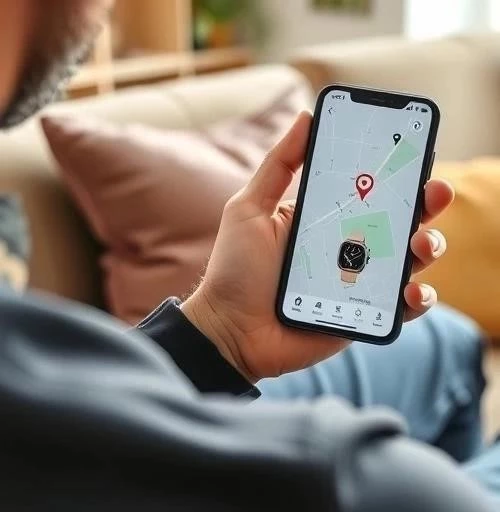
If your Apple Watch is missing, use Apple’s Find My service as soon as possible. It can show the watch’s location, play a sound, or help you mark it as lost. These options work best when Find My was enabled on the paired iPhone before the watch went missing.
Find it with your iPhone
- Open the Find My app on your iPhone.
- Tap Devices, then choose your Apple Watch from the list.
- Check the map. If the watch is online, its current location may appear; otherwise, you may see its last known location.
- If it is nearby, tap Play Sound. Listen carefully, and follow the sound. The watch can make a noise even if it is on silent.
On supported iPhone and Apple Watch models, Find My may offer Find Nearby or precision finding. Follow the on-screen directions as you move closer. If you do not see this option, use the map and sound instead.
Use another device or the web
You can also open the Find My app on an iPad or Mac signed in to your Apple Account. Alternatively, visit iCloud.com/find in a browser and sign in. Select the watch to view its location and available actions. If prompted for a verification code you cannot access, look for the option to open Find Devices.
If the watch is offline
A powered-off watch, a dead battery, or a lack of network connection can prevent a live location from appearing. Check the last known location and enable Notify When Found, if offered. Find My may update the location if the watch reconnects or is detected by Apple’s Find My network. A location can be delayed, so check again later.
Mark it as lost
In Find My, select the watch and choose Mark as Lost or Lost Mode, if available. Follow the prompts to lock it and display a contact number or message. This helps someone return it without exposing your information. Do not share your Apple Account password or verification codes with anyone claiming to have found it.
Protect your information
If you believe the watch was stolen, do not confront anyone based on a map location. Contact local law enforcement and provide the serial number or purchase details if available. Avoid removing the watch from your Apple Account: doing so can disable Activation Lock. Erase it remotely only if you cannot recover it and protecting personal data is your priority. Keep checking Find My, and contact Apple Support if you need help.
Prevent future loss
On your iPhone, check Settings > your name > Find My and make sure Find My iPhone and the Find My network are enabled. Keep Bluetooth and location services available, and consider turning on separation alerts in Find My when supported. These steps improve your chances of finding the watch next time.
8 Comments. Оставить новый
I appreciate the warning not to confront anyone based on a map location. That is an important safety point.
The step-by-step instructions make Find My easy to use, even for someone who has never looked for a missing Apple Watch before.
Helpful overview of the options on iPhone, iPad, Mac, and the web. The offline explanation is useful too.
Good point that a location can be delayed when the watch is offline. Checking again later could make all the difference.
A concise guide with sensible security reminders. I’ll make sure Find My is enabled on my paired iPhone.
Straightforward and reassuring. The steps for playing a sound and using Lost Mode are easy to follow.
Clear, practical guidance—especially the reminder to check the last known location if the watch is offline.
The advice to mark the watch as lost and display a contact number is especially useful.