
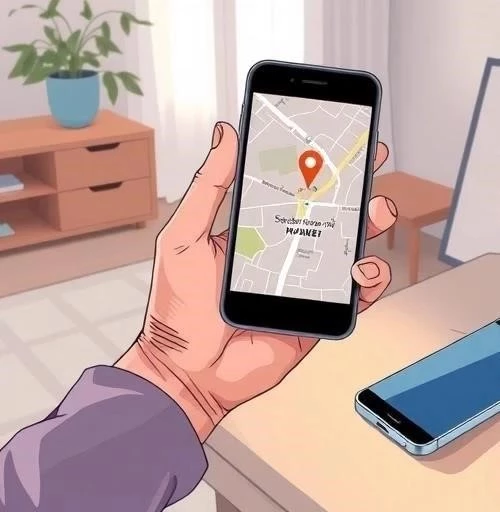
A missing phone has a talent for turning an ordinary afternoon into a detective story. One moment your Huawei is beside you; the next, it has vanished into a sofa, a taxi, a café, or the mysterious territory between “I just had it” and “I’m sure I left it here.” The good news: Huawei phones may be located, made to ring, locked, or remotely erased—if the right services were enabled before the disappearance.
This guide explains the practical routes to try, what each one can and cannot do, and how to protect your accounts while you search. Menus and service availability differ by phone model, operating system, and country, so treat the instructions as a map rather than a promise that every screen will look exactly the same.
First, choose the right finding service
For many current Huawei phones, the main route is Huawei Find Device, linked to the Huawei ID signed in on the phone. You can usually try it through Huawei Cloud in a browser at cloud.huawei.com, or through the Find Device app on another compatible Huawei device. Sign in with the same Huawei ID that was on the missing phone—not a different account you happen to use for email.
Some older Huawei models or models configured with Google services may also support Google’s device-finding service. If the lost phone was signed in to a Google account and Google’s location and finding features were available and enabled, check Google’s official Find My Device service. Do not assume this option exists on every Huawei phone: many newer models and regional versions do not include Google Mobile Services.
If you are unsure which system is set up, try Huawei Cloud first, then check Google only if you know the phone had a Google account and the relevant service. Avoid unofficial “phone tracker” websites. A genuine locator will ask you to sign in through the provider’s normal account process; it should not require a stranger’s tracking link, payment to reveal a location, or your password in a chat.
Before the phone goes missing: switch on the safety net
Remote finding works best when it has been prepared in advance. On the Huawei phone, open Settings, tap your HUAWEI ID at the top, and look for Cloud and then Find Device. Turn the feature on and follow any confirmation prompts. Depending on the version, the route or wording may be slightly different; search Settings for “Find Device” if you cannot see it.
Check that you know the password for the Huawei ID, that its recovery phone number or email is current, and that you can complete any two-step verification. A locator you cannot sign in to during a stressful moment is a little like a lighthouse with no lamp. If you use Google’s service as well, review its device-finding settings while you still have the phone.
For a fresh location, the phone generally needs to be powered on and able to communicate. Wi-Fi or mobile data, location permissions, and the relevant finding feature may all affect what appears. A dead battery, airplane mode, poor reception, a reset device, or a disabled service can prevent live tracking. Some systems may show a last-known location, but that is a clue from an earlier moment—not proof that the phone is still there now.
How to find it with Huawei Cloud
- Use a trusted device. Open a browser on your computer, tablet, or borrowed phone and go directly to cloud.huawei.com. Check the address carefully; search results and lookalike pages can be misleading.
- Sign in to the matching Huawei ID. Complete verification using your own recovery method. If you borrowed someone’s device, do not save your password or leave the account signed in afterward.
- Open Find Device. Select the missing handset from the device list. If several devices have similar names, check the model or other identifying details before sending a command;
- Read the location and status. The map may show a current position, an approximate area, or the last location reported. Look at the time shown and the phone’s connection status, if provided, before deciding what to do.
- Choose the least drastic useful action. Try playing a sound if the phone may be nearby. If it appears to be out of your possession, use the available lock or lost-device option, then consider erasing only when appropriate.
On another Huawei phone, you may be able to use the Find Device app instead. Sign in with the account associated with the missing handset, select that device, and use the controls shown. The app’s exact layout and available actions can change with software updates and regional service support.
What the buttons actually do
Play sound: for the phone hiding in plain sight
If the map places your phone at home, in the office, or somewhere you can safely access, ask the service to play a sound. Depending on the feature and software version, the phone may ring even if it was set to silent. Listen in quiet rooms, inside bags, under cushions, and near places where you charge it. If the location is an apartment building, remember that a map pin may not distinguish between floors—or even neighbouring units.
Do not use a loud alert to startle someone in a public place or to confront a person you suspect has the phone. A sound is a locating aid, not evidence of theft. If the map points to an unfamiliar address, keep your distance and contact local authorities rather than attempting a recovery alone.
Lock or Lost mode: close the digital door
If the phone may have been picked up by someone else, remotely lock it or enable the equivalent lost-device mode. If the service offers a message for the lock screen, keep it brief and use a safe contact method—for example, an alternate phone number or email address. Do not publish your home address, passwords, verification codes, or other sensitive information on the screen.
A remote lock helps protect access, but it does not guarantee that every piece of data is inaccessible in every circumstance. Your screen lock, encryption, software version, and account settings matter too. If the handset is returned, sign in and follow the prompts to regain access; exact recovery steps vary by model.
Erase: the final, irreversible choice
Remote erase can protect personal information when recovery seems unlikely, but it may permanently delete data that has not been backed up. It can also stop you from using the locator to follow the phone afterward, depending on the service and device state. Before erasing, consider whether you have a recent cloud or computer backup and whether you need the location information for a police report or insurance claim.
Use this option when protecting your data matters more than continuing the search, or when a relevant authority or your organization’s IT team advises you to do so. Never erase the phone merely to test the button. If it belongs to an employer, school, or another person, contact the administrator or owner first.
If the map is blank, stale, or unavailable
A blank map does not necessarily mean the phone has been destroyed or that your account is wrong. It may be offline, switched off, out of battery, unable to reach a network, or not configured for remote finding. The feature could also be unavailable for that model or region. Check the selected device and Huawei ID carefully, refresh once, and look for a last-reported location or device status.
If the phone is offline, leave the locator available and check again later. If the service supports notifications when the device is found or comes online, enable them. Avoid repeatedly sending commands without checking the result; a pending request may only take effect if the phone reconnects.
Think through the route you took rather than chasing every dot on the map: your home, car, workplace, shop, restaurant, taxi, or public transport. Call places you visited and ask whether a phone matching the model and case has been handed in. If you use a ride-hailing service, contact its support team through the official app or website. Never meet an unknown person alone to retrieve a device.
Protect your number, accounts, and identity
If you believe the phone was stolen, contact your mobile carrier promptly. Ask about suspending the SIM or eSIM, blocking the number, and the steps for getting a replacement. This can reduce the risk of calls, texts, or verification messages being used by someone else. A carrier may be able to advise about blocking the handset’s IMEI, but procedures and availability vary by country; an IMEI block does not locate the phone.
Change the passwords for accounts that could expose sensitive information, especially your Huawei ID, email, banking, payment, and social accounts. Start with email if it can be used to reset other passwords. Sign out of sessions or revoke trusted devices where each service offers that option. Contact your bank or payment provider if you see suspicious activity, and follow its official instructions.
Never tell anyone a one-time verification code, even if they claim to be a Huawei employee, police officer, courier, or helpful finder. A common trick is to send a message saying the phone has been located and asking you to sign in through a link. Navigate to the official service yourself instead. Do not pay an “unlock fee” to a stranger or install remote-access software at their request.
When to report it
For a suspected theft, make a report to local police and provide the model, serial number or IMEI if you have it, purchase details, and any relevant locator information. The IMEI may be printed on the original box, shown on a purchase record, or available in account or carrier records. Keep screenshots of location and time information, but share them only with appropriate authorities or your insurer. Do not post a live location publicly.
If the map shows a moving vehicle or a private address, do not try to intercept it. Location data can be approximate, delayed, or affected by buildings and network conditions. A pin is a lead, not a warrant and not a guarantee. Your safety is worth more than the phone.
A quick decision guide
- It is probably nearby: check Huawei Cloud or the Find Device app, inspect the location, and play a sound.
- It is somewhere public: lock it, add a safe return message if offered, and contact the venue or transport provider.
- You suspect theft: lock the handset, call your carrier, secure important accounts, and report it. Do not confront anyone yourself.
- The phone is offline: note the last-known location and time, keep checking for a reconnect, and start the account and SIM-protection steps.
- You cannot recover it safely: weigh the risk to your personal data against the value of continued tracking before choosing remote erase.
After the phone is found
Once it is back in your hands, check that it has not been damaged or tampered with. If it was out of sight, review account sign-ins, payment activity, and security alerts. Update passwords if anything looks unusual. Confirm that Find Device is still enabled and that your Huawei ID recovery details are current. Set a strong screen lock, keep backups running, and store the IMEI and proof of purchase somewhere other than the phone itself.
Finding a Huawei phone is not one magic trick; it is a sequence: use the account already linked to the device, check what the map really says, choose a proportionate action, and protect the accounts behind the screen. Sometimes the mystery ends with a cheerful ring from inside a coat pocket. When it does not, a careful response can still turn a bad day into a manageable one—and keep a missing handset from becoming a much bigger problem.


6 Comments. Оставить новый
The map-not-promise framing is excellent. Phone features vary, and this article manages to be useful without pretending every Huawei owner sees the same buttons.
This guide treats a missing phone less like a magic trick and more like a careful investigation. I especially appreciate the reminder that the right account matters more than frantic clicking.
I like that the guide makes room for the possibility that Google services may not be on the device. That distinction is easy to miss when advice online treats every phone as identical.
A thoughtful guide for a stressful moment. Its best advice may be the quietest: use the provider’s genuine sign-in route, and do not hand your password to a stranger promising a shortcut.
There is something reassuring about how practical this is: no miracle promises, just clear first steps and sensible caution. It feels like a flashlight, not a sales pitch.
A calm voice in the middle of a digital scavenger hunt. The warning about unofficial tracker sites is the kind of small detail that could save someone from turning one problem into two.