
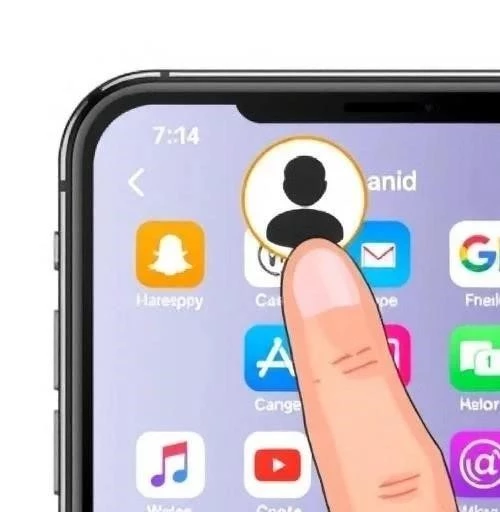
AppGallery is Huawei’s storefront for apps, games, updates, and digital services. Your Huawei ID is the account that helps connect those things to you: it can be used to sign in, manage purchases, sync information, and access Huawei services. But if you open AppGallery looking for a button literally named “Huawei ID,” the trail may feel less like a straight road and more like a small treasure hunt;
Here is the quick route: open AppGallery, tap Me at the bottom of the screen, then tap your profile picture, name, or account area. That should open your Huawei account details or Account centre. The exact labels and layout can vary by device, country, and AppGallery version, so the guide below covers the common variations too.
The usual route: AppGallery → Me → account profile
- Open AppGallery. Make sure you are using Huawei’s AppGallery app, not a third-party app store or a web page that imitates one.
- Tap Me. On many versions, this tab is in the lower-right corner. It may be shown with a person-shaped icon or translated into your device’s language.
- Look at the top of the Me page. If you are signed in, you may see your avatar, nickname, email address, phone number, or a profile card. Tap that area.
- Open Account centre, Huawei ID, or account settings. The wording differs between software versions. These options lead to the Huawei account controls rather than to an app’s individual settings.
- Check your account details. Look for the sign-in email address or mobile number, and for sections such as Personal information, Account security, or Login methods.
Think of AppGallery as the front door and the profile card as the hallway leading to your account. The account may not be displayed as a large label on the store’s home screen; it is usually one tap deeper, inside the profile or Account centre.
What exactly counts as your Huawei ID?
“Huawei ID” is the name of the Huawei account used to access Huawei services. Depending on how you registered and how your account is configured, you may sign in with an email address, a mobile number, or another supported login method. Some screens show a nickname or masked contact information first. Tap the relevant account or personal-information section to see what is available.
That means your Huawei ID is not necessarily a mysterious number printed beside the word “ID.” In everyday use, people often mean the email address or phone number associated with the Huawei account when they ask, “Where is my Huawei ID?” If you need the account for sign-in, use the login method that you registered or later added. Do not assume your public nickname is your login name.
It is also different from an app’s own user name, game ID, or developer identifier. If a game asks for a player ID, or a developer asks for an AppGallery app identifier, your Huawei account’s email or phone number may not be what they mean. Check the wording on that particular screen before sharing any account details.
If the profile is not obvious
AppGallery changes over time, and the same feature can sit in a slightly different place on different phones. Try these alternatives:
- On the Me page, tap your avatar, nickname, or the small arrow near the top.
- Look for Account centre, Huawei ID, Account and security, or Personal information.
- Check the top of the Me page for a sign-in prompt. If it says Log in or Sign in, you are probably not signed in to AppGallery on that device.
- Update AppGallery using an official Huawei route available for your device and region, then reopen it. The menu may look different after an update.
When menus move, use the labels rather than relying only on a picture of someone else’s screen. A tutorial made for another phone model, region, or software release may show an older design. The useful landmarks are still the profile area, account centre, and personal-information settings.
The dependable backup route: Settings
If AppGallery keeps sending you in circles, leave the store and open the device’s Settings app. On many Huawei phones, a signed-in Huawei ID appears near the top of the Settings home screen. Tap the account banner or your name to open Account centre. From there, check Personal information or the account and security pages for the email address or phone number linked to the account.
Names and locations vary with the phone model, EMUI or HarmonyOS version, and region. If there is no Huawei ID banner at the top, search within Settings for “Huawei ID” or “Account centre.” A result in Settings is often the quickest way to reach the same account controls that AppGallery opens from its Me page.
If AppGallery shows “Log in”
If you are not signed in, AppGallery cannot reveal the details of an account that has not been connected to the app. Tap Log in only if you know which Huawei account you intend to use. You can usually enter the email address or phone number registered to that account and follow the on-screen instructions.
Do not create a second account in a hurry just because the first one is not immediately visible. A new account may not contain the same app history, purchases, subscriptions, or other account-linked information. If you have used Huawei services before, first try the email addresses or phone numbers you may have registered with, and use Huawei’s official account-recovery process if needed.
Forgot the email or phone number?
Start with any Huawei device where you are already signed in. Open Settings → Huawei ID or Account centre → Personal information, or follow the profile route in AppGallery. Your contact details may be shown there, sometimes partly masked for privacy. If the page only shows a masked address or number, use it as a clue; do not try to guess missing characters by repeatedly attempting random logins.
If you are signed out everywhere, choose the official Forgot password or account-recovery option on Huawei’s sign-in screen or official support pages for your region. Recovery options depend on the information previously added to the account. Huawei’s prompts may ask you to verify a trusted phone number, email address, or other security detail. Follow the instructions on the official page, and avoid recovery links sent by strangers.
If you no longer have access to the registered email or phone, use the official support route for your country. Account recovery can require proof that you own the account, and the available steps differ by region. No legitimate helper needs you to post your password, verification code, or complete recovery information in a public forum.
Why your account details may look different
- Different region: Huawei account features and available sign-in methods can vary by country or region. The account’s region may also affect the services shown in AppGallery.
- Different software version: AppGallery and the phone’s operating system do not always use identical menus. A guide for another version may call the same page Account centre, Huawei ID, or account settings.
- More than one login method: You may have added both an email and a phone number. One can be the main sign-in method while the other is a recovery contact.
- Privacy masking: A screen may hide part of an email address or phone number. This is intentional; it helps prevent someone looking over your shoulder from reading the full detail.
- Several accounts: If you have used more than one Huawei account, check which one is currently signed in before changing security information or making purchases.
Keep your Huawei ID safe
Your account details are a key to services tied to your Huawei account, so handle them like a house key—not like a coupon code to paste wherever a page asks. Never share your password or a one-time verification code with someone who contacts you unexpectedly. Huawei support should not need you to disclose a one-time code in a public comment or chat with an unofficial account.
Use a strong, unique password and keep your recovery email or phone number current. If you change your number, update the account’s security details while you still have access to the old method, where possible. When using a shared phone, avoid saving your password in a place other people can open, and sign out if you no longer want that device connected to your account.
Before changing account settings, pause and confirm that the profile belongs to the account you mean to manage. A familiar avatar or nickname is helpful, but the linked contact details are a better clue when you have multiple accounts. Be especially careful before removing a login method or switching the account region: those actions can affect access and may be difficult to reverse.
Quick answer
To find your Huawei ID in AppGallery, open AppGallery → tap Me → tap your profile picture, name, or account card → open Account centre or Huawei ID. Check Personal information or the account details for the email address or phone number linked to your account. If the menu is missing, open the phone’s Settings and tap the Huawei ID or Account centre banner near the top. If AppGallery asks you to log in, you are not currently signed in there; use the account you already own or Huawei’s official recovery process.
The short version is a small map: Me, profile, Account centre. The longer version is worth remembering too: your Huawei ID is your Huawei account, not necessarily a numeric code, and the exact labels depend on your device and region. Follow the account trail, verify the details privately, and keep the keys to yourself.
1 Comment. Оставить новый
The “front door and hallway” image makes finding a Huawei ID feel less like menu-diving and more like following a tiny map. Clear, practical directions—with just enough warning that the labels may move around between devices.