
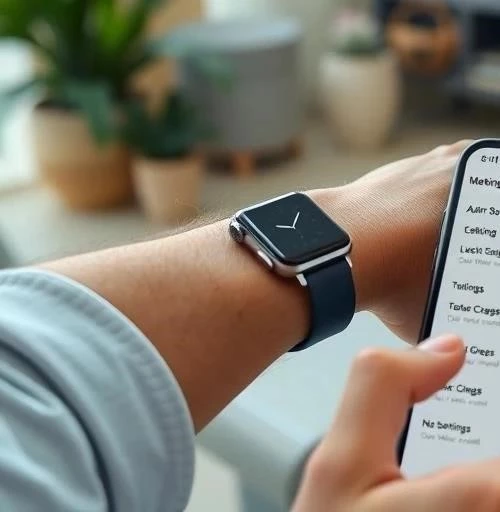
When messages stop appearing on an Apple Watch, the cause is often a connection issue, a notification setting, or the way the watch and iPhone handle alerts. Messages may still be arriving on the iPhone even when the watch does not display them. Work through the checks below in order, starting with the simplest.
How message notifications work
In most cases, notifications go to either the iPhone or the Apple Watch, rather than both at the same time. If the iPhone is unlocked and in use, an alert usually appears on the phone. If the iPhone is locked or asleep, the alert may go to the watch, provided it is unlocked, worn, and able to connect to the phone. This behavior can make notifications seem to have stopped when they are simply appearing on another device.
Check the connection between the devices
Apple Watch relies on its connection to the paired iPhone, using Bluetooth when the devices are nearby and other available connections when appropriate. Open Control Center on the watch and look for a disconnected iPhone indicator. Keep both devices close together, turn Bluetooth on in the iPhone settings, and check that Airplane Mode is off on both devices. If the connection does not return, restart the iPhone and the watch, then check again.
Review notification settings
On the iPhone, open the Watch app and select Notifications, then Messages. Check that notifications are enabled and that the chosen option—such as mirroring the iPhone or using custom settings—allows alerts. With custom settings, make sure notifications are not turned off and that the selected alert style is suitable. Also review notification settings for Messages on the iPhone itself.
Check the individual conversation as well. In Messages on the iPhone, open the conversation, tap the contact or group name, and make sure Hide Alerts is not enabled. A muted conversation can behave differently from other chats, even when general notification settings appear correct.
Look for Focus and silent modes
Focus settings, including Do Not Disturb, Sleep, and Work, can silence or limit message alerts. Check Focus on both devices and review which people and apps are allowed to send notifications. Focus may be shared across devices, so changing it on the iPhone can also affect the watch. Silent Mode suppresses sound but does not necessarily prevent notifications from appearing; Theater Mode and other watch settings may also change how alerts are presented.
Check whether the watch is locked or detecting your wrist
Notifications may not be delivered as expected if the watch is locked or is not detecting that it is being worn. Make sure the band fits securely and the back of the watch sits against your skin. In the Watch app, check that Wrist Detection is enabled if you use that feature. If a passcode is set, unlock the watch and confirm that it stays unlocked while worn.
Verify message delivery and update software
First, check whether the message appears in the Messages app on the iPhone. If it does not, the issue may concern message delivery, the recipient’s contact details, cellular or Wi-Fi service, or iMessage settings—not the watch. Confirm that the correct phone number or email address is selected for sending and receiving messages, and that the iPhone has a network connection.
Install available iOS and watchOS updates after checking that both devices have adequate power and a reliable connection. If the problem began after a temporary software issue, restarting both devices may restore normal alerts. Avoid unpairing the watch as an early step, since it takes longer and may require restoring a backup.
When to seek further help
If messages still do not appear, test whether other notifications reach the watch and whether the Messages app shows new conversations. This can help distinguish a Messages-specific setting from a wider notification or connection problem. If basic checks and updates do not resolve the issue, contact Apple Support. Provide the watch and iPhone models, their software versions, and examples of when alerts are missing.
6 Comments. Оставить новый
The explanation of how the iPhone and watch handle alerts provides useful context before the troubleshooting steps. The guidance remains clear and neutral.
The distinction between alerts on a locked phone and an iPhone in use is useful. It helps clarify that a missing watch notification does not necessarily mean a message was not delivered.
The article clearly explains why message alerts may appear on the iPhone instead of the Apple Watch. The ordered checks make the guidance easy to follow.
The connection and notification-setting checks are presented in a practical sequence. Including individual conversation settings adds a helpful detail.
The article covers several likely causes without assuming that one solution fits every situation. Its headings also make the information easy to scan.
This is a straightforward troubleshooting overview for Apple Watch message notifications. The steps are specific enough to guide readers through common settings.