
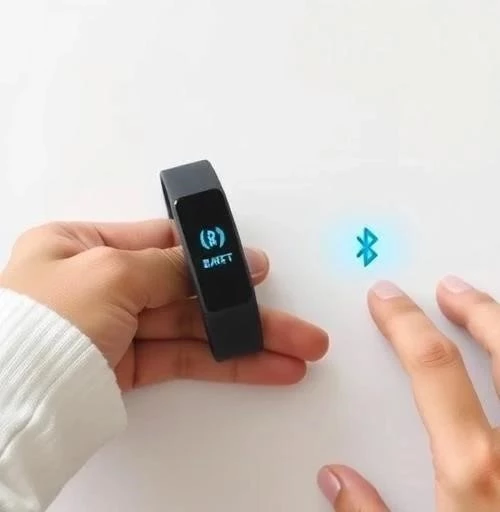
A Xiaomi band should be a tiny bridge between your wrist and phone—not a stubborn island. When pairing fails, the cause is usually something ordinary: the wrong app, a Bluetooth ghost from an earlier setup, missing permissions, or a band that needs charging. Work through the checks below in order; changing one thing at a time makes the real culprit easier to spot.
Start with the right app
Different generations of Xiaomi bands may use different companion apps. Check the setup instructions for your exact model and install the recommended app from the official app store. Depending on the device, that may be Mi Fitness or Zepp Life. An app that worked with an older band is not automatically the right one for a newer model.
Open the app, sign in if prompted, and choose its option to add a device. Keep the band close to the phone, with its screen awake. If a QR code or confirmation appears on the band, follow the prompt there too. For a fresh setup, begin pairing inside the companion app rather than tapping the band’s name in the phone’s Bluetooth settings.
Check the simple things first
- Charge the band. A nearly empty battery can interrupt setup. Seat it correctly on its charger and give it time to wake up.
- Refresh Bluetooth. Turn Bluetooth off and on, then restart both the phone and band if possible. Keep them within arm’s reach.
- Check permissions. Allow the companion app the Bluetooth or nearby-device access it requests. Some Android phones also require location permission or location services during discovery; follow the prompts for your software version.
- Update the app. An outdated app or phone operating system may cause pairing or firmware updates to fail.
Remove the Bluetooth ghost
If this band was previously connected to another phone—or even to this one—the old pairing can linger like a ghost holding the door shut. In the phone’s Bluetooth settings, remove or “forget” the band if it is listed. Then reopen the companion app and try adding it again. If it still appears connected to the old phone, disconnect it there first; a band generally cannot complete a new pairing while an earlier connection is active.
Look for an account or region mismatch
Some setups are tied to the account or region selected in the companion app. If the band was bought in another market or previously linked to a different account, setup may not proceed as expected. Confirm that you are signed into the account you intend to use and select the appropriate region in the app. Avoid switching regions at random: it can complicate access to devices already linked to your account.
Reset only after the gentle fixes
If the band is still stuck, use its settings to unpair or restore it to factory settings, if those options are available. A reset can erase locally stored information and requires setup again, so try it only after checking the app, permissions, charge, and old Bluetooth pairing. After resetting, restart the phone, open the correct app, and pair from scratch.
When it still refuses
Note the exact band model, phone model, operating-system version, companion-app name, and any error message. That short checklist is more useful than repeatedly tapping “Search.” If another compatible phone also cannot discover a charged, reset band, contact Xiaomi support or the seller; the issue may need service rather than another settings change.
The quick recipe: correct app, charged band, phone nearby, permissions allowed, stale pairing removed, then add the device through the app. Pairing is less a magic trick than a small handshake: both sides need to be ready, and neither should be holding on to an old introduction.


2 Comments. Оставить новый
This guide treats pairing trouble like a small mystery instead of a reason to blame the band—a welcome change from the usual “just restart everything” advice. The “Bluetooth ghost” image makes a forgettable settings step oddly memorable, while the one-change-at-a-time approach gives readers a practical way to narrow the culprit.
The best part is its calm, methodical rhythm: charge, refresh, check permissions, then clear the stale connection. It turns a wrist-sized gadget tantrum into a sequence of manageable clues. I’d keep this beside the charger for the next time technology decides that “nearby” is a philosophical concept.