
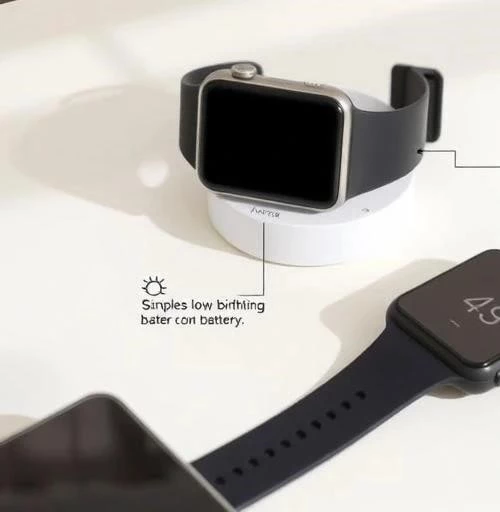
The Apple Watch Series 7 is designed to provide up to 18 hours of battery life on a typical day, but actual results depend on how you use it․ Frequent workouts, a bright always-on display, cellular connections, notifications, and older battery health can all shorten that time․ A few adjustments can help you get through the day with more charge, without giving up the features you rely on․
Start with the biggest battery savers
Turn on Low Power Mode when needed
Low Power Mode is available on Apple Watch Series 7 with watchOS 9 or later․ It reduces power use by limiting or turning off certain background features, including the always-on display and some notifications․ To enable it, open Control Center, tap the battery percentage, then switch on Low Power Mode․ You can choose how long it stays on, or turn it off manually when you no longer need it․ Some functions may update less often while the mode is active․
Adjust the always-on display
The always-on screen is convenient, but keeping the display visible can use extra energy․ On the watch, open Settings > Display & Brightness and turn off Always On if you are comfortable raising your wrist or tapping the screen to see the time․ You can also lower the brightness in the same menu․ A simpler watch face with fewer complications may help too, especially if it avoids frequently refreshing information․
Reduce screen wake-ups
Open Settings > Display & Brightness and consider shortening the wake duration․ In Settings > General > Wake Screen, you can disable wake-on-wrist-raise if accidental movements often light up the display․ These changes make the watch less likely to turn on when you do not need it․ You can still wake the screen by tapping it or pressing the Digital Crown․
Limit activity running in the background
Review notifications
Every alert can wake the display and prompt you to interact with the watch․ In the Watch app on your iPhone, open Notifications and turn off alerts that are not useful on your wrist․ Keeping essential calls, messages, and reminders while silencing promotional or low-priority apps can reduce interruptions as well as battery use․
Manage Background App Refresh
Some apps refresh their content even when you are not using them․ On the watch, go to Settings > General > Background App Refresh and switch off the feature for apps that do not need current information․ You can also turn it off entirely, but check whether any apps you depend on need to update in the background․ Removing unused apps from the watch may make its interface less cluttered, though it is not a guaranteed battery fix․
Use wireless connections thoughtfully
When your iPhone is nearby, the watch can use its connection to communicate․ If you have a cellular model, cellular use can consume more power, particularly where reception is weak․ Turn off cellular from Control Center when you do not need it and have your iPhone with you; Bluetooth and Wi-Fi are generally managed automatically, so avoid switching them off routinely unless you have a specific reason․
Make workouts and sleep more efficient
Choose workout settings that fit your needs
Long workouts use sensors and the display, and outdoor sessions may rely on GPS․ Low Power Mode can reduce some background measurements during workouts; workout options may also let you limit heart-rate readings or GPS updates, depending on your watchOS version․ Use these settings only if the reduced tracking detail is acceptable․ For an indoor workout, selecting the correct activity type can help the watch measure it appropriately․
Avoid unnecessary screen activity at night
If you wear the watch to bed, enable Sleep Focus and use a sleep schedule so the display and notifications are less disruptive․ Make sure the watch has enough charge before bedtime․ Sleep tracking itself uses power, so consider charging before sleep if the battery is low rather than allowing the watch to run out overnight․
Check the battery and charging routine
Open Settings > Battery > Battery Health to review maximum capacity․ Battery capacity declines with age and charge cycles; settings cannot restore worn capacity․ If the watch shuts down unexpectedly, the battery drains unusually fast, or its health is significantly degraded, contact Apple Support or an authorized service provider to discuss service options․
Keep watchOS updated, since updates can include fixes and improvements․ After installing an update, battery use may temporarily rise while the watch completes background tasks; give it time before judging the result․ Use a compatible charger and keep the watch within Apple’s recommended operating temperature range․ Series 7 supports fast charging with a compatible USB-C magnetic fast-charging cable and power adapter, which can make short top-ups more convenient․
A practical everyday setup
- Turn off Always On or lower brightness if you do not need a constantly visible screen․
- Keep only useful notifications and background refresh enabled․
- Use Low Power Mode on long days or when the battery is running low․
- Check Battery Health if the watch no longer lasts through your normal routine․
Change one or two settings at a time and observe the result over a normal day․ The best setup is a balance: preserve the alerts, workout measurements, and display features you value, while disabling the ones you rarely use․ Battery life varies with settings, network conditions, usage, and battery age, so no single adjustment guarantees a particular number of extra hours․

8 Comments. Оставить новый
A helpful set of settings to review. I like that it explains what each adjustment changes so readers can decide which trade-offs work for them.
Good practical suggestions without making it sound like you need to disable everything. I’ll try lowering the brightness and reviewing my notifications first.
Clear and useful, especially the note about watchOS 9 or later for Low Power Mode. A quick compatibility reminder like that saves confusion.
The Low Power Mode instructions are clear and easy to follow. It’s useful to know that some features may update less often while it’s enabled.
Helpful overview. I especially appreciate the reminder that battery life depends on how the watch is used, rather than one setting alone.
This is a straightforward guide for troubleshooting a watch that isn’t lasting through the day. I’d also check battery health if the tips don’t help.
I hadn’t considered how often accidental screen wake-ups could affect battery life. The wake-screen settings are a simple place to start.
The advice about simpler watch faces is a nice addition. Small changes like that can be easier to stick with than constantly using power-saving mode.