
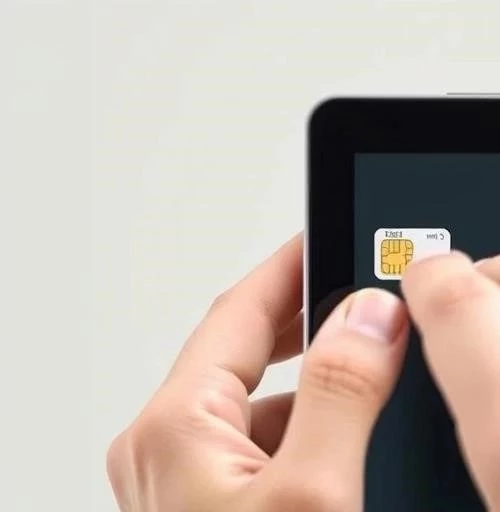
The Huawei MediaPad T3 7 is available in different versions. Cellular models can use a SIM card for mobile data, while Wi-Fi-only models cannot connect to a mobile network through a SIM. Before starting, check the model number on the tablet’s label or in Settings > About tablet. If your tablet has no SIM slot, it is likely a Wi-Fi-only version; do not try to open the device or force a card into another slot.
What you need
- A compatible SIM card. The cellular T3 7 generally uses a micro-SIM, but confirm the size for your exact model and carrier.
- A clean, dry work surface and, if needed, a fingernail to open the small slot cover.
Do not push a full-size SIM or a cut-down card into the slot if it does not fit easily. An incorrectly sized card or a loose adapter can become stuck and damage the contacts. If your card is larger, ask your mobile provider for the correct size.
Insert the SIM step by step
- Turn the tablet off. Hold the power button and choose Power off. Wait until the screen is completely dark. This reduces the chance of interrupting a mobile connection or damaging the card while handling it.
- Locate the card compartment. Look along the edge of the tablet for a small protective cover or marked card-slot area. On supported versions, the SIM and microSD slots are beneath a cover. The exact position and layout can vary by model, so check the labels beside the slots and your device’s guide.
- Open the cover gently. Use a fingernail to lift the edge of the cover. Do not use a knife, pin, or other sharp object, and do not pry at the tablet’s back panel. If the cover will not open with light pressure, stop and verify that you have found the correct part.
- Identify the SIM slot. Read the small “SIM” marking before inserting anything. The neighboring slot may be for a microSD memory card; a SIM will not work there. Keep the card level and align its angled corner with the outline shown beside the slot.
- Insert the card. Place the micro-SIM in the indicated orientation, usually with its metal contacts facing the direction shown by the slot diagram. Slide it in carefully until it sits flat and is held in place. Do not force it. If it catches, remove it and check the size, orientation, and slot.
- Close the cover and restart. Press the protective cover back into place without pinching or bending it. Turn on the tablet and give it a minute to detect the SIM and register with the network.
Check that the SIM is working
Look for the carrier name or a mobile-network indicator in the status bar. If necessary, open Settings and check the mobile network or SIM settings. Turn mobile data on only if you want to use your plan. A Wi-Fi connection may still be used alongside mobile service, depending on your settings.
If the tablet does not detect the card
- Power off the tablet, reopen the cover, and check that the SIM is seated flat and facing the marked direction.
- Confirm that the card is the correct size, active, and supported by your tablet model and carrier.
- Restart the tablet. If available, test the SIM in another compatible device, or test a known-working SIM in the tablet.
- If the device says “No SIM” or “No service,” check for a carrier outage, account restrictions, or network settings. Contact the carrier if the card itself appears inactive.
Important: Never insert or remove the SIM while forcing the slot, and never use tools to push a card deeper. If the slot is damaged, the cover is stuck, or the model’s layout is unclear, consult the user guide for the exact model or contact Huawei support or a qualified repair service.


8 Comments. Оставить новый
Clear, practical steps. I appreciate the reminder not to force a card into the slot if it does not fit.
The advice about getting the correct SIM size from the carrier could save readers from a stuck card or damaged contacts.
The safety guidance is useful and reassuring. Turning the tablet off and avoiding sharp tools are sensible precautions.
The warning to check the exact tablet model before inserting a SIM is especially helpful. It could prevent damage to a Wi-Fi-only device.
A helpful guide for anyone unsure about their tablet’s SIM compatibility. The note that versions can differ is important.
I like that the instructions recommend checking the manual rather than assuming every T3 7 has the same slot layout.
This is easy to follow, especially the distinction between the SIM and microSD slots. Checking the slot labels first is good advice.
Straightforward and safety-conscious. The reminder not to pry at the back panel is particularly useful for first-time users.