
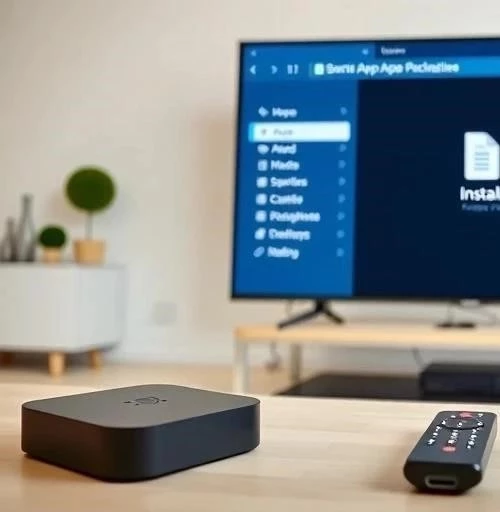
An APK is an Android app installation file. A Xiaomi Mi Box can install compatible APKs that are not available in the Play Store, but menus and permissions vary by model and Android TV version. Use files from a source you trust: an APK can contain malware or request unnecessary access.
Before you begin
- Choose an APK intended for Android TV, if available. Check that it supports your Mi Box’s Android version and processor architecture.
- Download the file from the app developer or another reputable source. Avoid modified or pirated packages.
- Connect the box to the internet. If using a USB drive, make sure the Mi Box has an available port; some models may need a compatible USB hub.
Install from a USB drive
- On a computer, download the APK and copy it to a USB drive. Safely eject the drive and connect it to the Mi Box.
- Open a file manager from the Play Store. If prompted, allow it to access files on the USB drive. Browse to the APK and select it.
- If Android blocks installation, open the prompt to change settings. In Settings, look under Security & restrictions or Privacy for Install unknown apps or Unknown sources. Allow installation for the file manager you are using, then return to the APK and select Install.
- Wait for confirmation, then choose Open or Done. Disable the file manager’s permission afterward if you do not expect to install more apps.
Install without USB
You can transfer the APK over your home network using a trusted file-transfer app, then open it in a file manager and follow the same permission and installation steps. Another option is ADB from a computer, but it requires enabling developer options and USB or network debugging. Only use debugging with a computer you trust, and turn it off when finished.
If the app does not appear or work
Some phone apps are not designed for a television screen, remote control, or Mi Box hardware. The app may install but be difficult to navigate, or may not appear in the launcher. Check the file’s source, Android version, and architecture; an incompatible or incomplete APK can fail to install. Do not bypass a security warning unless you can verify the file. Uninstall an app from Settings > Apps if it causes problems.

6 Comments. Оставить новый
The instructions appropriately point out that enabling installation from unknown sources should be limited to a trusted file manager.
The article clearly outlines the main installation options and explains that settings can differ between Mi Box models.
The reminders about trusted APK sources and app permissions are useful additions to the instructions.
The article is practical and easy to follow, though the final troubleshooting section appears incomplete.
The USB and network transfer methods are presented in a straightforward way for readers with different setups.
The compatibility notes help set realistic expectations about apps designed for phones rather than television devices.