
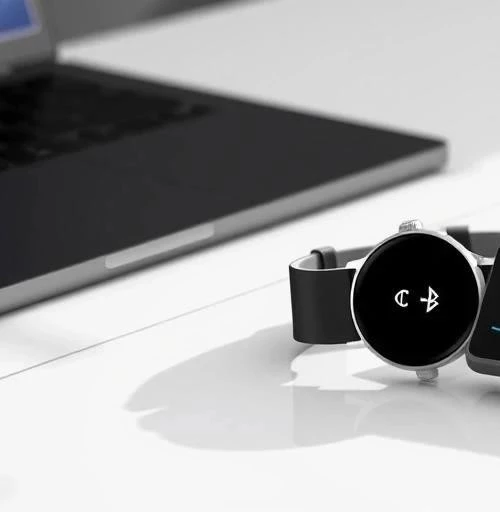
Your X7 Max is a tiny command center waiting to meet its larger partner. Pairing it is usually simple—but there is one important twist: many watches need to connect through a companion app first, not through the phone’s Bluetooth menu alone. Follow this route and you’ll avoid the classic “connected, but nothing works” mystery.
Before the first handshake
- Charge the watch, then turn it on.
- Keep it close to your phone—within a few feet.
- Switch on Bluetooth and, on Android, Location if the app requests it. Some Android phones use Location to scan for nearby Bluetooth devices.
- Check the watch’s box, manual, screen, or QR code for its recommended companion app.
App names can vary. X7 Max is sold in versions that may use different software. The QR code or instructions supplied with your exact watch are the best guide; don’t assume every X7 Max uses the same app. Download it from the Apple App Store or Google Play rather than an unfamiliar download site.
Pair the watch through the app
- Install and open the recommended app. Allow Bluetooth access and any other permissions needed for scanning. You can review optional permissions later in your phone’s settings.
- Create an account if the app requires one, then choose an option such as Add device, Bind device, or Pair watch.
- Wake the X7 Max and keep its screen on. Select the watch when its name appears in the app’s device list. Names may differ slightly, so compare the listing with the device shown in the app or manual.
- Confirm the pairing request on both screens if prompted. Wait for a connected or bound status in the app.
That app connection usually handles activity data, notifications, and settings. Give the watch a moment to sync: the first handshake can take longer than later ones.
Want calls from your wrist?
Some X7 Max versions have a separate Bluetooth connection for calls or audio. If the app says the watch is connected but calls do not work, open your phone’s Bluetooth settings and look for a second watch entry—sometimes labelled with “Call” or a similar name. Tap it and accept the pairing request. If your model has no calling feature, that second entry may not appear.
Make notifications arrive
In the companion app, open its notification or message settings and enable the apps you care about. When prompted, allow notification access. On Android, also check that battery-saving settings are not putting the companion app to sleep. On iPhone, review Bluetooth and notification permissions in Settings. A watch can be paired perfectly and still stay quiet if these permissions are off.
If the watch refuses to connect
- Turn Bluetooth off and on, restart both devices, and try again with the watch beside the phone.
- If the X7 Max is already listed in Bluetooth settings, choose Forget or Unpair, then start pairing again from the companion app.
- Check that it isn’t still bound to another phone. Unbind it in the old app or reset the watch only if you’re ready to erase its stored settings.
- Update the app, check its permissions, and retry. If the app cannot find the watch, confirm its name and pairing instructions using the supplied QR code or manual.
One last tip: pair through the app first, then add a separate call connection only if your model supports it. Think of the two links as different bridges: one carries your health data and alerts; the other may carry your voice. Once both are in place, your X7 Max is ready to become a quiet little co-pilot on your wrist.


6 Comments. Оставить новый
I appreciate the reminder that an X7 Max may have different app companions. That small caution could save someone from downloading the first suspicious-looking app that promises miracles.
The steps feel like a friendly hand guiding the watch through its first handshake. Clear, practical, and pleasantly free of the usual manual-shaped fog.
The “connected, but nothing works” mystery is a wonderfully human way to frame a frustrating tech problem. This guide turns pairing into a calm little ritual instead of a Bluetooth séance.
The explanation of a separate call connection is a useful plot twist. It helps readers understand why a watch can sync data yet stay silent when a call comes in.
This is refreshingly cautious without being alarmist: follow the QR code, use an official app store, and check permissions. Sensible advice with its feet firmly on the ground.
“Keep its screen on” is the kind of tiny detail that makes a big difference. I like how the article notices the little gremlins that derail otherwise simple setup.