
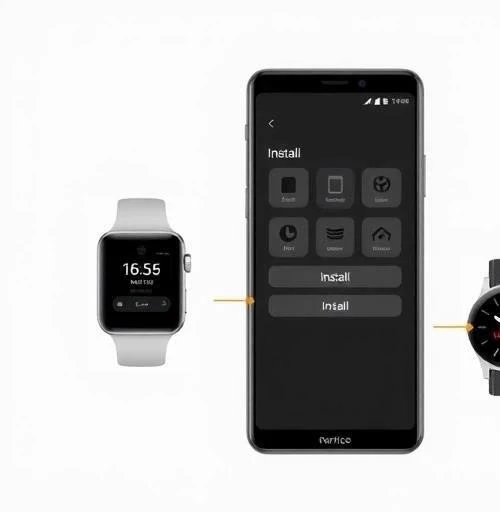
The HUAWEI WATCH FIT 3 supports a selection of third-party apps, but it does not work like a smartphone: apps are not installed by browsing the watch itself or downloading standard Android APK files․ Installation is managed through the Huawei Health app on a paired phone, and the apps available depend on your region, phone, software version and watch firmware․
Before you begin
- Pair the watch with your phone using the Huawei Health app․ Keep Bluetooth turned on and the devices close together․
- Update Huawei Health and the watch firmware․ In Huawei Health, open the device page for the WATCH FIT 3 and look for a firmware update option․
- Sign in to a HUAWEI ID if the app requests it․ App services and catalogues may differ by country․
- Charge the watch sufficiently and connect the phone to the internet before starting an installation․
Install an app through Huawei Health
- Open Huawei Health on the phone used to pair the watch․
- Tap Devices, then select HUAWEI WATCH FIT 3․
- Find and open AppGallery or the app-management section shown on the device page․ The wording and location can vary by app version and region․
- Browse or search the available catalogue․ Select an app to read its details and check that it is compatible with the watch․
- Tap Install or the equivalent button․ Keep the watch connected to the phone while the transfer completes․
- When installation finishes, open the app list on the watch and look for the new app․ Some apps may require an initial setup or permissions on the phone․
If an app page offers an update or removal option, manage it from the same catalogue․ To remove an app, select it in the app-management area and choose the available uninstall control․ Menu labels can change with software updates․
If AppGallery or an app is missing
First, confirm that the watch is paired and connected in Huawei Health, then restart the app and check for updates to both Huawei Health and the watch․ Make sure Huawei Health has the permissions it needs, including Bluetooth or nearby-device access where requested․ If the watch is disconnected, installation may not begin or complete․
The catalogue is not identical in every country, and not every phone or operating-system combination exposes the same app options․ If there is no AppGallery section, check the current Huawei Health version and regional availability through Huawei’s official support information․ On some phones, Huawei Health may need to be obtained from Huawei’s official website or AppGallery rather than another app store․ Use only an official source and follow the installation instructions for your phone․
An app designed for Android or a different Huawei watch cannot necessarily be installed on the WATCH FIT 3․ The watch uses a limited, model-specific selection of compatible apps; sideloading APK files is not the standard installation method and may not work․ If a particular app is absent from the catalogue, it may not be supported for your region or device․
After installation
Open the app on the watch to complete any setup, and review its permissions and data-sharing options․ If it does not appear, return to the device’s app-management page, check its installation status, and keep the watch connected while syncing․ Restarting the watch and phone can help resolve a stalled transfer․ For persistent problems, consult Huawei support with your phone model, region, Huawei Health version and watch firmware version․
In short: pair the WATCH FIT 3 in Huawei Health, open the watch’s AppGallery or app-management section, and install a compatible listing from there․ Availability varies, so the catalogue displayed for your paired device is the best guide to what you can add․

1 Comment. Оставить новый
The step-by-step layout is clear, and noting that app availability varies by region helps set realistic expectations. Troubleshooting advice for failed installations would also be useful.