
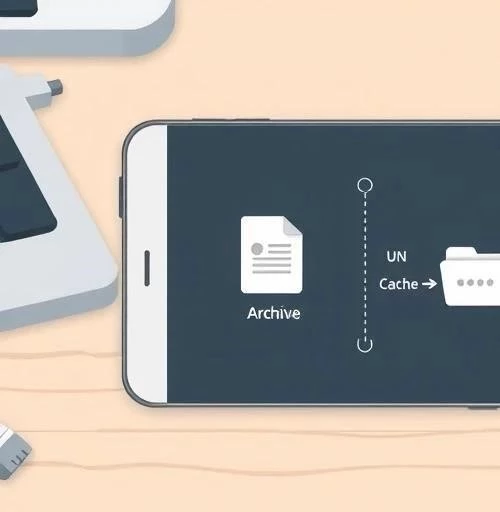
On Xiaomi phones, “cache” often means additional game files downloaded separately from the app, rather than temporary files that can be cleared in Settings. These files may be supplied as an archive, such as ZIP or 7z, and need to be extracted into the correct folder. The exact destination depends on the game and Android version. Use files only from a trusted source; unofficial packages can contain harmful software or violate a game’s terms.
Before you start
- Check the archive instructions for the required folder path and package name. Do not assume that every game uses the same location.
- Make sure the archive is complete and that your phone has enough free storage. Extraction can require space for both the archive and the unpacked files.
- Install a reputable archive manager, or use Xiaomi’s File Manager if it supports the archive format. The built-in app’s options vary by MIUI or HyperOS version.
- If the game is not installed, install it from its official store first, then close it. Opening it once may create the folder structure it needs.
Extract the archive
- Open File Manager and locate the downloaded file. It is commonly in Internal storage > Download.
- Tap the archive and choose Extract, Unzip, or a similar option. If prompted, select a temporary folder, such as Download/Extracted. Avoid extracting directly into a system folder until you have checked the archive’s contents.
- When extraction finishes, open the resulting folder. Look for the actual game-data folder or files, not just another nested folder with the archive’s name. Some downloads contain several folder levels; the final files must be placed at the path the game expects.
- If the archive is split into parts, keep every part in the same folder and start extraction from the first part. Do not rename the parts unless the provider’s instructions require it.
Move the files to the game folder
Many Android games store expansion files under Internal storage/Android/obb/<package.name>. The package name is a folder identifier, not necessarily the game’s displayed title. For example, an OBB file may need to be inside a folder such as Android/obb/com.example.game. Keep the original OBB filename unchanged unless the game’s official instructions say otherwise. If the archive already contains the package-named folder, copy that folder into Android/obb; avoid creating an extra duplicate level.
Some games use a different location, and some do not support manual data installation at all. Follow the game developer’s instructions rather than guessing. Do not put files in Android/data simply because a guide mentions it: Android restricts access to that directory, especially on Android 11 and later.
Android permissions on MIUI and HyperOS
On newer Xiaomi software, File Manager may be unable to write to Android/obb or Android/data. If Android displays a folder-access screen, use its system picker to select the permitted folder and confirm access, if that option is available. Menu labels differ by software version. You can also try the system file picker or a reputable file manager that supports Android’s storage-access framework. Grant only the access needed for the operation. Do not root the phone or install unknown “permission unlocker” apps just to copy game files.
Check that it worked
After copying, confirm that the destination folder and filenames match the instructions exactly, then close the file manager and launch the game. The first start may take time while the game checks its data. If it reports missing files, verify the package folder, nested folders, archive integrity, and available storage. Remove an incomplete copy and extract again if necessary; do not delete unrelated folders or the game’s saved data. If access remains blocked, use the official in-game download or contact the developer rather than bypassing Android protections.
Important distinction
If you mean clearing an app’s temporary cache—not unpacking downloaded game files—go to Settings > Apps > Manage apps, choose the app, then open Storage and tap Clear cache, if shown. Avoid Clear all data unless you intend to reset the app; it can remove settings, downloads, or local progress.
3 Comments. Оставить новый
The instructions clearly distinguish additional game data from temporary cache files and emphasize checking the required folder path. The reminder to use trusted sources is also relevant.
This guide covers useful preparation steps, including checking available storage and extracting files to a temporary location first. It appropriately notes that File Manager options can vary across device versions.
The explanation of nested folders and split archives helps address common extraction issues. Since folder locations differ between games, following the game-specific instructions is an important point.