
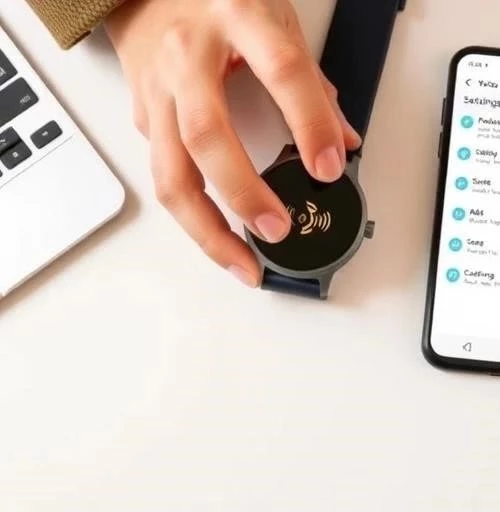
The Galaxy Watch 4 runs Wear OS and can use Google Assistant when the app and service are available for the watch, Google account, and region. The simplest installation method is to download the app directly from the watch’s Google Play Store. Menu names and options can differ slightly with software version and region.
Before you begin
Charge the watch and connect it to Wi-Fi or a paired phone with internet access. Complete the initial setup in the Galaxy Wearable app, install available updates for the watch, and sign in to a Google account on the watch if prompted. Make sure the phone also has a working internet connection; If the Play Store or Assistant is unavailable in your region, installation or some features may not be offered.
Install the app
- On the watch, press the Home button to open the app screen, then open Play Store.
- Tap the search icon and enter Google Assistant. You can use the on-screen keyboard, handwriting input, or voice search if available.
- Choose the Google Assistant app published by Google from the results. Check the publisher before installing to avoid similarly named apps.
- Tap Install and wait for the download to finish. If the store asks you to choose a device, select the Galaxy Watch 4.
- Return to the app screen and open Assistant. Follow the prompts to select or confirm your Google account, accept the requested terms, and grant permissions needed for the features you want to use.
If the app does not appear in search, check that the watch is online and has the latest available software. Restart the watch, reopen Play Store, and try again. Availability may depend on your country, account settings, and the watch’s software. Do not install an unofficial APK unless you understand the security and compatibility risks.
Set up voice and button access
During setup, the watch may offer to enable voice activation, such as responding to “Hey Google.” Follow the on-screen instructions and complete any required Voice Match steps. You can review Assistant settings in the app or in the watch’s Settings menu. Allow microphone access if you want to speak commands; without it, some voice functions will not work. Keep in mind that voice activation can use more battery and may not be available in every language or region.
To start Assistant manually, open it from the app screen. You can also assign a button shortcut if the software provides one: open Settings, look under Advanced features or Buttons, and choose Assistant for the preferred press action. The exact labels and available shortcuts vary. If the shortcut launches Bixby, change the button assignment rather than reinstalling Assistant.
Test and troubleshoot
Ask a simple question while the watch is connected to the internet. If Assistant does not respond, check the microphone permission, volume, network connection, and selected Google account. Restart the watch and install app updates from Play Store. If setup loops or the app crashes, update watch software and Google components, then reopen Assistant. As a last resort, uninstall and reinstall the app, and complete setup again.
Some requests require a compatible phone, service, language, or account setting, and not every phone-based Assistant feature is supported on the watch. Installing the app does not guarantee that every function will be available. For account, region, or service restrictions, consult Google’s current support information.
2 Comments. Оставить новый
This guide is easy to follow and covers the main setup requirements, including connectivity, account sign-in, and permissions. Some menu names may differ across watch versions, as the article appropriately notes.
The instructions provide a clear sequence for installing Google Assistant and note that availability can vary by region and software version. The troubleshooting and security cautions are useful additions.