
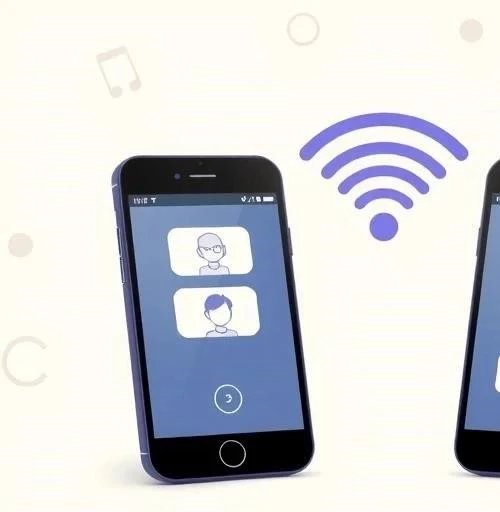
Moving to a new Xiaomi, Redmi, or POCO phone is easiest with Mi Mover, Xiaomi’s built-in wireless transfer tool. It usually copies photos, videos, contacts, messages, documents, apps, and some app data directly between phones, so you do not need a computer, mobile data, or a Mi account. Because supported items vary by Android and MIUI/HyperOS versions, treat it as a convenient migration—not a guaranteed full clone.
Transfer with Mi Mover
- Prepare both phones. Charge them, keep them nearby, and update Mi Mover if needed. Turn on Wi-Fi, Bluetooth, and location if prompted. The transfer normally uses a direct wireless connection, so internet access is not required.
- Open the tool. Find Mi Mover in Settings or the app list; on some versions it is called Phone Clone. If it is missing, install the official app on both phones where available.
- Choose the roles. On the new Xiaomi, select “I’m a recipient” or “New.” On the old phone, select “I’m a sender” or “Old.” Follow the on-screen instructions to connect the devices; scan a QR code if shown.
- Select and send. Mark the categories you want, such as contacts, messages, photos, videos, documents, and apps. Check the selection before starting, then keep both screens awake and the phones close until the completion message appears.
This method is usually the best first choice because it transfers several categories in one session and avoids uploading private files to cloud storage. Still, do not assume every app’s internal data, login, or security settings will move. Some apps require you to sign in again, and protected data may be excluded.
Check the result
Before erasing or trading in the old phone, open the new device’s Gallery, Contacts, Messages, and key apps. Compare important folders and confirm that files open correctly. Keep the source phone unchanged until you are satisfied; a transfer is a copy, but interruptions or unsupported items can leave gaps.
If Mi Mover is unavailable
Use your Google account to sync contacts, calendar, and other supported items, and restore a Google backup during setup. Xiaomi Cloud can restore data previously synced to your Mi account. For selected files, ShareMe or a computer can work; Bluetooth is better for a few small items than a full migration. These alternatives may not copy app data or settings, so check what each backup includes before relying on it.
If the transfer stalls, restart both phones, reconnect them, free storage on the new device, and retry with fewer categories. Keep both devices powered and do not disconnect during copying. A careful check at the end is more reliable than assuming that “complete” means every item transferred.
8 Comments. Оставить новый
The step-by-step instructions make Mi Mover sound approachable, especially for people who are not comfortable with phone setup. I also appreciate the reminder to keep the old phone untouched until the new one has been checked.
The advice to check photos, messages, contacts, and important apps before wiping the source phone is practical. A transfer can appear complete while still missing files or app information.
The warning that some apps may require another sign-in is important, since people often expect their new phone to be ready immediately. Checking key apps before trading in the old device is sound advice.
I like that the instructions explain which phone should be the sender and which should be the recipient. That clarification can prevent confusion when users first open the tool.
It is useful that the article distinguishes a convenient migration from a complete clone. App data and security settings can be difficult to transfer, so setting realistic expectations should help readers avoid surprises.
This is a clear overview of a useful first option for moving to a Xiaomi phone. The emphasis on verifying the transfer before erasing the old device makes the guidance especially responsible.
Explaining that the phones usually connect directly is helpful for anyone concerned about using mobile data or uploading private files. The article also sensibly avoids promising that every device version behaves the same way.
The preparation tips are a strong addition. Charging both phones, keeping them close, and preventing the screens from sleeping are simple steps that can reduce the chance of an interrupted transfer.