
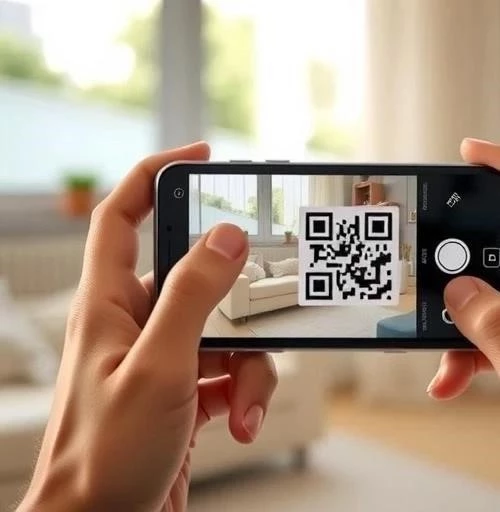
You can scan a QR code on most Xiaomi, Redmi, and POCO phones with the Camera app, a built-in Scanner tool, or Google Lens. The exact option depends on your phone model and whether it runs MIUI or HyperOS. Try the camera method first; if it does not recognize the code, use one of the alternatives below.
Method 1: Scan with the Camera app
- Open the Camera app.
- Point the phone at the QR code so the entire square is visible. Keep the phone steady and make sure the code is in focus.
- Wait a moment for a link, notification, or other action to appear on the screen. Tap it to continue.
If nothing happens, look for a QR or Google Lens icon in the camera viewfinder and tap it. On some Xiaomi phones, QR recognition is disabled until you turn it on. Open the Camera app, tap the menu or settings icon, and enable an option such as Scan QR codes, Smart suggestions, or Google Lens. Names and menu locations vary by software version.
Some camera versions offer separate photo modes. If the code is not detected in the regular Photo mode, check the More tab for a mode called Documents, Scanner, or Scan. These options are not available on every device.
Method 2: Use the built-in Scanner
Many Xiaomi phones include a system utility called Scanner. Find it in the Tools folder on the Home screen, in the app drawer, or by searching for “Scanner” from the phone’s search bar. Open the app, allow camera access if prompted, and point it at the code. When the result appears, review it and choose the suggested action.
You may also find a Scanner shortcut in Control Center. Swipe down from the top-right of the screen on many newer models, or swipe down from the top on some older versions. Look through the tiles for Scanner or Scan. If it is missing, tap the edit button to see whether the tile can be added. Controls differ between MIUI and HyperOS versions.
Method 3: Scan with Google Lens
Google Lens is a useful alternative when Xiaomi’s camera does not identify a code. Open the Google app and tap the Lens icon in the search bar, or launch Google Lens directly if it is installed. Point the camera at the QR code and wait for Lens to display a result. Tap the result only after checking that it is the one you expect.
Lens can also read a code saved as an image. Open the picture in Google Photos, tap Lens, and select the detected link or information. On some versions, you can choose an image from inside the Lens app instead. This is handy when someone sends you a QR code in a message or when the code is displayed on your own screen.
If the QR code will not scan
- Improve the view: Clean the camera lens, move closer or farther away, and avoid glare, reflections, or deep shadows. Keep the code flat and fully inside the frame.
- Check focus and lighting: Give the camera a second to focus. Add light if the code is dim, but do not let a lamp reflect directly off a glossy surface.
- Try another scanner: Switch between Camera, the built-in Scanner, and Google Lens. One app may recognize a code that another misses.
- Update the software: Install available system and app updates. If scanning used to work, close and reopen the app or restart the phone.
- Check permissions: In Settings, open Apps, select the scanner or camera app, and make sure camera access is allowed. Menu labels can vary by device.
A damaged, very small, blurry, or partly covered QR code may be unreadable. Ask for a clearer copy if possible. If the code is on the same phone screen, use Lens or the image-scanning option rather than trying to point the camera at the display.
Stay safe when opening QR links
A QR code can contain a website address, Wi-Fi details, contact information, or another action. Scanning it does not always open a link immediately; your phone may first show a preview. Read the address carefully before tapping, especially for payment, login, or delivery codes. Do not enter passwords or payment details on a page you do not trust. If a code asks you to connect to Wi-Fi, review the network name before joining.
In brief: Open Camera and point it at the code. If no result appears, enable QR recognition in camera settings, use Xiaomi’s Scanner shortcut, or scan with Google Lens. Exact steps vary by model, but one of these methods should work on most Xiaomi phones.
5 Comments. Оставить новый
I appreciate the practical troubleshooting tips for when the camera does not recognize a QR code right away.
A helpful guide for Xiaomi users. The advice to check camera settings should save readers time when scanning is not enabled.
The instructions are concise and useful, especially the note about finding Scanner in the Tools folder or Control Center.
The three methods are clearly explained, and the reminders that menus vary by model are especially helpful.
The article makes it easy to compare the Camera app, Scanner, and Google Lens without assuming every phone has the same options.