
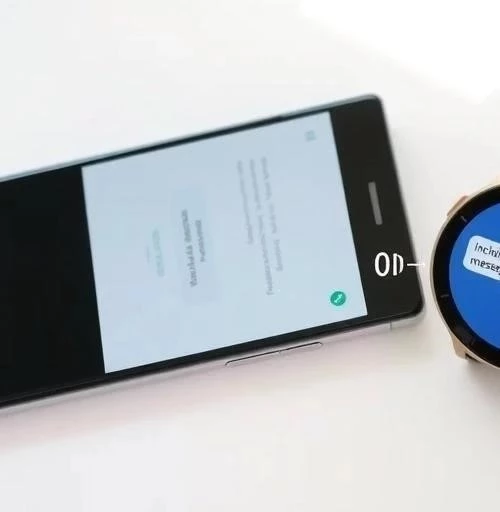
Short answer: You cannot install the full WhatsApp app directly on a Huawei Watch Fit 2. The watch does not run Wear OS and does not provide the Google Play Store or a compatible WhatsApp watch app. Instead, pair it with your phone and use Huawei Health to receive WhatsApp notifications on your wrist. Depending on your phone and settings, you may also be able to send a quick reply.
What the watch can—and cannot—do
The Watch Fit 2 acts as a companion to your phone; it is not a small, independent WhatsApp device. It does not register a phone number, host your WhatsApp account, or send messages over its own mobile connection. WhatsApp must be installed and working on the paired smartphone, which needs an internet connection to receive new messages.
Once notifications are enabled, the watch can show alerts and message previews when your phone receives them. It generally cannot provide the complete WhatsApp experience: you should not expect to browse all your chats, make WhatsApp calls, or install WhatsApp from an app store on the watch. Available notification and reply features can vary by phone, software version, region, and watch firmware.
Set up WhatsApp notifications
- Install WhatsApp on your phone. Download the official app from the Apple App Store or Google Play, or use the official WhatsApp download source for your device. Sign in with your phone number and confirm that messages arrive on the phone first.
- Pair the watch. Install Huawei Health on the phone, sign in if prompted, and add the Watch Fit 2 through the app’s device-pairing screen. Follow the on-screen instructions and accept the Bluetooth and other permissions needed to complete pairing.
- Allow WhatsApp notifications on the phone. In the phone’s system settings, open Notifications, find WhatsApp, and enable notifications. Also allow lock-screen or banner alerts if you want them to appear while the phone is locked. Menu names differ between Android versions and iPhones.
- Enable app alerts in Huawei Health. Open Huawei Health, go to the connected Watch Fit 2’s device settings, and find the option for notifications or app alerts. Turn on notifications and make sure WhatsApp is selected in the list of apps. The exact wording and menu location may vary with the Huawei Health version.
- Check Bluetooth and background access. Keep Bluetooth on and the watch connected. On Android, allow Huawei Health to run in the background and, where available, exclude it from battery restrictions. Otherwise, the phone may stop forwarding alerts when the app is idle.
- Test the setup. Lock the phone and ask someone to send a WhatsApp message. Check that the notification appears on the watch. If it does not, review the phone’s notification settings and Huawei Health’s app-alert list.
Can you reply from the Watch Fit 2?
Some Android phones and software versions may offer quick replies to a notification, such as choosing a preset response. If a reply option appears when you open a WhatsApp alert, follow the prompts on the watch. It may not be available on every Android device, and the watch does not turn into a full WhatsApp chat app. On iPhone, notification interactions are more limited; receiving an alert does not guarantee that you can reply from the watch.
If the watch only displays the message, that does not necessarily mean anything is broken. Check the available controls on your particular phone and firmware rather than looking for a WhatsApp installation menu on the watch.
Troubleshooting missing alerts
- Confirm that WhatsApp notifications appear on the phone and are not muted for the relevant chat.
- Recheck both the phone’s notification permissions and the WhatsApp toggle in Huawei Health.
- Make sure the watch is connected in Huawei Health, not merely listed in the phone’s Bluetooth menu.
- Update WhatsApp, Huawei Health, and the watch firmware using their official update options, then restart the phone and watch.
- Check Do Not Disturb, sleep, or notification-filter settings on both devices. These can silence or hide alerts.
- If notifications stop after a while, review Android battery and background-activity restrictions for Huawei Health.
Avoid unofficial installation methods
Do not try to force-install a WhatsApp APK, use an unknown “WhatsApp for Watch Fit” download, or enter your account details on an unofficial service. The Watch Fit 2 does not support the full app, and unofficial files may be unsafe, incompatible, or expose private messages. For secure messaging, keep WhatsApp on your phone and use the watch only for supported notifications and any quick-reply features your devices provide.
4 Comments. Оставить новый
A useful, straightforward explanation. It distinguishes quick notification replies from the full WhatsApp experience on a smartwatch.
This clearly explains that the Watch Fit 2 mirrors phone notifications rather than running WhatsApp independently. The setup overview is helpful.
I appreciate the realistic expectations about features varying by phone and software version. That caveat could save readers time.
The step-by-step guidance is easy to follow, especially the reminder to check WhatsApp notification permissions on the phone.