
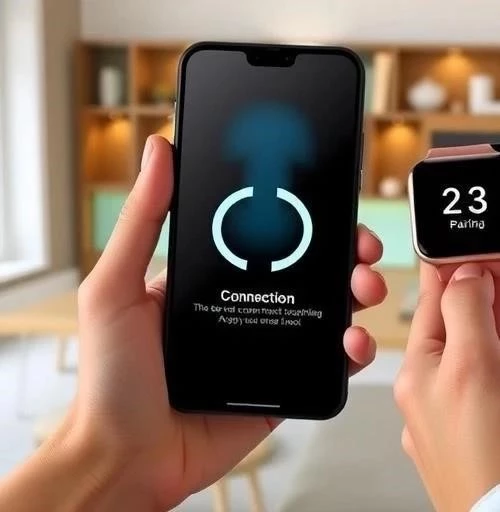
A watch advertised as an “Apple Watch Series 6 copy” is usually a third-party smartwatch, not an Apple product․ Its pairing process depends on the manufacturer and companion app, so it may not work with Apple’s Watch app or support Apple services such as iMessage, Apple Pay, or App Store downloads․ Check the watch’s manual, box, or setup screen for the exact model and app name before you begin․
Before pairing
- Charge the watch and keep it close to your phone․
- Turn on Bluetooth on the phone․ If the watch uses a separate companion app, install it only from the App Store or Google Play when possible․
- Check the manufacturer’s instructions for supported phone models and operating-system versions․ Some copies work only with Android or have limited iPhone features․
- If the watch was paired with another phone, disconnect it there or use its settings to restore factory defaults․ Menu names vary; look for “Reset,” “Factory reset,” or “Unpair․” A reset may erase saved data․
Do not assume that an app is genuine just because its icon resembles Apple’s․ Avoid unknown download sites, configuration profiles, and apps that ask for an Apple ID password, payment-card details, or unnecessary access to private information․ A third-party watch should not need your Apple account password to connect․
Pairing with an iPhone
- Turn on the watch and select a language or region if prompted․ Open its pairing screen or display the setup QR code․
- Find the companion-app name in the manual or on the watch’s screen․ Search for that name in the App Store, verify the developer and description, and install it if available; If the instructions point only to an unfamiliar website or an app that is not available for iPhone, check with the seller before proceeding․
- Open the companion app and follow its setup instructions․ Allow Bluetooth access when iOS requests it․ Grant other permissions, such as notifications or contacts, only if you want those features and understand why they are needed․
- Choose an option such as “Add device,” “Bind device,” or “Pair․” Select the watch from the list, or scan its QR code if the app offers that method․ Confirm any matching code shown on both devices․
- Keep the app open while the connection is established․ Once connected, review the app’s settings for notifications, health features, time format, and firmware updates․
Some companion apps ask you to pair through the iPhone’s Settings > Bluetooth menu; others require pairing inside the app first․ Follow the instructions for the specific watch rather than repeatedly trying both methods․ If iOS shows a Bluetooth pairing request, confirm it only when the name matches your device․
Pairing with an Android phone
Install the companion app identified by the manual from Google Play when available․ Turn on Bluetooth, open the app, and use its device-adding or scanning option․ Accept the Bluetooth pairing request and grant only the permissions needed for the features you plan to use․ Depending on the phone and app, notifications may also require notification access, and background operation may need to be allowed in battery settings․
If the watch does not connect
- Restart both devices, charge the watch, and move them close together․
- Make sure the watch is not still connected to another phone․ Remove an old connection from the companion app and Bluetooth settings, then try again․
- Check that Bluetooth is enabled and that the app has the required permissions․ If the device appears in the phone’s Bluetooth list but the app cannot find it, follow the app’s instructions for removing and adding it again․
- Reset the watch only after checking the manual, then repeat setup․ If the app reports that the model is unsupported, contact the seller or manufacturer; a reset will not make an incompatible watch work․
What to expect after setup
A copy may show the time, activity estimates, or phone notifications, but features and accuracy vary․ It should not be treated as a genuine Apple Watch, and pairing does not verify that its sensors or health readings are reliable․ If the device cannot be identified, requests sensitive credentials, or requires installing untrusted software, stop setup and seek help from the seller or return it․ For genuine Apple Watch pairing, use Apple’s Watch app and follow Apple’s official instructions for the specific model․


9 Comments. Оставить новый
The explanation is accessible and avoids presenting a copy as an official Apple product. The guidance to use the manufacturer’s companion app makes the steps easier to follow.
The distinction between an Apple Watch and a third-party copy is important. The article also gives sensible steps to take before starting the pairing process.
The article sets realistic expectations about limited iPhone compatibility and explains why the watch’s manual or setup screen should be checked first.
This article covers useful first steps, including charging the watch, enabling Bluetooth, and removing an earlier pairing if needed. It also makes clear that setup options may differ between devices.
The article provides a cautious approach to pairing a third-party watch. Its recommendations about app permissions and unfamiliar download sites help readers make more informed choices.
This is a useful overview for someone unsure how to connect a generic smartwatch to an iPhone. It appropriately notes that instructions and features can vary by manufacturer.
The article clearly explains that third-party smartwatch copies may not support Apple’s apps or services. The reminder to check the exact model and companion app before pairing is useful.
The preparation checklist is straightforward, and the note that a factory reset may erase data is worth including. The advice to confirm compatibility with the seller is also relevant.
The security advice is practical, especially the warning not to share an Apple ID password with an unfamiliar companion app. Checking the developer before installing an app is a helpful suggestion.