
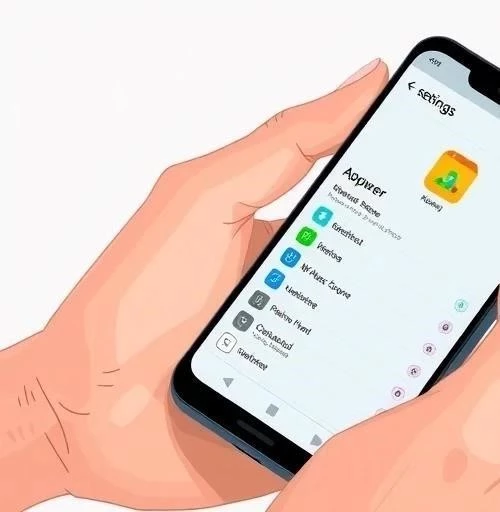
Whether you can install Google Play on a Huawei phone depends mainly on its model and how it was originally sold. Some older Huawei devices include Google Mobile Services (GMS), the software framework required by the Play Store. Many newer models do not. On a phone without GMS, downloading the Play Store app by itself usually will not make it work: the store depends on Google services for sign-in, app downloads, notifications, and other functions.
This guide explains how to check your device, what options are available, and how to avoid unsafe installation methods. Menu names and compatibility can vary by model, software version, and country.
First, check whether your phone already has Google services
- Open Settings and look for Apps, Apps & services, or Google.
- Check the app list for Google Play Store and Google Play services. You can also search for “Google” in Settings.
- If the Play Store is present, open it and try signing in with your Google account. If it is disabled, go to the app’s information page and choose Enable, if that option is available.
- Look up the exact model number and its original software specification on Huawei’s official support site or in the documentation supplied with the phone. A model name alone may not be enough, because regional versions can differ.
If your phone came with Google Play and the store has stopped working, you generally do not need to install it again. Restart the phone, check that the date and time are set automatically, install official system updates, and make sure the Play Store and Google Play services are enabled. Clearing the Play Store’s cache may also help: open Settings > Apps > Google Play Store > Storage and tap Clear cache. Avoid clearing data unless necessary, since it resets the app’s local settings.
For Huawei models that already support GMS
On a supported model, the Play Store is normally installed as part of the Google software package. If it is missing, first check whether it is hidden, disabled, or restricted by a work profile or parental-control setting. Restart the phone after enabling it. If the app still does not appear, use Huawei’s official recovery or software-update options for your specific model, or contact Huawei support. Do not install a system package intended for a different model or region.
You can also check whether Google Play certification is working. Open the Play Store, tap your profile picture, then go to Settings > About. The certification status is usually shown there. If the phone is certified but the store cannot sign in, check your internet connection, automatic date and time, available storage, and Google account security prompts. A recently changed password may require you to sign in again.
For newer Huawei phones without Google Mobile Services
Many Huawei phones released without GMS cannot use the standard Play Store through a simple, official installation. Installing a Play Store APK does not install the supporting Google framework. The result can be an app that crashes, cannot sign in, displays error messages, or downloads apps that do not run correctly. Compatibility can also change after a system update.
Huawei’s official app marketplace is AppGallery. To use it, open AppGallery, sign in with a Huawei ID if you want, search for the app, and install it from its listing. Also check the app developer’s official website: some developers provide a direct Android download or a web version. For services such as email, maps, video, shopping, or messaging, the browser version may be a practical alternative when the app depends on Google services.
Some AppGallery listings point to a developer’s site or another app marketplace. Before installing, confirm that the source is the real developer or a reputable store, check the requested permissions, and read the listing carefully. An app with the right name is not necessarily the official app.
What about GBox, GSpace, and other workarounds?
Third-party tools such as GBox or GSpace may provide a virtual environment in which some Google-dependent apps can run on certain Huawei devices. Availability, features, and reliability vary by phone, operating-system version, region, and app. These tools are not the same as installing Google Mobile Services at the system level, and they do not guarantee that every Google app, game, payment feature, notification, or account function will work.
If you decide to try one, obtain it only from a source that Huawei or the tool’s developer identifies as official. Read the permissions and privacy information, avoid entering sensitive credentials into an unfamiliar app, and check whether the service handles your data in a way you accept. Do not assume that a workaround will remain compatible after an update. If the tool stops working, remove it using its normal uninstall option rather than following instructions to disable phone security.
Be especially cautious of tutorials that ask you to install a long chain of unknown APK files, grant device-administrator access, turn off security protections, or use a USB drive containing unverified system files. These steps can expose personal information, cause crashes, or make the phone difficult to update. They may also violate workplace, school, or service-provider policies.
Why downloading a Play Store APK is usually not enough
An APK is an Android application package. The Play Store is only one part of Google’s mobile software. Many apps also rely on Google Play services, Google account components, device certification, and background processes. These components must be compatible with the phone’s system software and must be installed and configured correctly. Copying a Play Store APK from a download site does not provide that complete, supported setup.
There is another risk: APK files from unofficial sites may be modified, outdated, or malicious. A page that claims to offer the “latest Google installer for every Huawei” should be treated with suspicion. Do not enter your Google password into a page or app just because it promises to activate Play Store; Never share verification codes, payment details, or recovery information with an installer or an unknown support account.
Safer ways to get apps
- Use AppGallery. Search for the app and check its publisher and update history.
- Use the developer’s official website. Follow only the download instructions published by the developer.
- Try the web app. Open the service in a browser and, if supported, add its page to your home screen.
- Check for an alternative. Choose a reputable app that provides the same function without relying on Google services.
- Ask the organization responsible for the app. For banking, work, school, or government apps, confirm which Huawei models and installation sources are supported.
For banking and payment apps, use only the bank’s verified app listing or official website. Some financial apps require Google services or a certified device, and a third-party workaround may not meet the provider’s security requirements. If an app refuses to run, contact the provider rather than trying to bypass its protections.
Common problems and basic troubleshooting
The Play Store opens and immediately closes
Restart the phone, install available official updates, and check whether the store and Google Play services are enabled; On a model that originally included GMS, clear the Play Store cache and check that there is enough free storage. On a model without GMS, repeated APK reinstalls are unlikely to solve a missing-framework problem.
Sign-in fails or apps cannot be downloaded
Check your connection, automatic date and time, and Google account status. Try a different trusted network and make sure the phone is not blocking background data for Google components. If the device is uncertified or lacks supported Google services, account sign-in and downloads may remain unavailable.
An app installs but does not work properly
The app may depend on Google Play services, push notifications, location APIs, or device certification. Check the developer’s compatibility guidance and look for an official Huawei-compatible version. Reinstalling the same app from another unknown site is not a reliable fix.
Can you install Google Play through a system update?
Only use system software offered for your exact device through Huawei’s built-in update tools or official support channels. A normal update does not necessarily add GMS to a model that was released without it. Avoid unofficial firmware, bootloader modifications, and “one-click GMS” programs unless you fully understand the risks and have confirmed that the method is legitimate and suitable for your exact model. Such changes can erase data, break updates, affect warranty or support, and leave the phone unusable.
Before you begin
- Back up photos, contacts, and important files.
- Write down the exact model number and software version.
- Use official support pages for instructions specific to that model and region.
- Do not disable Google Play Protect or other security features to install an unknown file.
- Stop if instructions ask for your account password, verification code, or payment information outside a trusted Google sign-in screen.
Bottom line
If your Huawei phone was released with Google Mobile Services, the Play Store should normally be available or recoverable through supported settings and official software. If the device was released without GMS, there is no universal, officially supported APK that turns it into a fully Google-certified phone. Start with AppGallery and official developer sources; consider a reputable virtualisation option only after checking its limitations and privacy implications. The safest method is the one intended for your exact model, not a generic installer advertised for every Huawei device.


4 Comments. Оставить новый
The troubleshooting steps for phones that already came with Google Play are easy to follow. It’s also helpful that the guide cautions against clearing app data unnecessarily.
I appreciate the advice to verify the exact model and regional version rather than relying only on the phone’s name. That detail could help readers avoid incompatible installation methods.
A clear and practical introduction to checking whether a Huawei phone supports Google services. The warning that the Play Store app alone is not enough is especially useful.
A useful, safety-conscious guide for Huawei owners. The explanation of why Google Play services matter gives readers a good basis for deciding what to check next.