
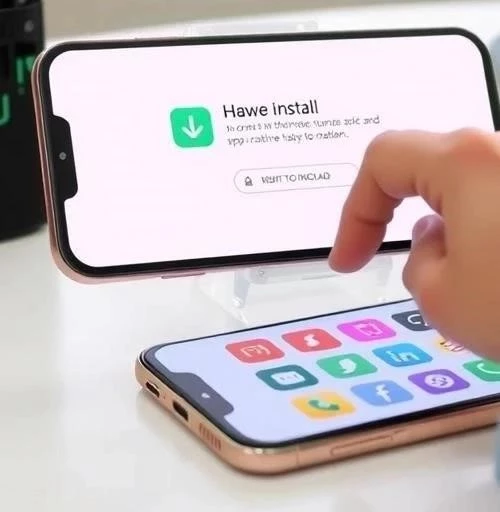
Short answer: Google Play Store cannot normally be installed on the Huawei P40 Lite E as a standard, officially supported app. The phone was released without Google Mobile Services (GMS), the system components on which Play Store and many Google apps depend. Downloading the Play Store APK alone does not add those components, so the store may fail to open, stop working, or leave apps unable to sign in or receive notifications.
This guide explains how to check the phone, find apps through Huawei’s supported options, and assess third-party workarounds without mistaking them for an official installation. Instructions and available services can vary by country, software version, and app developer.
Why the Play Store is not a normal installation
On Android phones certified for Google services, the Play Store works together with Google Play Services, Google Services Framework, and other system components. The P40 Lite E was sold without that Google software. Installing one Play Store file does not recreate the complete, certified system environment.
Some online guides describe installing several files, using a computer, changing system settings, or restoring a backup. These procedures may refer to a particular phone model, firmware version, or an older workaround. They are not an official Huawei method, may no longer work, and can cause account, security, or stability problems. A guide that worked on another Huawei model does not necessarily apply to the P40 Lite E.
Check the phone’s model and software
- Open Settings.
- Tap About phone and note the model number, EMUI version, and Android version;
- Return to Settings and check for a system update, usually under System & updates or a similarly named menu.
- Install available official updates and restart the phone.
Menu names can differ between regions and software releases. An update can improve the phone’s security and compatibility with available Huawei services, but it does not normally add Google Mobile Services or make Play Store officially supported.
Use Huawei AppGallery first
AppGallery is Huawei’s official app marketplace and is the safest place to begin. It is normally preinstalled on supported Huawei phones. Open it, sign in with a Huawei ID if prompted, search for the app you need, and check the developer name, description, permissions, and recent reviews before installing.
- Connect to a trusted Wi-Fi network or mobile data.
- Open AppGallery from the home screen or app drawer.
- Search for the app by its exact name.
- Open the listing and confirm that the publisher is the app’s genuine developer.
- Tap Install and follow the on-screen prompts.
If AppGallery asks to update itself, use its built-in update prompt. Avoid websites that imitate Huawei’s marketplace or offer modified versions of popular apps. If an app is missing, it may not be distributed through AppGallery in your country; that does not mean that an unofficial download is safe.
Look for a reliable alternative
Huawei’s Petal Search, where available, can help locate apps and web pages from different sources. Search for the app, then examine the result carefully. Prefer the developer’s official website or a link that the developer itself provides. Check that the address is spelled correctly and that the download is intended for Android and for your region.
Some services offer a usable website even when their Android app is unavailable. Open the service’s verified website in the phone’s browser. If it supports the feature, the browser menu may offer Add to Home screen or Install, creating a shortcut that behaves like an app; This does not install Play Store or provide Google Play Services, but it can be a simple alternative for services such as email, maps, video, or online storage.
For a specific app, check the developer’s support page for Huawei-compatible options. A developer may provide a version through AppGallery, a direct download, or a web app. Do not assume that a file found through a search result is authentic just because its name and icon look familiar.
Can an APK file install Play Store?
An APK is an Android application package. Installing an APK can add an individual app, but it cannot by itself supply all the system-level Google services that Play Store expects. On a phone without GMS, the store might install but fail during setup, show connection errors, close unexpectedly, or display apps that cannot run correctly. Updating or reinstalling the APK may not fix the underlying limitation.
Some Android apps are distributed as multiple packages rather than one standalone APK. Installing only one part can produce an installation error or an incomplete app. Do not download a collection of files and install them in a guessed order: the wrong package, version, or source can make the phone less secure or unstable.
If you choose to install an app directly from a developer, first verify that the developer explicitly provides the download for your device and region. Android may ask you to allow installation from that particular browser or file manager. Grant that permission only when necessary, install the verified file, and turn the permission off again afterward under the app’s Install unknown apps settings. The wording and location of this setting vary by EMUI version.
What about third-party Google-service workarounds?
Some third-party tools attempt to run Google-dependent apps in a separate environment or provide compatibility features. Their availability, names, functions, and safety can change. They are not the same as official GMS installation, and Huawei and Google do not guarantee that they will work with every app or software update.
Before considering any such tool, research its publisher and current reputation independently. Read its privacy policy and permissions, and consider what information it could access. A service that asks for a Google password, payment details, or broad access to personal files deserves particular caution. Never enter credentials into a screen unless you can verify that it is a genuine Google sign-in page and understand which service is handling the login.
Even if a workaround launches an app, some functions may remain unavailable. Banking, payment, streaming, location, push-notification, and device-integrity features can depend on Google components or certification. An app may stop working after an update, or the workaround may no longer be maintained. Do not rely on an unofficial setup for essential security, financial, or emergency services without checking directly with the service provider.
Methods to avoid
- Do not install Play Store from an unknown APK site. A file can be outdated, altered, or bundled with unwanted software.
- Do not follow instructions for a different model without confirmation. Huawei phones with similar names can use different hardware or firmware.
- Do not unlock, root, or flash the phone just to add Play Store. These actions can erase data, weaken security, cause boot problems, or affect warranty and support. They are not a routine solution.
- Do not disable security protections permanently. If a verified developer download requires a temporary permission, revoke it after installation.
- Do not share your Google password, verification codes, or recovery information with a download site or an unknown helper app.
- Do not factory-reset the phone as an experiment. A reset deletes local data and does not normally add Google services.
If Play Store is already on the phone
A used or previously modified phone may already show a Play Store icon. Its presence does not prove that the installation is official, complete, or safe. Before signing in, ask the previous owner how it was installed and check whether the phone has been modified. If you cannot verify the setup, avoid entering sensitive account details and consider getting advice from Huawei support or a qualified repair service.
If you decide to remove an unofficial setup, first back up important photos, contacts, and files. Do not delete unfamiliar system packages at random: doing so can prevent other functions from working. Use the installer’s documented removal procedure, if trustworthy, or seek professional assistance. A factory reset may remove user-installed apps, but it is not guaranteed to restore modified system software to its original state.
Troubleshooting common problems
AppGallery will not open or download apps
- Check the internet connection, available storage, date and time settings, and whether AppGallery needs an update.
- Restart the phone and try again on a reliable network.
- Check Huawei’s support information for your region if the service remains unavailable.
An app installs but will not start
- Check the app’s official support page for device and operating-system requirements.
- Install updates from the same verified source used for the original app.
- If the app requires Google Play Services, contact its developer about a Huawei-compatible version or use its official website where possible.
A downloaded file is rejected
Do not repeatedly try files from different sites. Confirm that the download is meant for the P40 Lite E, that it came from the developer’s official source, and that the Android version is supported. If the source or package cannot be verified, delete the file.
Frequently asked questions
Is there an official way to install Play Store on the P40 Lite E?
In general, no. The phone was sold without Google Mobile Services, and Huawei does not provide Play Store as a normal AppGallery installation for this model. Check Huawei support in your country for the latest device-specific information.
Will installing Google Play Services first solve the problem?
Not reliably. Google services consist of more than one app, and their compatibility and certification depend on the system software. Installing files in an arbitrary order is not an official or dependable way to convert the phone into a GMS-supported device.
Can I use Google apps in a browser?
Some Google services can be accessed through their websites, although available features may differ from the Android apps. Use the genuine website address, sign in only over a secure connection, and review the service’s own security recommendations.
Will a virtual environment make every app work?
No. Compatibility depends on the app, the tool, the phone’s software, and the service’s requirements. Features that rely on certification, notifications, location, payments, or device security may not work even when an app opens.
Recommended approach
For most owners, the lowest-risk option is to keep the phone’s software updated, use AppGallery, and obtain missing apps only from their verified developers. Use official websites when they provide the features you need. Treat third-party compatibility tools as optional, unverified workarounds rather than an official installation method, and avoid entering sensitive information unless you trust and understand the service.


1 Comment. Оставить новый
The article clearly distinguishes between installing the Play Store APK and having the Google system components it depends on. Its reminder to verify the exact model and software version is useful, since workarounds may vary and are not officially supported.