
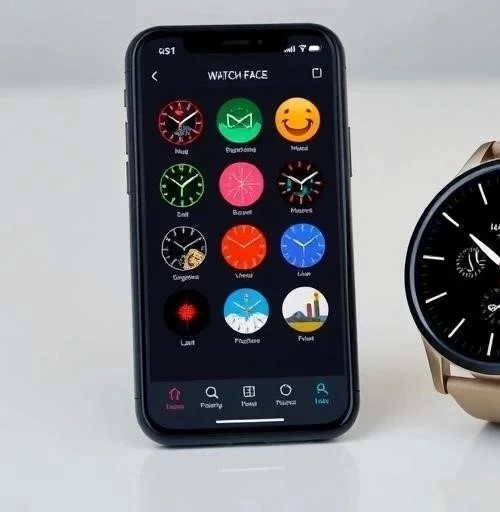
The Honor Watch Magic can use different watch faces, but the available choices and installation process depend on the watch’s software, phone, region, and version of the companion app. In most cases, faces are managed through Huawei Health, the app used to connect and synchronize the watch. The instructions below cover the standard method and common troubleshooting steps.
Before you begin
- Charge the watch and keep it near your phone during setup.
- Install or update Huawei Health from an official source. Depending on your phone and region, it may be available through an app store or Huawei’s official website.
- Pair the watch with the phone in Huawei Health. If it is already paired, confirm that the app can connect and synchronize with it.
- Turn on Bluetooth and allow the permissions the app requests for connecting to nearby devices.
Menu names may differ slightly between app versions. The original Honor Watch Magic is an older device, so some newer faces or app features may not be supported. Availability can also vary by country, phone operating system, and the firmware installed on the watch.
Install a face from Huawei Health
- Open Huawei Health and sign in if prompted.
- Tap Devices, select Honor Watch Magic, and open Watch faces or More. The exact label depends on the app version.
- Browse the available designs. If categories or a search option are shown, use them to find a style you like.
- Tap a face to view its details. Check whether it is free or paid and whether it is compatible with your watch.
- Choose Install, Download, or the equivalent button. Keep the app open and the watch connected while the face transfers.
- When synchronization finishes, select Set as default if that option appears. Otherwise, choose the face from the watch’s face list.
Downloads may take longer over a weak Bluetooth connection. Avoid restarting the phone or watch during transfer. A progress indicator in the app, or a message that synchronization is complete, usually means the installation has finished.
Choose a face on the watch
If a face has already been transferred, you may be able to activate it directly on the watch. Wake the display and press and hold the current face until the selection screen appears. Swipe through the available designs and tap the one you want. On some firmware versions, you can also open Settings on the watch and look for Display, Watch face, or a similar option.
This method only selects faces already stored on the device; it does not download new ones. The number of faces the watch can keep may be limited. If installation fails because there is not enough space, remove an unused downloaded face in Huawei Health, then try again.
If the Watch faces section is missing
First, update Huawei Health and check that the watch is connected in the app rather than only paired in the phone’s Bluetooth settings. Close and reopen the app, then select the watch again. If the face store still does not appear, the service may not be offered for your region, app release, or particular Watch Magic firmware. An older model may not show the same catalog as newer Honor or Huawei watches.
Do not assume that a face file made for another model will work. Watch faces are often device-specific, and unofficial installation methods can fail, damage synchronization, or expose the phone to unsafe downloads. Prefer the official catalog and avoid unknown websites or apps that request account credentials.
Troubleshooting installation
- Transfer stops: Keep the phone and watch close, make sure Bluetooth is on, and retry after reopening Huawei Health.
- The watch does not appear: Confirm that it is charged and connected in the app. If needed, restart both devices and reconnect through Huawei Health.
- The face is not visible: Wait for synchronization to complete, then check the watch’s face selector. Some faces replace an older downloaded item when storage is limited.
- The catalog is empty: Check the app version and internet connection. Regional availability or device support may restrict the selection.
Resetting the watch should be a last resort because it can erase settings and require pairing again. Before doing so, check the app’s help information and make sure important health data has synchronized.
Changing or removing a face
To switch designs, use the watch’s face selector or install another compatible option from Huawei Health. To remove a downloaded face, open the watch-face management screen in the app and use its delete or manage control, if available. Built-in faces may not be removable. Labels and controls can vary across software versions.
For the standard installation, connect the Honor Watch Magic to Huawei Health, open the watch-face catalog, select a compatible design, and let the app synchronize it. Then activate the face from the app or the watch. If the catalog or a particular design is unavailable, check compatibility, software updates, connection quality, and regional support before trying other methods.


8 Comments. Оставить новый
The article appropriately notes that this older model may not support every newer watch face or app feature.
The instructions are presented in a logical order, from connecting the watch to selecting a design.
It is helpful that the article points out that menu labels can differ between app versions.
The guidance to keep the watch connected during synchronization addresses a common part of the installation process.
The compatibility notes are useful, particularly the reminder that available features may vary by region and software version.
The setup checklist provides practical steps to take before attempting to install a new face.
The guide clearly explains the standard process for finding and installing a watch face through Huawei Health.
The overview is straightforward and gives readers a clear starting point for managing watch faces.