
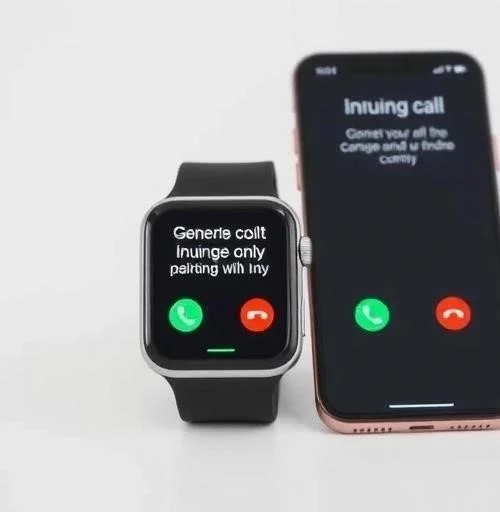
The phrase “watch call” may refer to making or receiving phone calls on a smartwatch. To use this feature, the watch must be connected to a compatible phone, and calling must be supported by the watch, the phone, and, where relevant, the mobile carrier. The exact menus vary by model, but the general setup is similar across many devices.
Check compatibility first
Before pairing, confirm that the watch works with your phone’s operating system. Some watches are designed for a particular phone platform and may offer limited functions when connected to another one. Check the manufacturer’s specifications for supported phones and operating-system versions. Also determine whether calls use the phone’s Bluetooth connection, a separate cellular plan, or both. A Bluetooth-only watch generally needs the phone to be nearby and connected. A cellular model may be able to call independently after its mobile service is activated.
Make sure both devices are charged and have Bluetooth enabled. Install the official companion app recommended by the watch manufacturer, and update the phone and watch if updates are available. Use the official app rather than an unfamiliar third-party pairing tool.
Pair the watch with the phone
- Keep the watch and phone close together. On the phone, turn on Bluetooth and open the watch’s official companion app.
- Choose an option such as Add device, Pair new watch, or Start setup. The wording differs between apps.
- Select the watch when it appears. If a code is displayed on both screens, check that the codes match, then confirm the pairing on each device.
- Follow the on-screen instructions. The app may ask to sign in, accept terms, select settings, or install an update. Keep the devices near each other until setup is complete.
If the watch was previously paired with another phone, it may need to be unpaired or reset before a new connection can be made. Check the manufacturer’s instructions first: resetting may erase settings or locally stored data.
Enable calling
After pairing, find the call, phone, or connectivity settings in the companion app and on the watch. Allow the requested access to contacts, call history, notifications, or the phone’s microphone when those permissions are needed for the functions you want. Permission names and availability depend on the operating system. You can review or change them later in the phone’s settings.
For a Bluetooth call, check that the watch is connected to the phone, not merely listed as a previously paired device. Some models use a separate Bluetooth audio connection for calls. If the watch asks to connect for calls, approve that request in the phone’s Bluetooth settings. On the watch, open the Phone or Contacts app, choose a contact or enter a number, and start the call. To answer an incoming call, use the on-screen answer control or the physical button specified by the manufacturer. Speak toward the watch’s microphone and use its speaker, or switch the audio to the phone if preferred.
For a cellular watch, follow the carrier’s instructions to activate an eligible plan. A plan may require a compatible phone account and may incur an additional fee. Availability varies by carrier, country, and watch model. Emergency calling and international calling may also work differently from ordinary calls; do not assume a watch has service when its connection status is unclear.
If calls do not work
- Check that Bluetooth is on, the watch is connected, and the phone is within range. Toggle Bluetooth off and on, then reconnect.
- Confirm that call-related permissions are allowed and that the watch is not in Airplane, Do Not Disturb, or another mode that silences alerts.
- Check the phone’s audio output during a test call. If sound stays on the phone, select the watch as the audio device if that option is available.
- Restart both devices and install pending software updates. If the connection still fails, remove the pairing in the companion app and pair again using its instructions.
- For cellular calling, check signal, plan activation, and carrier compatibility. Contact the carrier or watch manufacturer if service remains unavailable.
Practical and privacy considerations
Test the setup with a short call before relying on it. Check microphone clarity, speaker volume, and whether incoming calls appear on the watch. Keep the watch’s software updated, use a screen lock where available, and grant only the permissions required for your chosen features. If you sell, give away, or replace the watch, unpair it and remove personal information according to the manufacturer’s guidance.
Retail listings and product catalogues can help identify models and basic specifications, but they do not establish that every watch supports calls with every phone. Verify the exact model’s compatibility and calling method in its official documentation. In short, pairing connects the watch to the phone; permissions and Bluetooth audio enable ordinary calls, while independent calls generally require a supported cellular model and active service.
8 Comments. Оставить новый
This is a useful introductory guide to enabling calls on a smartwatch. The note about previously paired watches provides relevant context for troubleshooting setup.
This guide gives a clear overview of the basic requirements for setting up calls on a smartwatch. It also notes that menu names may differ between devices.
The article clearly explains that smartwatch calling depends on compatibility among the watch, phone, and mobile service. The distinction between Bluetooth and cellular models is useful.
The setup steps are presented in a practical order, from checking compatibility to completing pairing. The reminder to use the manufacturer’s official app is helpful.
The guidance is concise while covering important setup details, including matching confirmation codes and keeping the devices close during pairing.
The article appropriately advises checking the manufacturer’s specifications because smartwatch features can vary across phones and operating systems.
The explanation of Bluetooth-only and cellular watches helps clarify when a phone needs to remain nearby. The instructions are straightforward and easy to follow.
The article usefully highlights compatibility and software updates before pairing. Its step-by-step format makes the process easier to understand.