
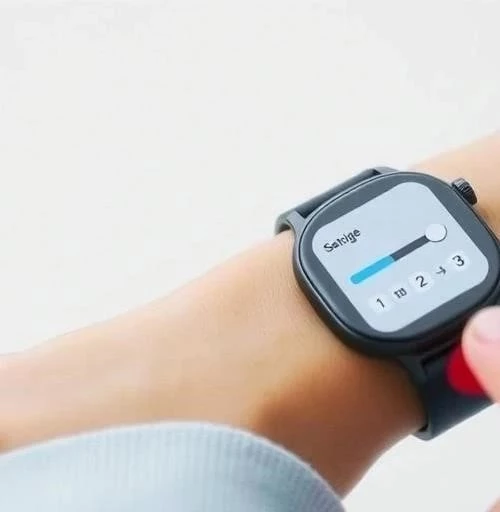
If text on your Apple Watch looks too large, you can usually reduce it in a few seconds. The main control is Text Size, available directly on the watch and in the Watch app on your iPhone. Lowering this setting makes text easier to fit on screen and may show more content in supported apps. It does not shrink every element, however: watch faces, icons, buttons, and some app layouts use fixed sizes.
Change the text size on your Apple Watch
- Press the Digital Crown to open the app grid or list, then tap Settings.
- Scroll down and tap Display & Brightness.
- Choose Text Size.
- Turn the Digital Crown to the left to select a smaller size. The sample text changes as you adjust it.
- Tap the back button or press the Digital Crown to leave Settings. The change is saved automatically.
On many models, the Text Size screen also has small and large controls on either side of the sample. You can tap the smaller control instead of turning the Crown. The Crown is useful for fine adjustments: move it gradually, then check the result in an app you use often. If the menu names or layout differ, check that your watchOS is up to date; Apple can change Settings screens between software versions.
Use the Watch app on your iPhone
You can also adjust the watch from its paired iPhone, which may be more convenient if navigating the small display is difficult:
- Open the Watch app on your iPhone.
- Tap My Watch, if that tab is not already selected.
- Open Display & Brightness.
- Move the Text Size slider toward the smaller-text end.
The setting applies to the paired Apple Watch, and you should see the change without needing to restart either device. If you have more than one watch paired, make sure the Watch app is showing the watch you intend to change.
What if the text still seems too large?
Some Apple Watch apps support the system text-size setting, while others use their own fixed typography. That is why a smaller setting may change messages or menus but leave a watch-face label, complication, or particular screen looking much the same. Test the setting in several places before deciding it has not worked.
Also check whether Bold Text is enabled. Bold letters can look heavier and occupy more visual space, even though boldness is not the same as font size. On the watch, look under Settings > Display & Brightness for Bold Text, if the option is available, and turn it off to compare. This changes weight rather than size, so use Text Size for the actual font adjustment.
Accessibility settings can provide another route. Open Settings > Accessibility > Display & Text Size on the watch, or check the corresponding Accessibility controls in the Watch app. Depending on your watchOS version, you may find a text-size control or a Larger Text option there. If larger text has been enabled, reduce it or switch it off. Avoid changing unrelated settings such as Zoom: Zoom magnifies the screen; it does not make the underlying font smaller.
Make a small change, then check readability
It may be tempting to turn the text all the way down, but the smallest setting is not always the best one. Apple Watch screens are compact, and very small type can be difficult to read while walking or outdoors. Reduce the size one step at a time, then review notifications, Messages, Calendar, and any other supported app you rely on. Keep the setting at the smallest size you can read comfortably.
If a notification still takes up too much room, consider whether its content or layout can be simplified. You can review notification preferences in the Watch app on iPhone and turn off alerts you do not need. This will not change the font, but it can reduce the amount of text competing for space. Likewise, changing a watch face may help if the crowded items are complications rather than words in an app.
Quick troubleshooting
- No visible change: Try a different built-in app, then close and reopen the affected app. Some third-party apps do not follow system text settings.
- Only some screens changed: This is expected when an app or watch-face element uses a fixed layout.
- The text is hard to read: Increase it by one step, or enable Bold Text if thicker lettering helps you.
- You cannot find the control: Search Settings on the watch or check My Watch > Display & Brightness on iPhone. Menu wording can vary by software version.
In brief
To make the font smaller, open Settings > Display & Brightness > Text Size on Apple Watch and turn the Digital Crown left. Alternatively, adjust the Text Size slider in the iPhone Watch app. The control affects supported text, not every visual element, so check the result in the apps you use and choose a size that remains comfortable to read.


5 Comments. Оставить новый
The note about software-version differences adds helpful context. It prevents readers from getting stuck if their Settings menus look slightly different, while keeping the steps straightforward.
I like that the instructions cover both the watch and the iPhone. Offering two methods makes the advice more accessible, especially for someone who finds a small screen difficult to navigate.
The reminder to test the change in a commonly used app is practical. Different apps may handle system text settings differently, so checking the result is better than assuming every screen will look the same.
This is a clear, well-organized guide. Mentioning that settings save automatically and that a restart is not needed answers common questions without adding unnecessary complexity.
The distinction between adjustable text and fixed-size interface elements is useful. It sets realistic expectations and helps explain why reducing Text Size may not change every part of the watch.