
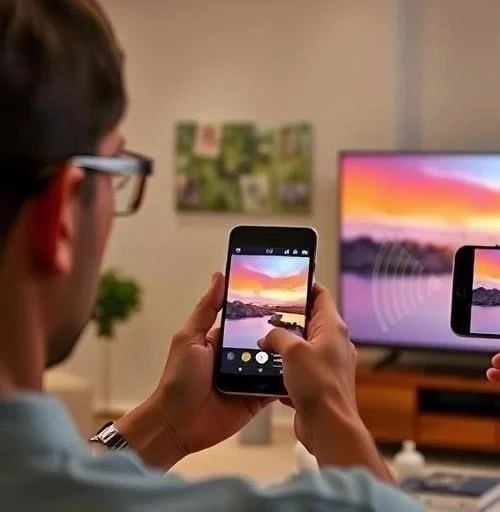
Turn your television into a giant window for your phone, laptop, or holiday photos. Screen mirroring sends what’s on a device to the TV, usually over Wi‑Fi. The exact menu names vary by Xiaomi TV model and software, but the route is simple: connect both devices to the same network, then choose the TV as the display.
Before you begin
Make sure the Xiaomi TV is on and connected to Wi‑Fi. Connect your phone or computer to that same Wi‑Fi network—not a guest network that blocks device discovery. On the TV, look for an app or setting called Cast, Screen Mirroring, Miracast, or Wireless Display. Names differ across models and regions. If you cannot find the feature, check the TV’s settings or user guide; not every model supports every casting method.
From an Android phone
- Open the TV’s casting or screen-mirroring mode if it has one.
- On your phone, swipe down from the top to open Quick Settings. Tap Cast, Screen Cast, Wireless Display, or a similarly named button. You may need to swipe down twice or edit the shortcut panel.
- Select your Xiaomi TV from the list, then accept any connection prompt shown on the television.
On many Xiaomi phones, the feature is under Settings → Connection & sharing → Cast. Turn on Cast and choose the TV. Menu labels can change with the phone’s MIUI or HyperOS version. To stop mirroring, return to the Cast screen and tap Disconnect.
Using Google Home
If the TV supports Chromecast built-in, open the Google Home app on your Android phone. Select the TV, then choose Cast my screen or Cast screen. Confirm the prompt. This mirrors your whole display, so notifications may appear on the TV too. Use Do Not Disturb if you want your private messages to stay private.
From an iPhone or iPad
Open Control Center, tap Screen Mirroring, and look for the TV. This works only if your Xiaomi TV supports AirPlay or has a compatible receiver connected. Many models do not offer AirPlay natively, so the TV may not appear. In that case, use a trusted receiver or streaming device that supports AirPlay, or connect the iPhone with a compatible HDMI adapter. Avoid unknown mirroring apps that ask for unnecessary permissions.
From a Windows laptop
Press Windows + K to open the wireless display panel. Select the TV if it appears, then approve the request on the television. Your laptop and TV need to support compatible wireless display technology. To choose whether the TV duplicates or extends your desktop, press Windows + P and select the desired mode.
If the TV refuses to appear
- Check that both devices use the same Wi‑Fi network and that neither is on a guest network.
- Restart the TV, phone, and router; then try discovery again.
- Update the TV and phone software. On the TV, check that the casting app or receiver is open.
- Turn off a VPN temporarily, as it can interfere with local device discovery.
- Move devices closer to the router. Crowded Wi‑Fi can cause lag, stuttering, or failed connections.
If the picture connects but video is choppy, close bandwidth-heavy apps and try a stronger Wi‑Fi signal. Some streaming services restrict mirroring of protected video; use the service’s TV app instead. For the most reliable connection—especially for games—use an HDMI cable or adapter. It is less magical, but wonderfully immune to Wi‑Fi moods.
A smoother viewing ritual
Start mirroring before opening your video or presentation, rotate your phone to landscape when appropriate, and keep it plugged in during a long session. Remember that mirroring shows the whole screen, while casting from a supported app may send only the video and let your phone do something else. Choose the method your device and Xiaomi TV both support, and your small screen can make a grand entrance.
6 Comments. Оставить новый
The AirPlay caveat deserves its own tiny spotlight. It turns a potentially frustrating “my TV disappeared” moment into a clear explanation of what the hardware may—and may not—support.
A neat guide for turning the living-room screen into a shared canvas. I appreciated the distinction between mirroring a whole display and choosing a compatible casting route—it helps set expectations before the first tap.
This feels like a friend standing nearby while you tap through settings: practical, calm, and not alarmed by the occasional missing Cast button. The model-specific warning is especially useful.
The privacy note is the quiet hero here. A big screen is wonderful for photos; it is less wonderful when a private notification makes an unexpected cameo.
I like that this guide doesn’t pretend every Xiaomi TV has the same buttons. It treats changing menu names as normal, which is a kindness to anyone staring at a screen that refuses to match the instructions.
A helpful little map through the maze of casting menus. The reminder that TV and phone must share the same Wi‑Fi network may save readers from a very confusing game of “Why can’t you see me?”