
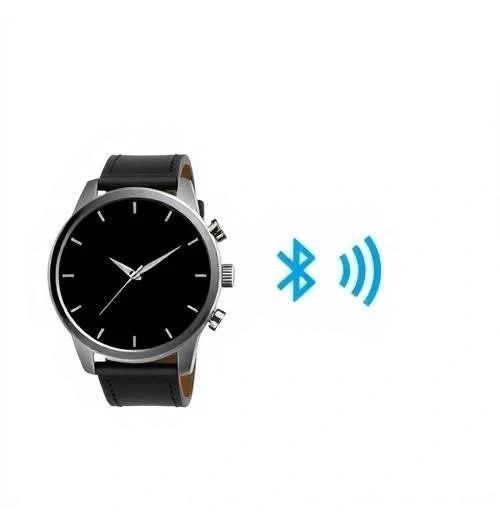
Connecting a HOCO Y5 normally involves charging the watch, installing its companion app and pairing it with a phone over Bluetooth. The exact app and menu labels can vary by version or region. Check the watch’s manual, packaging or QR code for the app specified for your particular device; do not assume that an app used by another HOCO watch will work with the Y5.
Before pairing
- Charge the watch and keep it close to the phone.
- Turn on Bluetooth on the phone. Allow location access if the app requests it; some Android versions require this permission to discover nearby Bluetooth devices.
- Connect the phone to the internet to download the app and complete any setup.
- If the watch has already been paired with another phone, remove that connection in the old phone’s app and Bluetooth settings, or reset the watch as described in its manual.
Pair the watch in its app
- Scan the QR code in the Y5 manual or on its packaging. Confirm that the destination is the companion app identified for your watch, then install it from the phone’s official app store.
- Open the app, accept the permissions needed for discovery and notifications, and create or sign in to an account if the app asks.
- Open the app’s device section. Its name may be “Device,” “Add device,” “Bind device” or similar. Choose the option to add a watch or scan for nearby devices.
- Select the entry that matches the Y5. If several devices appear, compare the displayed model or Bluetooth name with the information in the manual. Confirm the pairing request on both the phone and watch if prompted.
- Wait for the app to report that the connection is complete. Keep the app open during initial synchronization, then check that the watch shows the correct time.
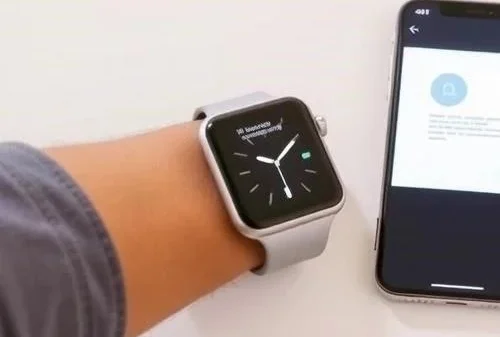
For many smartwatches, setup should begin inside the companion app rather than in the phone’s general Bluetooth menu. Pairing directly in system settings first can sometimes prevent the app from completing its own connection. Follow the Y5 manual if it gives different instructions.
Calls and Bluetooth audio
If the Y5 supports calls or audio over Bluetooth, it may use a second Bluetooth connection in addition to the app connection. After the watch is bound in the app, open the phone’s Bluetooth settings and look for a separate entry associated with the watch. Select it and confirm any request. If calls are not needed, leave this additional connection unpaired. Available functions depend on the Y5 version and phone.
If the watch does not appear
- Make sure the watch is switched on, charged and not connected to a different phone.
- Close and reopen the companion app, toggle Bluetooth off and on, and try the search again with the devices close together.
- Check that the app has nearby-device and, where required, location permissions. On iPhone, also review Bluetooth access in Settings.
- If the watch appears as connected in the phone’s Bluetooth list but not in the app, select “Forget” or “Unpair,” restart both devices and begin again through the app.
- As a last step, use the watch’s factory-reset option only after checking the manual. A reset may erase settings and stored data.
After connection
Use the app to choose which notifications to receive and, if offered, adjust health, display and synchronization settings. Keep Bluetooth enabled for ongoing synchronization. If pairing still fails, verify the exact model and app from the Y5 documentation, update the phone’s operating system and app, and contact the seller or HOCO support with the model and phone details.
9 Comments. Оставить новый
The article appropriately notes that menu labels and app details may differ by version or region.
The article gives a clear sequence for setting up the watch and distinguishes app-based pairing from phone settings.
The guidance is straightforward and avoids assuming that every HOCO watch uses the same app.
The advice about removing an existing connection is a useful addition for readers who have paired the watch before.
The troubleshooting context is helpful, though the instructions depend on the specific Y5 manual for exact app details.
The article covers permissions and initial synchronization as well as the basic pairing steps.
The instructions are organized into helpful sections, making the setup process easier to follow.
The preparation steps are practical and help readers address common connection issues before pairing.
The reminder to verify the companion app against the manual is useful, especially when app names vary between models.