
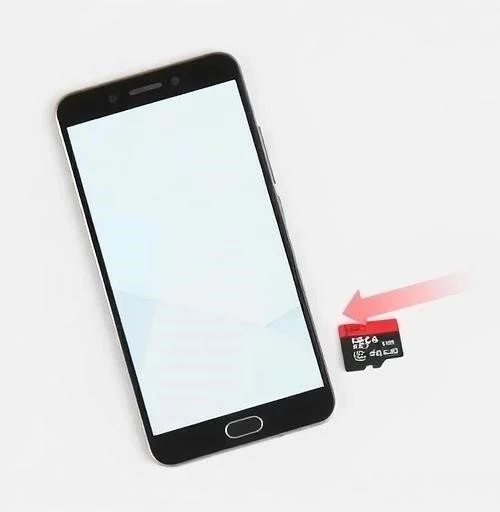
Your Xiaomi phone’s internal storage is a small apartment: apps live there, update there, and keep their private data behind locked doors. An SD card is more like a roomy suitcase. It can carry photos, videos, music, and some app files—but it cannot always become a new home for the app itself. Whether you can move an app depends on your phone, Android version, and the app developer.
First, the important reality
On many newer Xiaomi phones running MIUI or HyperOS, there is no system-wide “Move to SD card” button. Android and Xiaomi commonly reserve internal storage for installed apps, while treating a microSD card as removable storage for personal files. Some older models, software versions, or individual apps may offer a move option, but it is not guaranteed. If the option is missing, there is usually no safe setting you have overlooked.
Check whether your phone offers the option
- Insert a compatible microSD card and wait for Xiaomi’s system to recognize it.
- Open Settings and go to Apps → Manage apps. On some versions, you can reach the same screen by long-pressing the app icon and choosing App info.
- Select the app, then look for Storage or Storage used. If you see Change, tap it, choose the SD card, and confirm the move.
Menu names vary between MIUI, HyperOS, Android versions, and regional builds. If “Change” is not there—or is greyed out—the app or system does not permit moving it. System apps and many large games are especially likely to stay in internal storage.
If there is no “Change” button
Use the card for the files that actually take up space. Open the Camera app’s settings and look for a storage-location option; if available, choose the SD card for new photos and videos. In your file manager, move existing pictures, downloads, documents, and videos to a suitable folder on the card. You can also check apps such as music players or messaging services for their own download or media-storage controls.
Moving a photo folder is not the same as moving an app. The app may remain installed in internal memory while its media library sits on the card. That distinction is useful: it can free substantial space without risking the app’s private data or breaking updates.
Make room without moving the app
- In Settings → About phone → Storage, review what is consuming space. Exact labels differ by software version.
- Clear an app’s cache from its App info page. Choose Clear cache, not Clear data, unless you understand that clearing data can remove local settings, downloads, or sign-in information.
- Delete offline videos, duplicate downloads, and files you no longer need. Back up anything important before removing it.
- Uninstall unused apps, then reinstall only the ones you need. This may reclaim more space than moving a small app.
What about formatting the card as internal storage?
Android has supported a feature often called adoptable storage, which can combine a card with phone storage. However, many Xiaomi models and software builds do not expose this feature. Do not assume that formatting a card on a different phone will make it usable for apps on your Xiaomi. Formatting erases the card, and a card set up as internal storage may become encrypted or unreadable elsewhere. Back up its contents first and use this approach only if your own phone explicitly offers it and you accept the trade-offs.
Avoid risky shortcuts
“Force move” utilities, root instructions, and hidden Android commands can promise to relocate anything. In practice, they may cause crashes, broken app updates, lost data, or problems after a system upgrade. Rooting can also weaken security and affect warranty or support. Be especially cautious with apps that ask for broad permissions or demand payment before showing whether your model is supported.
Quick troubleshooting
If the card does not appear, turn off the phone before reseating it, then check Settings → Storage. Try another compatible card if possible. If the phone detects the card but an app has no move control, that is usually an app or system restriction—not a faulty card. Keep important files backed up: removable storage can fail, and a misplaced card can take its library with it.
The practical answer
On a Xiaomi phone, open the app’s storage settings and move it only if the system offers that choice. If it does not, keep the app in internal storage and send photos, videos, downloads, and supported app media to the SD card instead. Think of the card as an extension for your belongings, not necessarily a second home for every app. That small distinction can save space—and spare your phone a very unnecessary adventure.
7 Comments. Оставить новый
The apartment-and-suitcase comparison makes a stubborn storage limitation instantly click. I also appreciate that the article doesn’t send readers hunting for a magic button that may not exist.
This reads like a calm guide through a maze of changing Xiaomi menus. The detail that menu names vary is especially useful for anyone whose screen refuses to match a tutorial exactly.
The article turns a common tech disappointment into a useful checklist. Checking the app’s storage page first, then shifting photos and downloads, feels like a sensible path rather than a wild goose chase.
Helpful in the way a well-labelled map is helpful: it shows where the route may end, then points toward the space that can still be reclaimed. I’d happily share this with someone trying to rescue a crowded phone.
A good little antidote to internet advice that treats every Android phone as identical. The explanation leaves room for older models and app-specific exceptions without pretending those exceptions are universal.
A refreshingly practical guide: it separates what the phone might allow from what it definitely won’t promise. The reminder to move personal files instead is the sort of advice that saves both time and frustration.
I like the suitcase metaphor, but the real gem is the honest explanation behind it: an SD card can carry plenty without becoming the app’s new home. Clear, memorable, and mercifully free of risky shortcuts.