
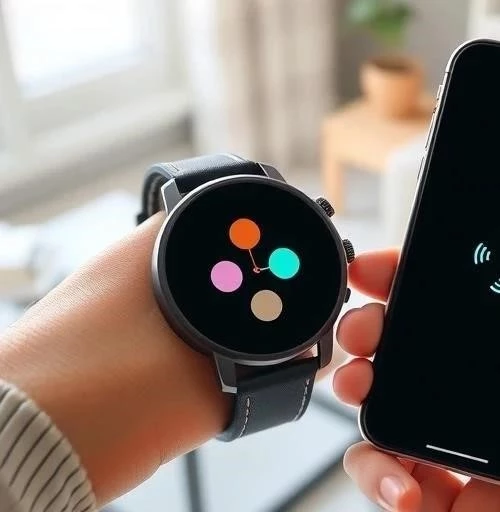
Pairing a Galaxy Watch is less like plugging in a gadget and more like giving your phone a new sidekick: first they introduce themselves, then they decide what to share. The setup is usually simple, but the right route depends on your watch model and phone. Follow these steps and you can go from unopened box to wrist-ready without wandering through Bluetooth menus.
Before you begin: check the match
Most recent Galaxy Watches pair with Android phones through Samsung’s Galaxy Wearable app. Compatibility varies by model and software version, so check Samsung’s support page for your exact watch and phone if you are unsure. Some newer watches do not support iPhones. Older Samsung watches may have different requirements, so do not assume every model behaves alike.
- Charge the watch, or make sure it has enough battery for setup.
- Turn on Bluetooth on your phone and connect the phone to Wi-Fi or mobile data.
- Install or update Galaxy Wearable from Google Play. The app may install additional components, such as a watch plug-in, during pairing;
- Keep the devices close together, with the watch awake and its screen unlocked.
A Samsung phone is not always required: many watches work with other supported Android phones. However, certain Samsung Health features, including ECG or blood-pressure functions, may require a compatible Samsung phone, regional approval, and additional setup. Treat the watch’s compatibility list as the final word.
The usual pairing route
- Power on the watch. Press and hold its Home or Power button until the Samsung logo appears. Choose a language if asked.
- Open Galaxy Wearable. Tap Start, Continue, or Add new device—the wording can vary by app version.
- Select your watch. If it does not appear, tap Scan or choose it from the list of nearby devices.
- Confirm the code; A number should appear on both screens. Check that the codes match, then approve the connection on the phone and watch. This is the devices’ little handshake; do not accept a code you cannot verify.
- Allow the requested permissions. Contacts, notifications, location, and nearby-device access help specific features work. Review each prompt and allow only what you want to use. Some permissions can be changed later in your phone’s Settings.
- Sign in and finish setup. Follow the prompts for your Samsung or Google account, agree to the relevant terms, choose settings, and install any available update. Keep the watch near the phone while it downloads and restarts.
During setup you may be offered the option to restore a backup. Choose it if you are replacing a watch and want familiar settings; choose a fresh setup if you prefer a clean start. A restore can take several minutes, so let it finish before trying to pair another accessory or leaving the app.
Make the watch feel like yours
Once connected, use Galaxy Wearable to pick a watch face, arrange tiles, choose which apps can send notifications, and adjust quick settings. Open Watch settings for display, sound, vibration, gestures, and battery options. In the app’s notification section, enable alerts for the apps that matter; otherwise, a silent watch may simply be following your instructions perfectly.
For calls and messages, check that the relevant phone permissions are enabled and that the watch is connected. An LTE watch may need a separate carrier plan before it can call or use data away from your phone. Bluetooth models generally rely on the phone being nearby, though Wi-Fi and account settings can support some remote features. Exact behavior depends on the model, carrier, and software.
If the connection gets stuck
- The watch is missing from the list: wake it, move it closer, switch Bluetooth off and on, and reopen Galaxy Wearable. Check that the watch is not already paired to another phone.
- No matching code appears: cancel on both devices and start again from Galaxy Wearable. Avoid pairing from the phone’s Bluetooth screen unless the app specifically directs you there.
- The app keeps searching: update Galaxy Wearable, restart both devices, and check that the phone has internet access. Also review whether your phone’s Android version supports that watch.
- The watch was previously used: a watch still linked to its former phone may need to be disconnected there. If that phone is unavailable, use the watch’s reset option only after considering that it can erase saved data.
- Pairing repeatedly fails: remove an incomplete watch entry from the phone’s Bluetooth settings, restart, then begin again in Galaxy Wearable. As a last resort, back up what you can and reset the watch.
Menus differ slightly between Galaxy Watch generations, and a reset may be required when moving a watch to a new phone. If the app offers a transfer option, follow its instructions before erasing anything. Keep both devices updated, and do not interrupt a firmware update simply because the progress bar seems to be taking a scenic route.
A quick final check
Open Galaxy Wearable and confirm that your watch appears as connected. Then send yourself a test notification, check the battery level, and make sure the correct watch face is displayed. If notifications do not arrive, check the app’s notification settings, the phone’s permissions, and Do Not Disturb or battery-saving modes on both devices.
That is the whole trick: let Galaxy Wearable lead the introduction, verify the pairing code, and give setup a little time. Soon your phone and watch will share the useful details—without requiring you to fish your phone out of your pocket for every glance at the day.



6 Comments. Оставить новый
I like that this guide checks compatibility before sending readers into app menus. That small detour could save a lot of Bluetooth-shaped frustration.
This makes the app-and-plug-in process feel much less mysterious. The compatibility caveat is a helpful reminder that smartwatches have their own little ecosystems.
Straightforward without being robotic, and the comparison of code confirmation to a handshake gives the instructions a memorable spark. A handy first read for new watch owners.
A practical guide with a useful dose of caution: the reminder that features vary by watch, phone, and region is exactly the kind of detail easy to miss.
The setup steps read like a calm co-pilot talking you through takeoff. I especially appreciate the advice to keep both devices awake and close.
The “little handshake” image makes pairing feel less like troubleshooting and more like introducing two tiny machines. Clear, reassuring, and refreshingly human.