
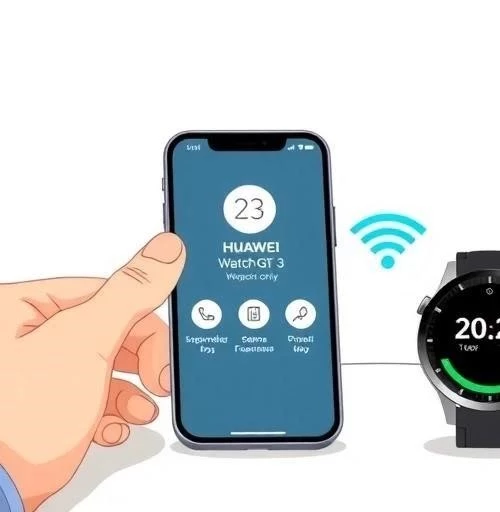
Pairing a Huawei Watch GT 3 with a phone is usually straightforward, but the order matters. The most reliable method is to use the Huawei Health app rather than trying to connect the watch from the phone’s Bluetooth settings first. The app guides pairing and then manages the watch’s connection, updates, health data, notifications, and other settings. Following the steps below helps avoid the common problem of a watch appearing in Bluetooth but not being properly added to the app.
Before you start
Check the following before pairing. A little preparation can prevent interruptions during setup:
- Charge the watch. It should have enough battery to complete setup and, if needed, install an update. Keep the phone and watch close together.
- Turn on Bluetooth on the phone. Keep the phone connected to the internet so the app can sign in, download components, or check for software updates.
- Install Huawei Health. Use a current version from a trusted source recommended for your phone and region. The app store available to you depends on your phone, country, and operating system. If the app is not listed in your usual store, consult Huawei’s official consumer support or app distribution instructions rather than downloading an unknown installer.
- Allow the requested permissions. Bluetooth or nearby-device access is essential. Depending on the phone and operating-system version, location access may also be requested for device discovery. Notifications, contacts, call history, and other permissions can be enabled when you choose the corresponding features.
- Have access to a HUAWEI ID if the app asks you to sign in. Sign-in requirements and available services can vary by region. Follow the prompts shown in the app.
Names of buttons and permission menus can differ slightly between Android versions, iOS versions, phone manufacturers, and app releases. If an instruction does not match your screen exactly, look for the equivalent option in the Huawei Health app or in your phone’s settings.
Step-by-step pairing
-
Switch on the watch. If it is new, press and hold the upper button until the Huawei logo appears. Select a language if prompted. Leave the watch on its setup or pairing screen. If it has already been set up, open its connection or pairing screen as directed by the watch.
-
Open Huawei Health on your phone. Complete any first-launch prompts, sign in if required, and allow the app to use Bluetooth or nearby-device access. Keep the app open while pairing.
-
Start adding a device in Huawei Health. Open the Devices tab, tap Add (or the plus icon), and choose the option to add a wearable. Select Smart watches and find HUAWEI WATCH GT 3 in the list. The exact wording can vary with the app version.
-
Choose how to find the watch. If the app offers nearby-device discovery, select the GT 3 when it appears. Alternatively, use the app’s scanning option to scan the QR code displayed on the watch, if one is shown; If scanning is unavailable, select the model from the list and follow the on-screen instructions.
-
Confirm the connection on both screens. The phone and watch may display a pairing request or matching confirmation code. Check that the request is for your watch, then confirm it in the app and on the watch. Do not approve a request you do not recognize.
-
Finish the setup. Wait for Huawei Health to show that the watch is connected. Follow prompts for software updates, account settings, health features, and permissions. Keep both devices close, with Bluetooth on, until setup is complete. If an update begins, avoid turning off either device or force-closing the app.
When pairing is successful, the GT 3 should appear in the app’s Devices section. The watch may take a short time to synchronize data or apply settings. A successful Bluetooth connection alone is not the whole setup: the watch should be visible as a managed device inside Huawei Health.
Why you should pair through Huawei Health
It may seem quicker to open the phone’s Bluetooth menu and tap the watch name. However, that can create a partial or confusing connection: the operating system may list the watch while Huawei Health still cannot manage it. The app is the intended place to add the wearable, confirm the pairing request, and configure functions. If you have already tapped the GT 3 in Bluetooth settings, cancel or forget that entry if necessary, then begin again from Huawei Health > Devices > Add. Do not keep approving repeated requests without checking which device is asking.
Android and iPhone: what to expect
Android phones
On Android, allow Bluetooth or nearby-device access when prompted. Depending on the Android release and phone brand, the system may also request location permission for discovery. Some phones restrict background activity to save battery, which can delay notifications or disconnect the app when it is closed. If the watch pairs but later stops syncing, allow Huawei Health to run in the background and review battery-optimization settings for that app. Menu names differ between manufacturers, so use the phone’s settings search if needed.
Install Huawei Health only through a source that Huawei or your phone’s platform identifies as appropriate for your region. If the app asks for an additional Huawei component, follow the in-app instructions and check that the prompt comes from a legitimate Huawei service. Avoid unofficial app packages: an outdated or modified app can fail to pair and may put your account or data at risk.
iPhone
On iPhone, install Huawei Health from a source available for your region, then start pairing from the app. When iOS asks for Bluetooth permission, allow it. If you denied it earlier, open the iPhone’s Settings, find Huawei Health, and enable Bluetooth access if that option is available. iOS can display pairing requests separately from the app, so read the prompt and confirm the one associated with your GT 3. Some features and their controls may differ between iOS and Android; check the options shown in Huawei Health rather than assuming every Android setting is available on iPhone.
Enable notifications, calls, and syncing
Pairing connects the watch, but it does not necessarily enable every feature. To receive alerts, open Huawei Health, select the GT 3 under Devices, and find the notification settings. Choose which apps may send notifications, then check that the phone itself allows those apps to display notifications. On Android, background and battery settings can also affect delivery. On iPhone, notification permissions are controlled both in iOS settings and in the relevant app.
For calls, look in the device settings in Huawei Health for the watch’s Bluetooth calling options. Follow the instructions displayed there; depending on the phone and software, a separate Bluetooth audio connection or confirmation may be involved. Allow access to contacts or call history only if you want the related function and understand the permission. If calls do not reach the watch, check that Bluetooth is on, the watch is connected, and call audio is routed to the intended device.
Health and fitness data usually syncs through Huawei Health when the watch and phone are connected and the app has the required permissions. Open the app and give it time to synchronize. If a reading or workout does not appear immediately, check the connection and refresh the app before repeating the pairing process. Re-pairing is not normally needed just because one sync is delayed.
Troubleshooting common pairing problems
The watch does not appear in Huawei Health
- Confirm that Bluetooth is on and that Huawei Health has Bluetooth or nearby-device permission.
- Move the watch close to the phone and make sure it is awake and on its pairing screen.
- Close and reopen Huawei Health, then try Devices > Add again. Restarting Bluetooth or the phone can also clear a temporary discovery problem.
- Check that the app is up to date and that your phone’s operating system supports the version of Huawei Health you installed.
- If the watch was paired with another phone, disconnect it there first. A watch that remains linked to a previous phone may not be available for a new setup.
The app finds the watch but pairing fails
Keep both devices close and confirm every pairing request on the correct screens. If the process times out, cancel the incomplete request on the phone and watch, then start again inside Huawei Health. If the GT 3 is already listed in the phone’s Bluetooth settings from an earlier attempt, use the phone’s option to forget that entry and retry through the app. Restart both devices if the same error continues.
The watch is connected but notifications do not arrive
First confirm that Huawei Health shows the GT 3 as connected. Then enable the desired apps in the watch’s notification settings and check that notifications are allowed for those apps on the phone. Make sure the phone is not in a mode that suppresses alerts and that Huawei Health is not being stopped in the background. Test with a new notification; old notifications may not be forwarded after setup.
The watch was paired to a different phone
Remove or disconnect the watch from Huawei Health on the previous phone if you still have access to it. Then add it from the new phone’s Huawei Health app. If the previous phone is unavailable or the watch cannot be released, consult the watch’s on-screen options and Huawei support before resetting it. A factory reset can erase information stored on the watch and should be a last resort, not the first troubleshooting step.
Disconnecting, changing phones, or resetting
To stop using the watch with a phone, remove it through Huawei Health’s device settings where possible, and also forget any remaining Bluetooth entry in the phone’s system settings. If you are changing phones, disconnecting cleanly first reduces the chance of the GT 3 trying to reconnect to the old device. A factory reset may be needed in some circumstances, but it erases local watch settings and data. Read the confirmation screen carefully and make sure anything important has synchronized before proceeding.
Quick checklist
- Huawei Health is installed from a trusted, region-appropriate source.
- Bluetooth is on, and the app has the permissions needed for discovery.
- The watch is powered on, nearby, and ready to pair.
- You start from Huawei Health > Devices > Add, not only from the phone’s Bluetooth menu.
- You confirm the pairing request on both devices and wait for the app to finish setup.
- You configure notifications and call options separately after pairing.
The dependable way to connect a Huawei Watch GT 3 to a phone is to install Huawei Health, grant the permissions needed for discovery, and add the watch from the app’s Devices tab. Confirm the request on both screens, allow setup or updates to finish, and then configure notifications and calling as separate features. If the watch is not detected, check permissions, distance, existing Bluetooth entries, and whether it is still linked to another phone before considering a reset. This app-first approach is more reliable than pairing from Bluetooth settings alone and makes it easier to manage the connection afterward.


4 Comments. Оставить новый
I appreciate that the article distinguishes essential permissions from optional ones. Permission requests can differ across phones and operating systems, so this qualification helps prevent readers from assuming every device will show identical prompts.
The advice to pair through Huawei Health rather than starting in the phone’s Bluetooth settings is especially useful. It explains why a watch may show as connected but still not be properly configured in the app.
This is a clear starting guide for pairing the Watch GT 3, and the note about changing button names is helpful. Since the supplied text ends during the app guidance, a complete version would benefit from including the actual pairing steps and troubleshooting advice.
The preparation checklist makes the setup process easier to follow, particularly the reminders to charge the watch, keep the devices nearby, and maintain an internet connection. Mentioning that app availability varies by region is also a sensible safety precaution.