
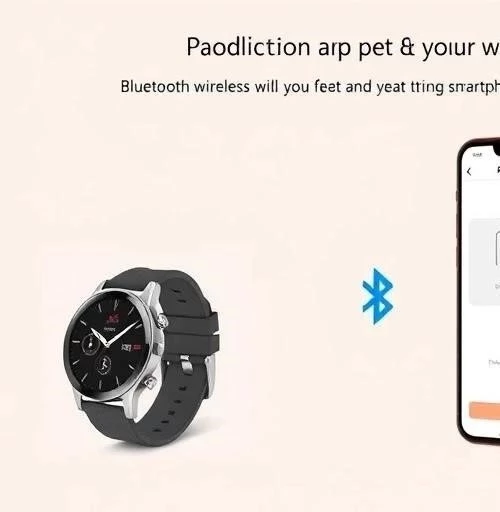
Pairing a Redmi Watch 3 Active with an iPhone is less like introducing two gadgets at a party and more like giving them a trusted interpreter. That interpreter is Mi Fitness, Xiaomi’s companion app. Start there—not in the iPhone’s Bluetooth menu—and the setup is usually straightforward.
Before you begin
- Charge the watch and keep it close to your iPhone.
- Connect the iPhone to the internet and turn on Bluetooth.
- Install Mi Fitness from the App Store. Check that the publisher is Xiaomi, then open the app and sign in or create a Xiaomi account if prompted.
- Make sure iOS and Mi Fitness are up to date. The watch is designed to work with iPhones running a compatible version of iOS; if the app reports that your phone is unsupported, update iOS before continuing.
If the watch has been used before, it may still remember another phone. Unpair it from that phone first, or reset it from the watch’s settings if you no longer have access to the old device. A watch that is still attached to its previous partner can be stubborn about meeting someone new.
Pair the watch through Mi Fitness
- Wake the watch. Press its side button and follow the first-run prompts until you reach the pairing screen. A QR code may appear.
- Open Mi Fitness on the iPhone. Accept the app’s setup prompts and allow Bluetooth access when iOS asks. If you see the QR code, use the app’s scan option. You can also choose Add device or the equivalent device-search option and select Redmi Watch 3 Active from the list.
- Confirm the match. The iPhone and watch may show a pairing code or confirmation request. Check that the codes agree, then approve the request on both screens. Keep the devices close while they connect.
- Allow the useful permissions. Depending on your iOS version and app settings, Mi Fitness may request access to Bluetooth, notifications, contacts, or other features. Approve only what you want to use; you can change permissions later in iPhone Settings.
- Finish setup in the app. Choose your preferences, such as activity goals, health measurements, and notification settings. Leave Mi Fitness open until initial syncing is complete.
One small but important detail: don’t begin by selecting the watch in Settings > Bluetooth. Let Mi Fitness initiate the first pairing. Starting in Bluetooth settings can create a partial connection—the devices appear acquainted, but the app may not recognize the watch or finish setup.
Get notifications and calls working
Pairing does not automatically mean every alert will appear on your wrist. On the iPhone, open Settings > Notifications and make sure the apps you care about are allowed to send notifications. Then open Mi Fitness, find the watch’s notification settings, and enable alerts for the chosen apps. Keep in mind that iOS controls what companion devices can display: the watch can show supported alerts, but it does not turn into a second iPhone, and replying to messages may be limited.
The Redmi Watch 3 Active supports Bluetooth calling, but calling features may need extra setup. In Mi Fitness, look for the watch’s call or Bluetooth-audio options and follow the prompts. If iOS displays a separate Bluetooth pairing request for call audio, approve it. If calls connect to the iPhone instead, check the iPhone’s Bluetooth device list and the watch’s call settings. For private conversations, remember that the watch has a speaker and microphone—answering on your wrist may not be as discreet as answering with earbuds.
For best results, allow Mi Fitness to run in the background and avoid force-quitting it after setup. If notifications stop, check that Focus or Do Not Disturb is not silencing them, and revisit the app’s permissions. Battery-saving settings can also interrupt background syncing.
If the connection refuses to cooperate
- Watch not found: Keep it beside the iPhone, confirm Bluetooth is on, and reopen Mi Fitness. If needed, restart both devices.
- Pairing fails or loops: Remove an incomplete watch entry from iPhone Bluetooth settings, then start again from Mi Fitness. If it was paired to another phone, disconnect it there first.
- The app cannot connect: On the iPhone, open Settings > Privacy & Security > Bluetooth and make sure Mi Fitness has permission. Menu names can vary slightly by iOS version.
- Alerts are missing: Check notification permissions in both iOS Settings and Mi Fitness, and make sure the individual app is allowed to send alerts.
- Still stuck: Update Mi Fitness, restart the phone, and reset the watch only as a last resort. A reset erases watch-side settings and means you’ll need to set it up again.
What to expect after pairing
Once connected, Mi Fitness is the bridge for syncing supported activity and health data, adjusting watch faces, and managing many settings. The exact features—and any available connection to Apple Health—can depend on the app version, iOS version, and region. Don’t assume every Android feature behaves identically on an iPhone.
When the watch appears as connected inside Mi Fitness and a test notification reaches your wrist, the introduction is complete. Keep the app installed, leave Bluetooth enabled, and let the watch sync now and then. Your Redmi is ready to keep time, track your day, and quietly tap your wrist when your iPhone has something to say.
1 Comment. Оставить новый
A refreshingly practical guide—and the “trusted interpreter” image makes the setup feel less like wrestling with Bluetooth and more like arranging a diplomatic introduction. The reminder about an old pairing is especially useful: sometimes the newest connection is blocked by a device that never quite said goodbye.