
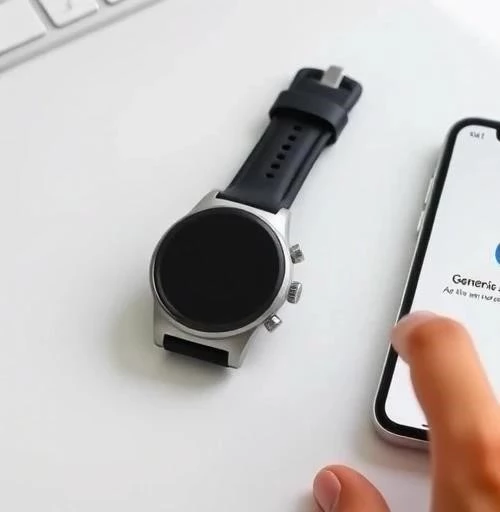
“Watch 8” can refer to different watches, but it often means the Samsung Galaxy Watch8. The steps below focus on that model and similar Bluetooth smartwatches. The exact menus can vary with your phone, watch software, region, and whether you have a Bluetooth or LTE version. In most cases, the reliable approach is to pair the watch through its companion app—not through the phone’s Bluetooth menu alone.
Before you begin
- Check compatibility. Samsung Galaxy Watch8 uses Wear OS and generally requires a compatible Android phone. It does not pair with an iPhone. Other products called “Watch 8” may support different phones, so check the manufacturer’s instructions if yours is not a Samsung watch.
- Charge both devices. Give the watch enough power to complete setup, and keep it close to the phone. A weak battery or long distance can interrupt pairing.
- Prepare the phone. Turn on Bluetooth and Wi-Fi, make sure the phone has internet access, and install available system updates. Location permission may also be needed during setup to discover nearby devices.
- Install the official app. For a Samsung Galaxy Watch8, download or open Galaxy Wearable from Google Play. Install any additional Samsung or Google components the app requests. Avoid unofficial pairing apps.
Pair the watch with an Android phone
- Turn on the watch. Press and hold its Home/Power button until the Samsung logo appears. Choose your language and follow the introductory prompts. If the watch has already been set up, you may need to reset it before pairing it as a new device.
- Open Galaxy Wearable. On the phone, launch the app and tap Start, Add new device, or the plus icon. Allow Bluetooth, nearby-device, and other requested permissions. The wording depends on the Android version.
- Select your Watch 8. When it appears in the device list, tap its name. If several watches are nearby, check the model shown on the watch screen before choosing.
- Confirm the pairing code. A code should appear on both the phone and watch. Make sure the numbers match, then confirm on both devices. This confirms that you are connecting to the intended watch.
- Complete setup in the app. Accept the requested terms, sign in to a Samsung or Google account if prompted, and choose settings such as diagnostics, notifications, and location. The watch may download software and restart. Keep it near the phone and do not close the app during this process.
- Choose what to sync. Follow the prompts to select contacts, calendar access, notifications, and health features. Grant only permissions you want the watch to use; some functions, such as calls, messages, or health tracking, may not work fully without the relevant access.
When setup finishes, the watch should appear on Galaxy Wearable’s home screen, and a connected indicator should be visible in the app or watch settings. Keep Bluetooth enabled for routine synchronization. You can usually change watch faces, app notifications, and other options from the companion app.
If the watch does not appear or pair
- Check the basics first. Bring the devices within a few feet of each other, turn Bluetooth off and on, and restart both devices. Make sure the watch is not already connected to another phone.
- Use the companion app. If you started pairing in Android Bluetooth settings, cancel that attempt and begin again in Galaxy Wearable. A partial Bluetooth connection may prevent the app from completing setup.
- Check permissions and updates. In the phone’s settings, allow Galaxy Wearable to find nearby devices. Install app and phone updates, then reopen the app. If a code appears, verify that it matches on both screens rather than accepting a different code.
- Remove an old connection. If the watch was previously paired with this phone, open Bluetooth settings and forget the old watch entry, then try again in Galaxy Wearable. If it belonged to another phone, disconnect it there first when possible.
- Reset only as a last resort. A factory reset can erase information stored on the watch. Back up anything important first, then use the watch’s Settings app to find the reset option, or follow the manufacturer’s current instructions. Afterward, pair it as a new device.
Calls, notifications, and LTE
Pairing does not automatically guarantee that every feature is ready. To receive alerts, enable the desired apps in Galaxy Wearable’s notification settings and make sure Android is not blocking their notifications. For Bluetooth calling, allow call and contacts access when prompted and keep the phone within Bluetooth range. The first synchronization may take several minutes.
An LTE Watch 8 can use mobile service away from the phone only after a compatible carrier plan is activated. Pairing the watch does not itself provide cellular service. Use the carrier or watch-app setup flow, and check that your carrier supports the exact watch model and region. Bluetooth versions do not have independent mobile connectivity.
Keeping the connection stable
Leave Bluetooth enabled, keep Galaxy Wearable and the watch software up to date, and avoid force-stopping the companion app if synchronization is unreliable. If the watch disconnects, check that airplane mode is off on both devices and that battery-saving settings are not restricting Bluetooth or the app. Reopen Galaxy Wearable before repeating setup. These checks usually resolve routine connection problems without deleting your data.
In short: charge and prepare the devices, start setup in the correct companion app, confirm the matching code, and complete permissions and account prompts. If your product is a different “Watch 8,” use its official app and compatibility guide, because the name alone does not identify a universal pairing method.

8 Comments. Оставить новый
The article appropriately notes that menus and permissions can vary by Android version and region. That caveat makes the instructions more realistic than presenting one exact interface as universal.
I appreciate the practical preparation checklist. Charging the devices, keeping them close, and checking the phone’s connection are small steps that can prevent common setup interruptions.
Recommending Galaxy Wearable rather than relying only on the phone’s Bluetooth menu is a helpful distinction. It gives readers a clear starting point and discourages unofficial apps.
The provided text appears to end while describing the pairing-code step, so the final confirmation process is not shown here. The guidance up to that point is clear, but completing the instructions would help readers finish setup confidently.
The note about resetting a watch that has already been set up is valuable, since readers may otherwise wonder why it does not appear as a new device. A warning to back up anything important before resetting could make this advice even stronger.
The guide starts with an important clarification: “Watch 8” can refer to different devices. Identifying the Samsung Galaxy Watch8 as the main example helps readers avoid applying the wrong pairing instructions.
The numbered sequence from powering on the watch to selecting it in the app is easy to follow. Confirming the model before choosing is also a sensible safeguard when multiple devices are nearby.
The compatibility warning is especially useful because it makes clear that the Galaxy Watch8 does not pair with an iPhone. That detail can save readers time before they begin setup.