
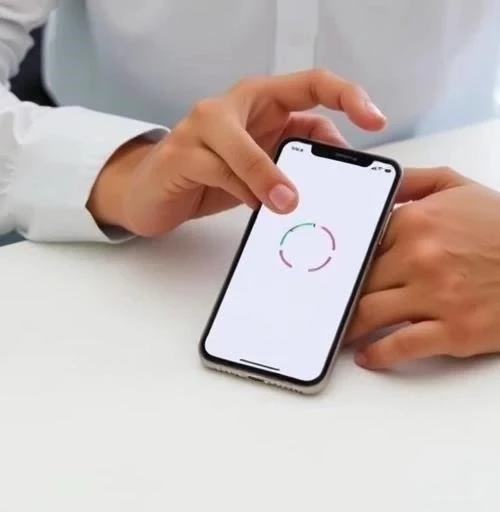
Pairing an Apple Watch with an iPhone is usually quick. Before you begin, check that your iPhone is compatible with your watch and has the latest iOS version it supports. Keep both devices close together, turn on Bluetooth and Wi-Fi on the iPhone, and make sure the watch has charge. If the watch is already set up, you may need to erase it or unpair it from its previous iPhone first.
Pair your watch
- Turn on the Apple Watch by pressing and holding the side button until the Apple logo appears. Wait for the welcome screen.
- Unlock your iPhone and hold it next to the watch. A prompt to set up the watch should appear. Tap Continue. If it does not, open the Watch app on your iPhone, tap All Watches, then choose Add Watch or Pair New Watch.
- Tap Set Up for Myself (or choose the family setup option if available). When an animation appears on the watch, position it inside the frame shown in the iPhone’s camera.
- If the camera cannot scan the animation, tap the option to pair manually. Select the watch’s name on your iPhone and enter the code shown on the watch.
- Choose Set Up as New Apple Watch or restore from a backup if offered. Follow the prompts to sign in with your Apple Account, set a passcode, and choose your preferences.
- Review settings such as Location Services, Siri, and Activity. You can accept the suggested settings or adjust them. Then wait while the iPhone syncs apps and information to the watch. Keep the devices close and on power if possible; syncing can take a while.
If the pairing prompt does not appear
Open the Watch app yourself and start pairing from there. Check that Airplane Mode is off and that Bluetooth and Wi-Fi are enabled. Restart both devices, place them beside each other, and try again. Make sure the iPhone is unlocked and connected to a network if setup requests one. If your iPhone asks you to update software, install the update and retry.
If the watch was paired before
A watch linked to another iPhone may need to be unpaired first. On the old iPhone, open the Watch app, tap All Watches, tap the information button beside the watch, then select Unpair Apple Watch and follow the instructions. This removes the pairing and can create a backup. If you no longer have the old iPhone, erase the watch from its Settings app, if accessible, then start pairing again. Activation Lock may still require the Apple Account previously used with the watch; erasing alone does not remove it.
After setup
Keep the devices near each other until syncing finishes. In the Watch app, you can manage notifications, install compatible apps, adjust watch faces, and change settings later. If pairing repeatedly fails, update and restart the iPhone, charge the watch, and try again. For persistent Activation Lock, compatibility, or hardware issues, contact Apple Support.


9 Comments. Оставить новый
A useful step-by-step guide that makes the setup process feel much less intimidating.
A straightforward guide with sensible reminders about compatibility, updates, and keeping the devices nearby.
Clear and practical instructions. I especially appreciate the reminder to keep the watch and iPhone close while they sync.
The troubleshooting tips are helpful for anyone who does not see the pairing prompt right away.
This is easy to follow, even for a first-time Apple Watch owner. The advice to restart both devices is useful too.
I like that the article explains both the camera pairing method and the manual alternative.
Helpful overview of what to expect during setup, including restoring from a backup and choosing preferences.
The troubleshooting section adds practical value beyond the basic pairing steps.
The preparation checklist is a nice touch. Checking the battery, Bluetooth, and Wi-Fi beforehand can save time.