
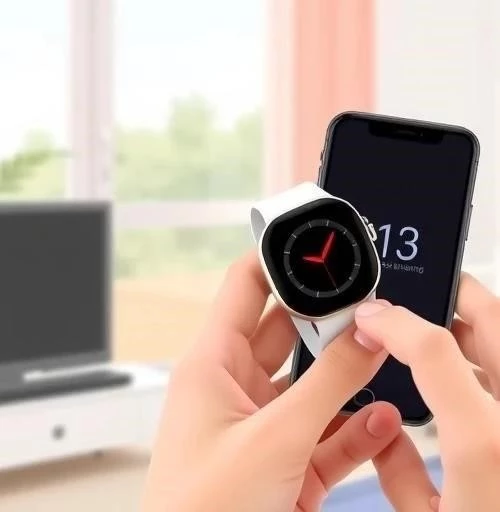
Apple Watch Series 7 is paired with an iPhone through Apple’s Watch app․ The process guides you through pairing‚ choosing settings and‚ if needed‚ updating the watch software․ Menu wording may vary slightly depending on your iOS version․
Before you begin
- Check that your iPhone is compatible with Apple Watch Series 7 and is running an iOS version supported by the watch․ Compatibility requirements can change‚ so update iOS and check Apple’s current requirements if pairing is unavailable․
- Turn on Wi-Fi and Bluetooth on the iPhone‚ and connect it to the internet․ Keep Airplane Mode off․
- Charge both devices or make sure they have sufficient battery․ Keep the watch and iPhone close together during setup․
- Have your Apple Account password available․ It may be requested to sign in or confirm Activation Lock․
Pair the watch with your iPhone
- Turn on Apple Watch Series 7 by pressing and holding the side button until the Apple logo appears․ Wait for the welcome screen․
- Unlock the iPhone and open the Watch app․ If it is not on the Home Screen‚ search for “Watch” in the App Library or use iPhone Search․ You do not need to start pairing from the Settings app․
- Tap All Watches‚ then Add Watch‚ if prompted․ Otherwise‚ tap Start Pairing․
- When the pairing animation appears on the watch‚ hold the iPhone over it so the animation is inside the viewfinder․ Keep both devices still․ If the camera cannot recognize it‚ tap Pair Apple Watch Manually and follow the on-screen instructions․
- Choose Set Up as New Apple Watch or restore from a backup if one is offered․ A backup can bring back supported settings and data from a previous watch․
- Follow the prompts to sign in‚ accept the terms‚ set a passcode and choose preferences․ You can configure features such as Location Services‚ Siri‚ Activity and notifications during setup or later․
- Review the available apps and settings‚ then wait while the iPhone syncs with the watch․ Keep the devices near each other and connected to power if possible․ The process may take several minutes․
After pairing
When setup is complete‚ the watch face appears and the Watch app shows the paired watch․ Open the app to adjust notifications‚ install compatible apps‚ change watch faces and manage settings․ To receive alerts‚ check that notifications are enabled for the relevant iPhone apps․ Some alerts may appear on either the iPhone or the watch‚ depending on whether the phone is locked or in use․
If pairing does not work
- Confirm that Bluetooth and Wi-Fi are on‚ the iPhone has internet access‚ and both devices are close together․ Restart both devices and try again․
- If the Watch app reports a software or compatibility issue‚ install available iPhone updates and follow the update instructions shown during pairing․
- If the watch was previously used‚ it may need to be erased before setup․ If Activation Lock appears‚ the Apple Account previously associated with the watch must be entered‚ or its former owner must remove the watch from their account․
- If the watch shows a normal clock face instead of the pairing screen‚ it may already be paired․ Unpair it from the previous iPhone‚ if available‚ or erase it from the watch’s settings before starting again․ Erasing removes data stored on the watch․
Once paired‚ Apple Watch Series 7 reconnects to the iPhone automatically when both devices are on and within range․ If the connection drops‚ check Bluetooth‚ restart the devices and open the Watch app to review their connection status․
1 Comment. Оставить новый
The guide clearly outlines the main pairing steps and preparation requirements. Its reminder to check current compatibility information is useful, since supported iPhone and iOS versions may change.