
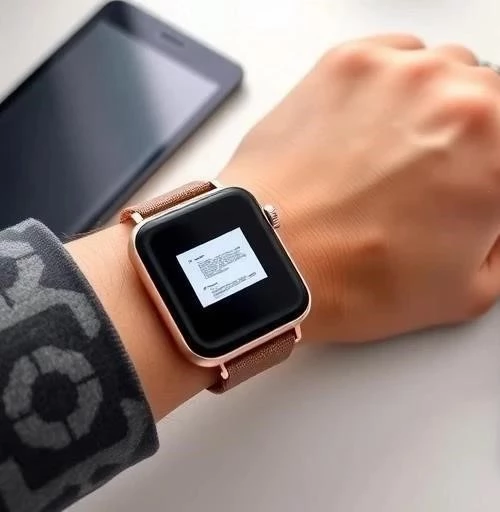
Short answer: Apple Watch does not include a built-in Files or PDF reader‚ so you usually cannot open a PDF on the watch as you would on an iPhone. The practical options are to use a compatible watch app or turn the document’s pages into images and view them in Photos. Which method is best depends on whether you need to read a few key pages or work with a long‚ detailed document.
Option 1: Use a PDF app that supports Apple Watch
Some third-party document or PDF apps offer a watchOS companion app. If yours does‚ it may let you transfer a document from your iPhone and display its pages on your watch. This is the most direct approach‚ but support and features differ: an app may show only selected pages‚ require a paid plan‚ or need the iPhone nearby for setup or syncing. Check the app’s current App Store listing for Apple Watch compatibility before relying on it.
- On your iPhone‚ open the App Store and look for a PDF or document reader that explicitly lists an Apple Watch app.
- Install the iPhone app and its watchOS component. If the watch app does not install automatically‚ open the Watch app on your iPhone‚ go to My Watch‚ and install it there if available.
- Import the PDF into the iPhone app using its share or import option. Follow the app’s instructions to sync or select the document for the watch.
- Open the reader on Apple Watch and select the document. Use the app’s controls to move between pages or zoom‚ if those controls are offered.
App menus and syncing steps vary‚ so use the developer’s instructions if the PDF does not appear. A PDF stored in the iPhone Files app does not automatically become readable on Apple Watch: the watch has no general-purpose Files app that opens arbitrary documents.
Option 2: Convert pages to images and view them in Photos
For a short handout‚ ticket‚ checklist‚ or a few reference pages‚ images can be a simple workaround. Apple Watch can show photos synced from an iPhone‚ although it does not treat those images as a searchable‚ scrollable PDF. You will be viewing page pictures rather than the original document.
- On your iPhone‚ open the PDF in a reader such as Files or Books.
- For each page you need‚ take a screenshot. On many iPhones‚ press the Side button and Volume Up together; the exact controls can vary by model.
- Crop each screenshot so the page fills the image‚ and save the images to Photos. Keep the original page order clear.
- In the iPhone Watch app‚ open Photos and choose a synced album‚ if that setting is available on your watchOS version. Add the page images to that album.
- Allow the album to sync‚ then open Photos on Apple Watch and tap an image to view it. Turn the Digital Crown or use the screen controls to zoom where supported.
For better readability‚ make one image per page rather than squeezing several pages into one picture. Still‚ small print may remain difficult to read on the watch’s compact display. You may need to crop a page into several enlarged images‚ but remember that doing so makes it easier to lose your place. Avoid this method for large PDFs: it takes time‚ uses photo storage‚ and does not preserve features such as text search‚ selectable text‚ or clickable links.
Can you open a PDF from Mail or Messages?
You can try tapping a PDF attachment in Mail or Messages on the watch‚ but attachment support depends on the file‚ watchOS version‚ and available app features. A message appearing on the watch does not guarantee that its PDF can be opened there. If the attachment will not display‚ open it on the paired iPhone and use one of the methods above. Do not assume that sending the PDF to yourself through email or Messages will convert it into a watch-readable document.
Why the iPhone is often the better choice
Apple Watch is designed for quick checks‚ not comfortable document reading. Its small screen makes dense layouts‚ tables‚ footnotes‚ and long paragraphs awkward to navigate. A watch app or image workaround can be useful when you need a few lines at a glance‚ such as a short instruction or appointment detail. For reviewing a contract‚ studying a report‚ or searching a lengthy manual‚ the iPhone or iPad is more reliable and easier on your eyes.
Troubleshooting
- The reader is missing: Confirm that the app offers a watchOS version and that it is installed through the Watch app.
- The PDF is not syncing: Keep the iPhone and watch near each other‚ check that both have a connection when the app requires one‚ and follow the app’s sync instructions.
- Photos do not appear: Check the selected album in the Watch app‚ allow time for syncing‚ and make sure the images are saved in Photos rather than only visible in a PDF reader.
- The page is unreadable: Zoom or create a larger crop on the iPhone. If the page still cannot be read comfortably‚ use the phone instead.
Bottom line
There is no universal built-in way to open any PDF directly on Apple Watch. Use a third-party reader only when it specifically supports watchOS; for a few essential pages‚ synced screenshots in Photos can work. For the complete document and dependable reading‚ open the PDF on your iPhone or another larger screen.


9 Comments. Оставить новый
This is a clear, practical explanation of why opening a PDF directly on Apple Watch is not always possible. I especially appreciate the distinction between using a dedicated watch app and viewing converted page images, since the better choice depends on how much detail the document contains.
A useful overview that explains both the available workarounds and their limits. The advice to check current App Store compatibility is important because app support can change.
The guidance is measured and avoids promising that every third-party app will offer the same features. Mentioning possible paid plans and iPhone setup requirements gives a more balanced picture.
This article answers the main question directly and then offers options based on the document type. Its emphasis on choosing images for only a few key pages helps readers avoid expecting a small watch screen to handle a long document comfortably.
I found the explanation of the Files app limitation particularly useful. It clarifies that saving a PDF on an iPhone does not automatically make it available as a readable document on the watch.
The article sets realistic expectations by noting that PDF apps differ in their watch features and syncing requirements. Checking compatibility before installing an app is sensible advice and could save readers time.
The step-by-step instructions make the app option approachable, especially for someone unfamiliar with installing watchOS components. It would be helpful to remember that syncing details can vary, as the article notes.
This is helpful for readers who only need occasional access to a ticket or short reference sheet. The reminder that Photos displays images rather than functioning as a full PDF reader makes the workaround easier to understand.
The two approaches are organized around practical needs rather than presented as equally suitable for every situation. A dedicated reader sounds more appropriate for navigating a document, while images may work better for a few pages.