
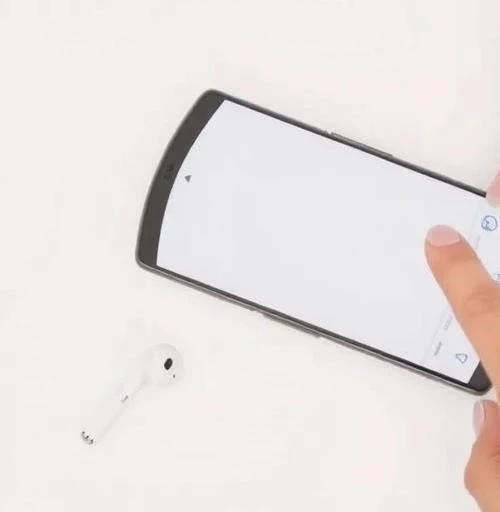
If music has disappeared from a Xiaomi phone, the safest first step is to find out whether the files are missing or merely hidden from the music player․ These are different problems and need different solutions․ A song that no longer appears in Xiaomi Music may still be present in storage, while a deleted file may need to be restored from a backup or, in some cases, recovered from a memory card․ Do not start with a factory reset or install several “recovery” apps: either action can make a recoverable file harder to retrieve․
First, check whether the songs are really gone
- Restart the phone․ A temporary media-scanning problem can prevent new or existing audio files from appearing in an app․ After restarting, open the music player and refresh or rescan its library if that option is available․
- Search in File Manager․ Open Xiaomi’s File Manager and look in folders such as
Music,Download,Bluetooth, and the folders used by the app that downloaded the tracks․ Folder names and locations vary by Android, MIUI, and HyperOS version․ Search by part of a song’s name or by a file type such as MP3, M4A, or FLAC․ - Check the storage location․ If the phone uses a microSD card, look for the tracks on the card as well as in internal storage; In File Manager, confirm that the card is mounted and has not become read-only or disconnected;
- Try another audio player․ If a file opens in another player, the music is likely still on the phone; the issue may be Xiaomi Music’s library, filters, or permissions rather than deletion․
Also make sure that you are looking at the right account and device․ A streaming app may show a playlist without storing playable songs as ordinary audio files․ Some services allow offline downloads only inside their own app; those downloads are often protected and cannot be restored by copying an MP3 from File Manager․ Sign in to the same account and check the service’s library and download settings․
If the files are present but do not appear in Xiaomi Music
Music players build a library by scanning storage․ That scan can miss files when the app lacks access, the files are in an unexpected folder, or Android has not updated its media index․ First, open the player’s settings and look for options such as Scan music, Refresh library, or folder selection․ The exact wording differs between app versions․
Next, review the app’s permissions in Settings > Apps > Manage apps > Music > App permissions, or the closest equivalent on your phone․ Allow the relevant music or file access if it is denied․ Android versions use different permission labels, and some versions offer more limited access to media than others․ Close and reopen the app after changing a permission․
Check whether a file is hidden from media scanning․ A folder containing a file named ․nomedia may be excluded from music and gallery indexes․ If you find one in a folder that should contain visible songs, remove it only if you understand why it is there; it may have been placed intentionally to keep private audio out of media apps․ Then restart the phone or rescan the library․ Also check that the player is not filtering out a folder, a format, or short audio files․
If only a few tracks are missing, inspect their file extensions and sizes․ A zero-byte file or an incomplete download may be damaged, and a format unsupported by the player may not appear or play correctly․ Try opening a copy in a reputable player that supports the format․ Do not rename a file to a different extension as a repair method: changing “․m4a” to “․mp3,” for example, does not convert its audio data․
Restore deleted songs from a backup or download source
Before using recovery software, check the places where the music originally came from․ This is usually safer and more successful than attempting to recover deleted data from a modern Android phone․
- Downloads and file-manager trash: Look in the original download folder and any Trash, Recently deleted, or Recycle bin section offered by the file-management app․ Availability and retention periods vary․ Not every Xiaomi phone or File Manager version has a trash feature, and emptying it may permanently remove its contents․
- Cloud storage: Check Google Drive, OneDrive, Dropbox, or another service you used to upload the tracks․ Look in that service’s trash as well as its main folders․ A file may be recoverable there even if it has disappeared from the phone․
- Computer or external drive: Search old phone-transfer folders, music libraries, USB drives, and backups on a computer․ If you find the songs, copy them back to a folder such as
Musicusing a USB cable․ On the phone, choose file transfer when prompted, and safely eject the device when finished․ - Original source: Download purchased or freely available music again from the store or website where you obtained it․ For tracks managed by a streaming service, reinstall or sign in to that service and download them within its app if your subscription permits offline listening․
- Messaging apps: If a song was sent through a chat, check the conversation’s media or file section and download it again․ The sender may need to resend it if the attachment has expired or is no longer available․
Do not assume that a general phone backup contains every audio file․ Backup services differ: some save settings and selected app data but not all music stored locally, and a backup may not include protected offline downloads․ Before restoring a backup, inspect its contents and date․ A full-device restore can replace newer data, so copy current photos, documents, and other important files somewhere safe first․
Check Xiaomi Cloud and other synced libraries carefully
Open the cloud service and account you actually used, then look for the music files or a deleted-items area․ Xiaomi Cloud features, supported data types, and availability can differ by region, account, and software version․ It should not be treated as an automatic archive of every song on the phone․ Likewise, Google Photos is designed primarily for photos and videos; it is not a dependable backup location for ordinary audio files․ Confirm that the specific tracks are present in the cloud before relying on a restore․
If the songs were stored in a synced folder, check whether sync is paused, the phone is using a different account, or the files were deleted on another device․ In a synchronization service, deleting a file on one device can sometimes delete it elsewhere too․ Use the service’s web page or another signed-in device to verify what remains before changing sync settings․
What to do if a song was deleted from internal storage
If there is no backup, stop using the phone as much as practical․ Avoid recording video, downloading large files, installing recovery apps, or copying new data onto the same storage․ New data can occupy space previously used by deleted files․ Keep the phone charged, but do not perform a reset or unlock the bootloader in an attempt to recover music․
Recovery from a modern Xiaomi phone’s internal storage is uncertain․ Android commonly encrypts user data, and storage systems may quickly mark deleted blocks for reuse․ Many phone recovery apps cannot access raw internal storage without special privileges and may promise results they cannot deliver․ Rooting or unlocking a device can erase data, weaken security, or make the situation worse․ If the files are irreplaceable, consult a reputable data-recovery specialist before experimenting, and ask what recovery is realistically possible for your model and Android version․
A microSD card is a different case․ If music was deleted from the card, stop saving anything to it and remove it safely․ A computer-based recovery tool may be able to scan the card, but recovery is not guaranteed․ Save recovered files to the computer or another drive, not back onto the card being scanned․ If the card is physically damaged, repeatedly connecting it may worsen the damage; professional help is safer․
If music vanished after an update or file move
An update may change app permissions, reset a library filter, or alter how folders are indexed without deleting the audio itself․ Search storage first, then restore the music app’s access and rescan․ If you moved songs between internal storage and a card, check both locations and verify that the move completed; a disconnected cable or interrupted transfer can leave only part of a collection copied․
If the player crashes or still shows an empty library while File Manager confirms that files exist, try clearing the music app’s cache, then restart it․ In Settings, open the app’s storage options and choose clear cache, not clear data, unless you understand the consequences․ Clearing app data can remove app preferences and locally stored information, although it normally does not delete ordinary music files saved elsewhere․ Avoid clearing media-storage system data or resetting the phone as an early troubleshooting step․
How to put restored tracks back on the phone
Once you have a safe copy, place ordinary audio files in a clearly named folder, such as Music․ You can transfer them from a computer by USB, download them from your cloud account, or copy them from a microSD card․ Wait for the transfer to finish, check that the file sizes look plausible, and open one or two tracks before deleting any other copy․ Then refresh the music library․ If the player offers folder selection, include the folder where you placed the songs․
If tracks are DRM-protected or were downloaded for offline playback, restore them through the original service instead of copying app folders․ Such files may depend on a licence, account, subscription, or device authorization and may not work in another player even when their data is present․
Prevent the same loss in the future
- Keep a second copy of important music on a computer, external drive, or cloud service that explicitly stores audio files․
- Periodically check that the backup contains actual playable tracks, not merely playlists or links to streaming content․
- Before deleting folders or formatting a memory card, open a few files from the backup and confirm it is complete․
- Use a reliable cable and wait for transfers to finish before disconnecting the phone․
- Keep purchased music receipts or source links so you can download eligible tracks again․
Quick decision guide
Files appear in File Manager but not in Xiaomi Music: check permissions, folder filters, ․nomedia, supported formats, and rescan․ Files are absent but were downloaded or shared: check the original app, trash, cloud storage, computer, and sender․ Files were deleted from internal storage with no backup: minimize phone use and understand that recovery may not be possible․ Files were deleted from a microSD card: stop using the card and attempt recovery to a different drive or ask a specialist․
The key is to identify where the music was stored before taking action․ A missing library entry is often fixable without recovering any data at all; a deleted file is best restored from its original source or a verified backup․ By checking those options first and avoiding resets or untrusted recovery apps, you protect the remaining data while giving yourself the best realistic chance of getting the music back․

9 Comments. Оставить новый
The article avoids assuming that every song missing from Xiaomi Music has been deleted. That careful distinction should save readers time and reduce the chance of installing questionable recovery apps unnecessarily.
Checking whether another player can open a track is a straightforward way to narrow down the cause. If it works elsewhere, the reader can focus on the music app’s library, filters, or permissions.
The explanation of streaming downloads is especially helpful. Offline tracks inside a music service are not necessarily regular audio files, so checking the correct account and app is a sensible part of the diagnosis.
This is a practical approach because it starts with low-risk checks. Restarting and refreshing the library are reasonable first actions before attempting recovery, which could otherwise complicate the situation.
The section about microSD cards adds an important troubleshooting step. A card that is unmounted or read-only could make songs seem to have vanished even though the files have not been deleted.
The advice is clear and appropriately cautious. I would follow the suggested checks in order, especially confirming storage locations and backups before making changes that could reduce the chance of recovering deleted files.
Searching by file type as well as by song title is a good suggestion. It gives readers another way to locate tracks when filenames have changed or are not remembered.
The distinction between missing files and a library-scanning problem is useful. Checking File Manager before trying recovery tools can prevent unnecessary steps and help protect files that may still be on the phone.
I appreciate the warning against a factory reset. It is sensible to first search common folders and test a file in another player, since those checks can reveal whether the issue is with the music app rather than the audio files.