
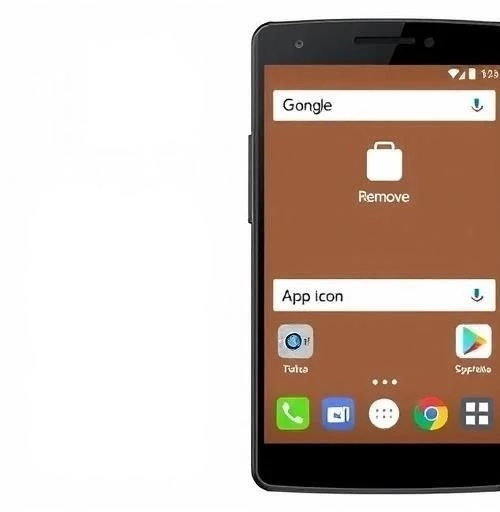
Your Xiaomi home screen is a tiny stage: apps take their places, widgets build scenery, and shortcuts sometimes linger after the show is over. The good news is that removing an icon is usually simple—and it does not have to delete the app itself. The exact labels may vary between MIUI, HyperOS, Redmi, POCO, and Xiaomi models, but the basic gestures are much alike.
First, know what you are removing
A shortcut is an icon that opens an app. Removing it from the home screen generally leaves the app installed and available in the app drawer or Settings. Uninstalling, by contrast, removes the app and its data. Xiaomi may show both actions while you press an icon, so read the label before letting go. If you only want a tidier screen, choose Remove, not Uninstall.
Remove an ordinary app shortcut
- Unlock the phone and find the icon you want to clear away.
- Touch and hold it for a moment, until the screen responds with a menu, a small vibration, or a movable icon.
- Look for Remove, a bin symbol, or a remove area near the top or bottom of the display.
- Drag the icon onto that option, or tap Remove in the pop-up menu.
The icon should disappear, while the app stays on your phone. On some versions, a long press opens a compact menu with options such as App info, Edit, and Remove. On others, the icon lifts immediately and must be dragged. Keep your finger on it until the remove target appears; Xiaomi’s interface can be a little like a stagehand who waits for the spotlight before moving the scenery.
If the phone offers only “Uninstall”
Do not confirm if keeping the app matters. Cancel the menu and try a longer press or drag the icon toward the edge or top of the screen. Depending on the launcher version, Remove may appear only while you are dragging. If there is truly no remove option, check whether the icon belongs to a system app or whether the home-screen layout is locked.
When the layout will not let you move anything
A locked layout can make icons feel glued in place. Open Settings and search for Lock Home screen layout or Home screen. The setting may be under Home screen in Settings, or behind a long press on an empty patch of the desktop followed by the settings gear. Turn off the layout lock, return to the home screen, and try the long-press gesture again. Menu names differ slightly across MIUI and HyperOS releases.
Remove a widget, folder, or web shortcut
Widgets: Press and hold the widget, then choose Remove or drag it to the remove target. This removes the panel from the screen, not the app that supplied it.
Folders: Open the folder and move its app icons out, or press and hold an icon inside it and select Remove. If you remove the folder itself, its apps usually return to the home screen rather than being uninstalled. Check where the icons land before rearranging the screen.
Website shortcuts: Hold the shortcut and remove it just like an app icon. The saved page or browser bookmark should remain in the browser; the home-screen link is only a convenient doorway.
Can’t find the app after removing its icon?
Swipe up to open the app drawer, if your launcher uses one, and search for the app. If there is no drawer, swipe across the home-screen pages. You can also go to Settings > Apps > Manage apps and search by name. If the app appears there, it is still installed. If you hid it earlier, search Settings for Hide apps or App lock and review the hidden-app list; restoring a hidden app is different from adding or removing a shortcut.
Special case: a system app
Some preinstalled Xiaomi apps may not offer a normal removal option. If you merely want the icon out of sight, use Remove when available, or look for an official hide-app setting. Do not disable or delete a system package just to clean the desktop: it can affect permissions, updates, or other phone features. Advanced tools such as ADB are meant for removing or disabling packages, not for the simple job of clearing one shortcut.
Quick checks if nothing changes
- Make sure you are pressing the icon itself, not an empty area beside it.
- Turn off the home-screen layout lock and try again.
- Restart the phone if the launcher seems frozen, then repeat the gesture.
- Check whether you are editing the correct home-screen page or a folder.
The safest rule: if your goal is a cleaner screen, remove the shortcut and leave the app installed. One small icon can exit the stage without taking the whole performance with it.

7 Comments. Оставить новый
A practical little map through Xiaomi’s shifting menus. The reminder to read the button label before letting go could save a lot of “where did my app go?” panic.
A friendly guide that respects the difference between a clean screen and a missing app. The stage metaphor gives an ordinary settings task a little sparkle without burying the instructions.
The best part is the distinction between clearing an icon and deleting the app. Those two actions can look like neighboring doors; this article wisely tells readers which one not to open.
Useful advice for anyone whose home screen has become a crowded attic. The notes about MIUI, HyperOS, Redmi, and POCO also set sensible expectations for menu differences.
I like the stagehand comparison—it captures that brief, oddly theatrical pause while the remove target appears. Clear instructions, with just enough personality to make them stick.
This turns a small phone chore into a calm, step-by-step ritual. I especially appreciate the warning not to confirm “Uninstall” when the goal is only to tidy up.
The “tiny stage” image makes a surprisingly useful guide: a shortcut is scenery, not the actor. I’m glad the article draws that distinction before anyone accidentally uninstalls an app.